
Printcore WALKTHROUGH

Public Stores

← All walkthroughs
Step 1 of 11Public Stores

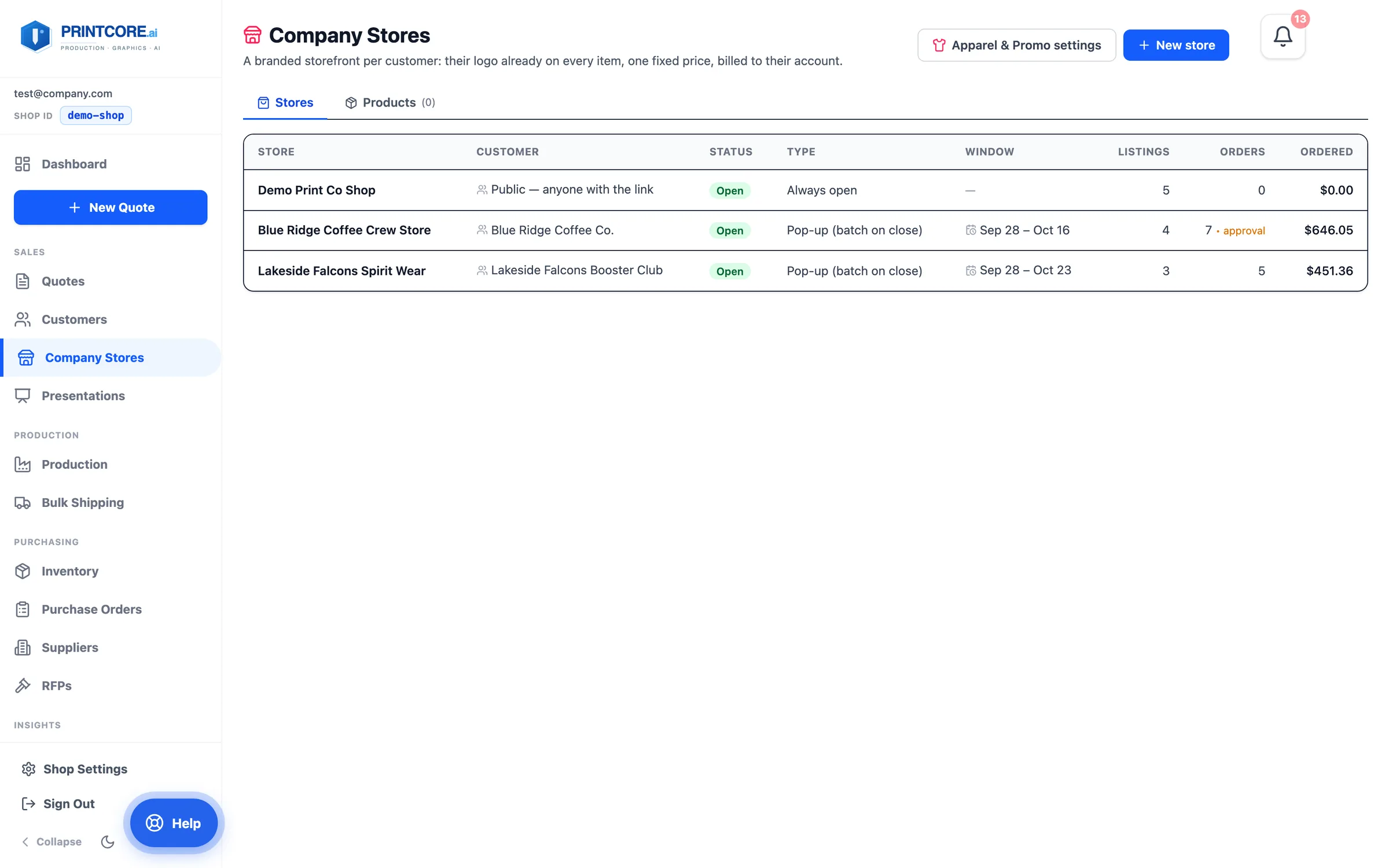
A store for anyone, not one customer

A public store is a storefront you link from your own website, an email or social media. Anyone who opens the link can shop: there's no sign-in, no passcode and no invitation. It sits beside your customer stores in Company Stores, marked Public — anyone with the link. Company stores are part of Pro, Studio and Enterprise.
app.printcore.ai/stores
A store for anyone, not one customer
The public store

What to do

Open Company Stores in the sidebar. If you haven't built a customer store yet, the Company Stores walkthrough covers listings, pricing and logos in detail.

Why it matters

You can sell your own shirts, caps, signs or stock items to walk-up and web customers without quoting each one.
Step 2 of 11Public Stores

Create it in one click

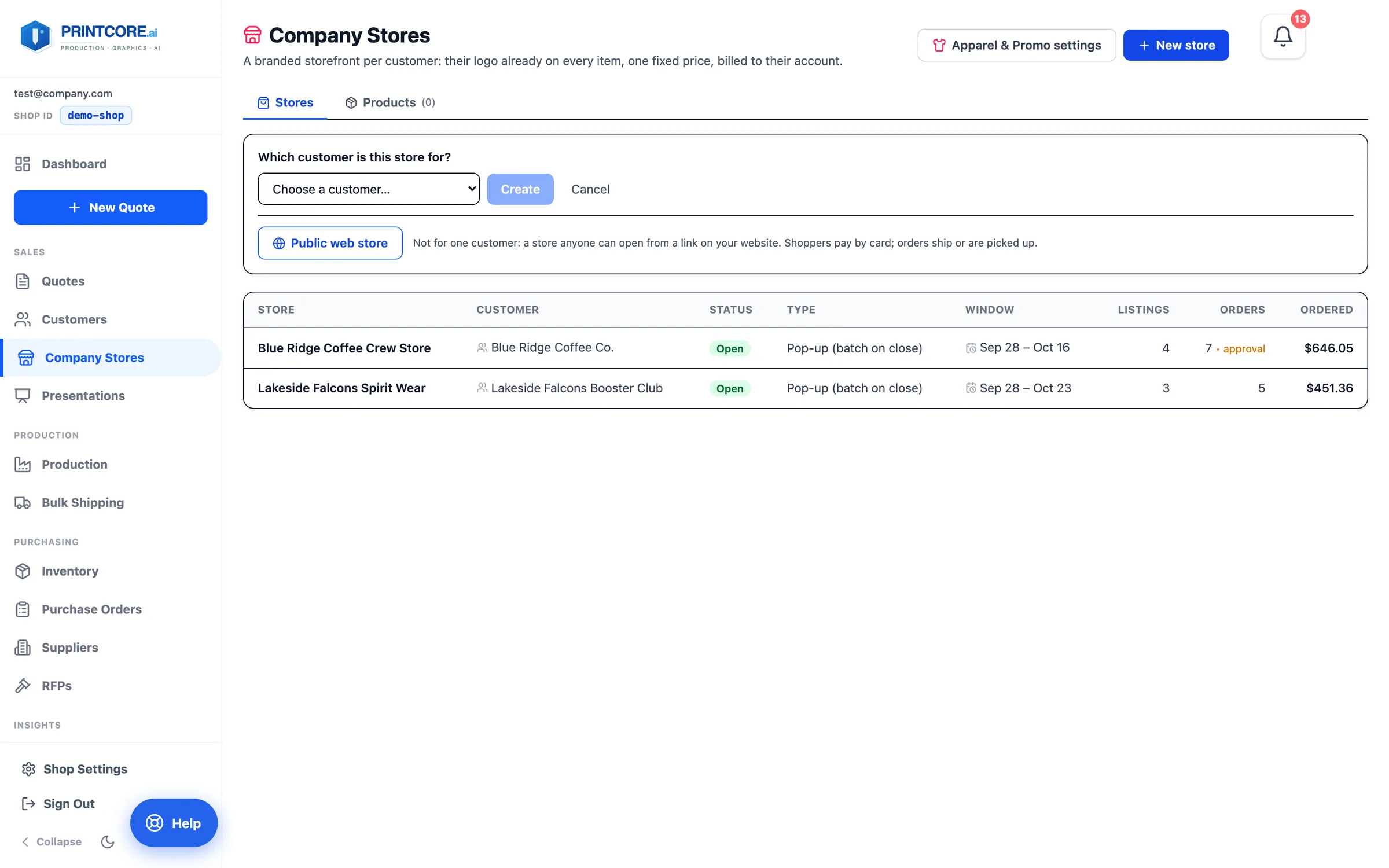
New store normally asks which customer the store is for. A public store isn't for one customer, so Printcore puts it on a house account called Web Store, created automatically the first time. Each order still carries the shopper's own name, email and address.
app.printcore.ai/stores
Create it in one click
Public web store

What to do

Click New store, then Public web store. To turn a store you already have into a public one instead, open it, go to Who can order and choose Public — anyone with the link.

Why it matters

Public shoppers don't clutter your Customers list — they all sit under one house account.
Step 3 of 11Public Stores

Add items and publish

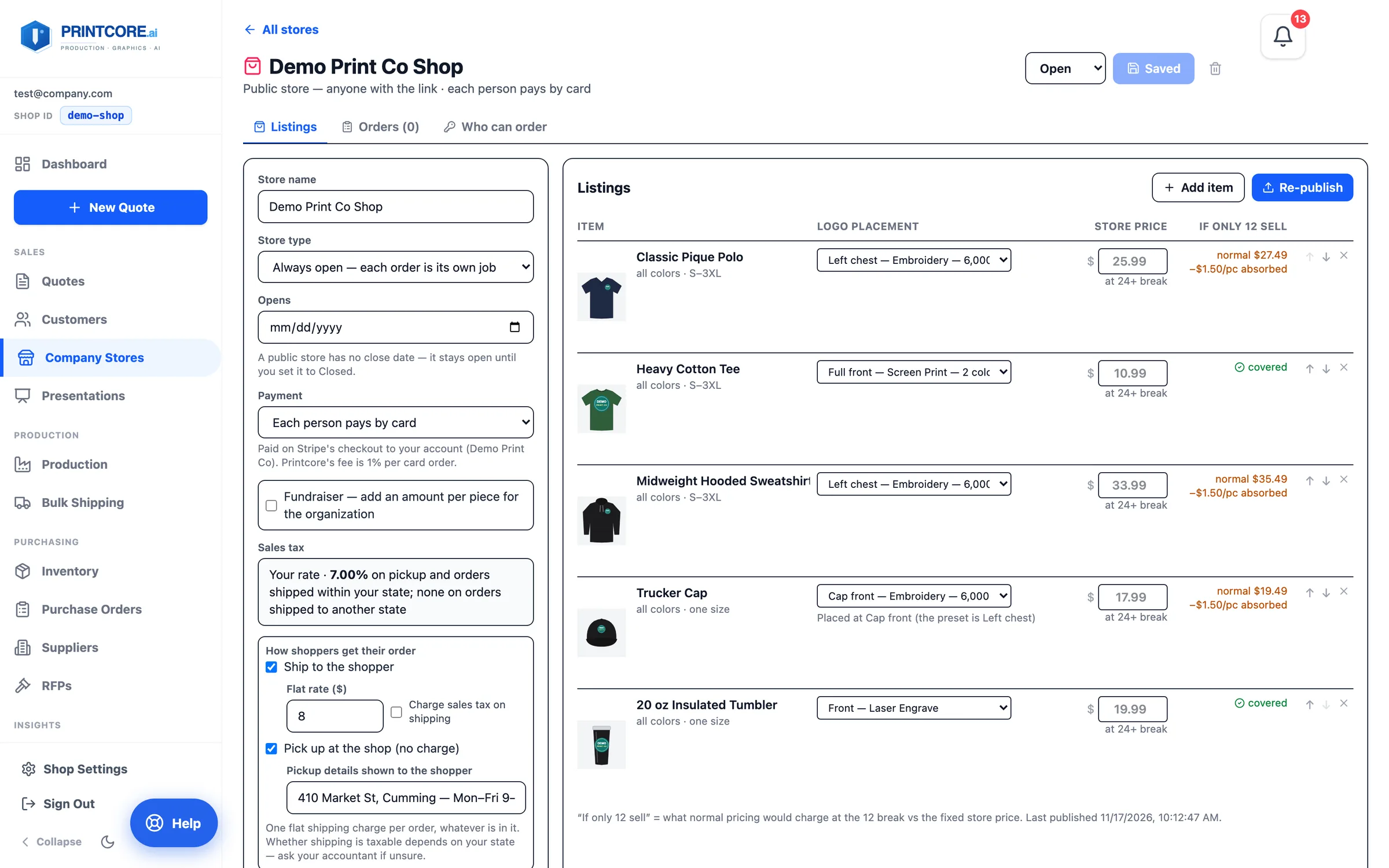
The builder works like any store: Add item lists apparel and promo from your catalog or your own stock and made-to-order products, each at one fixed price. A public store is always Always open — each order is its own job — and has no close date: it stays open until you set it to Closed. You can still set an Opens date.
app.printcore.ai/stores
Add items and publish

What to do

Name the store, add your items, and click Publish listings (it reads Re-publish once the store has been published). Shoppers see nothing until you publish, and you publish again after any change. For items that carry a logo, file the logo and its presets under the Web Store customer first.

Why it matters

The price a shopper sees is the price you set — the server re-prices every order from the published listings.
Step 4 of 11Public Stores

Card only

With no company account behind the shopper, the account options are switched off: Payment is locked to Each person pays by card, and there's no PO number, spending limit or approval step. Shoppers pay on Stripe's checkout page, straight to your own Stripe account.

app.printcore.ai/stores
Card only
Each person pays by card

What to do

Connect Stripe once in Shop Settings → Payments — the Company Stores walkthrough shows how. Until it's connected, shoppers are told card payments aren't switched on and can't check out.

Why it matters

You're paid before you produce anything, and an unpaid checkout lets go of any stock it was holding after about half an hour.
Step 5 of 11Public Stores

Shipping and pickup

Under How shoppers get their order, choose Ship to the shopper with one flat rate per order (0 means free shipping), Pick up at the shop at no charge, or both. Pickup shows the details you type — your address and hours.

app.printcore.ai/stores
Shipping and pickup
Shipping and pickup

What to do

Enter your flat rate, tick Pick up at the shop if you offer it, type the pickup details, and click Save. Printcore doesn't look up live carrier rates for store orders, so set a rate that covers a typical box.

Why it matters

The shipping charge is collected with the order and appears as its own line on the job, so the job total matches what the shopper paid.
Step 6 of 11Public Stores

How sales tax is charged

Public orders use your shop's tax rate from Shop Settings → Regional, decided by where the order goes. Pickup orders and orders shipped within your own state are taxed at your rate. Orders shipped to another US state aren't taxed. If Printcore can't tell — no shop state on file, or a state it doesn't recognise — the order is taxed.

app.printcore.ai/stores
How sales tax is charged
Your rate, by destination

What to do

Check the Sales tax box shows the rate you expect, and tick Charge sales tax on shipping only if your state taxes shipping. Your state comes from the shop address in your shipping settings.

Why it matters

Printcore doesn't work out a separate rate for every destination address. Ask your accountant before you sell across state lines.
Step 7 of 11Public Stores

Open the store and share the link

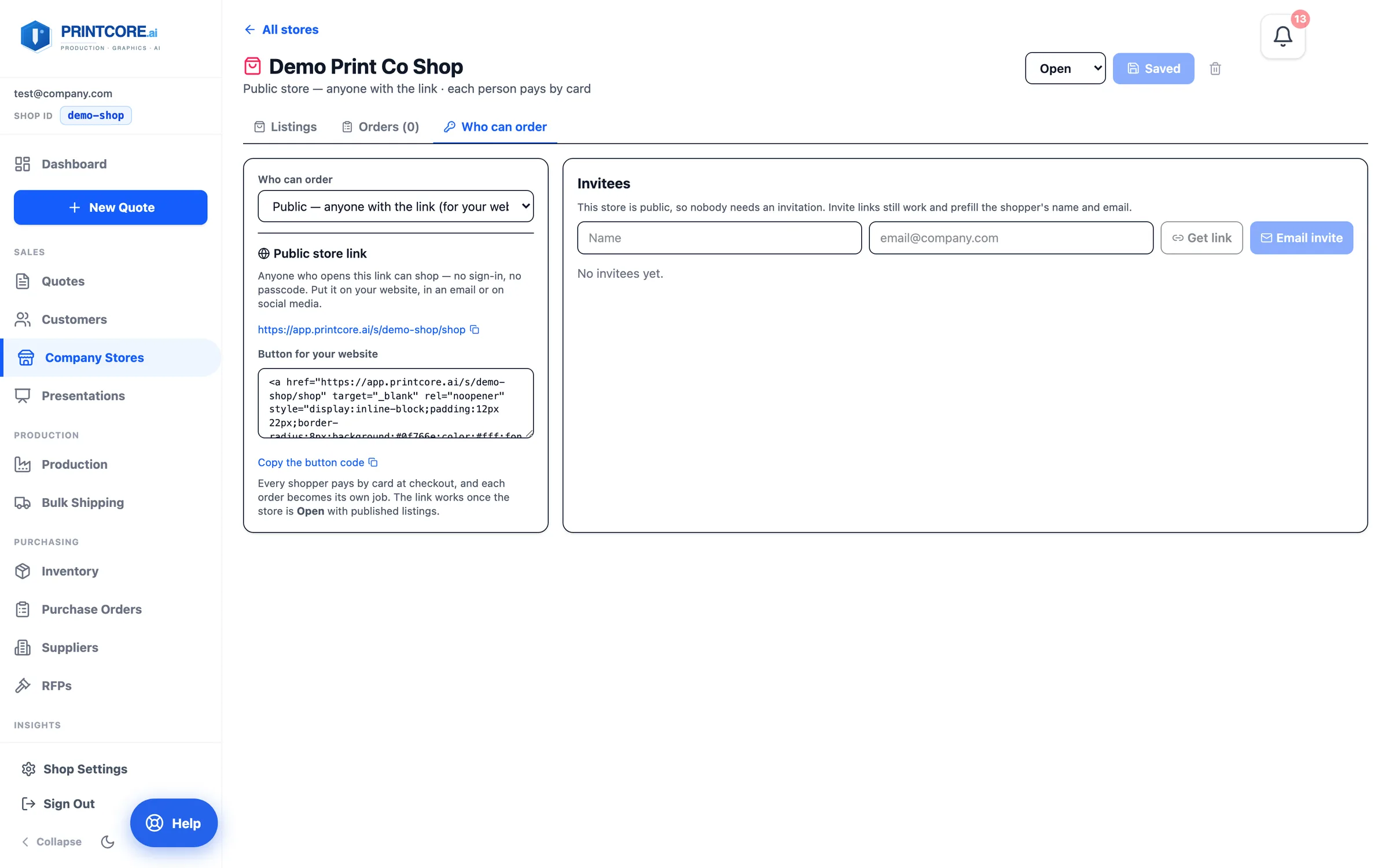
Set the status to Open, then go to Who can order. It shows the store's public link — app.printcore.ai/s/your-shop/store-name — and ready-made button code for your website. The link only lets shoppers in while the store is Open with published listings.
app.printcore.ai/stores
Open the store and share the link
Link and website button

What to do

Click the link to copy it, or Copy the button code and paste it into your website where you want a Shop button. Post the link anywhere else you like.

Why it matters

One short link works everywhere, and you can close the store at any time by setting it back to Closed.
Step 8 of 11Public Stores

What shoppers see

The link opens straight onto the storefront with your shop's name and the store's accent color. Shoppers browse by category, pick a color and sizes, and add items to the cart. Stock items show what's left and can't be oversold.
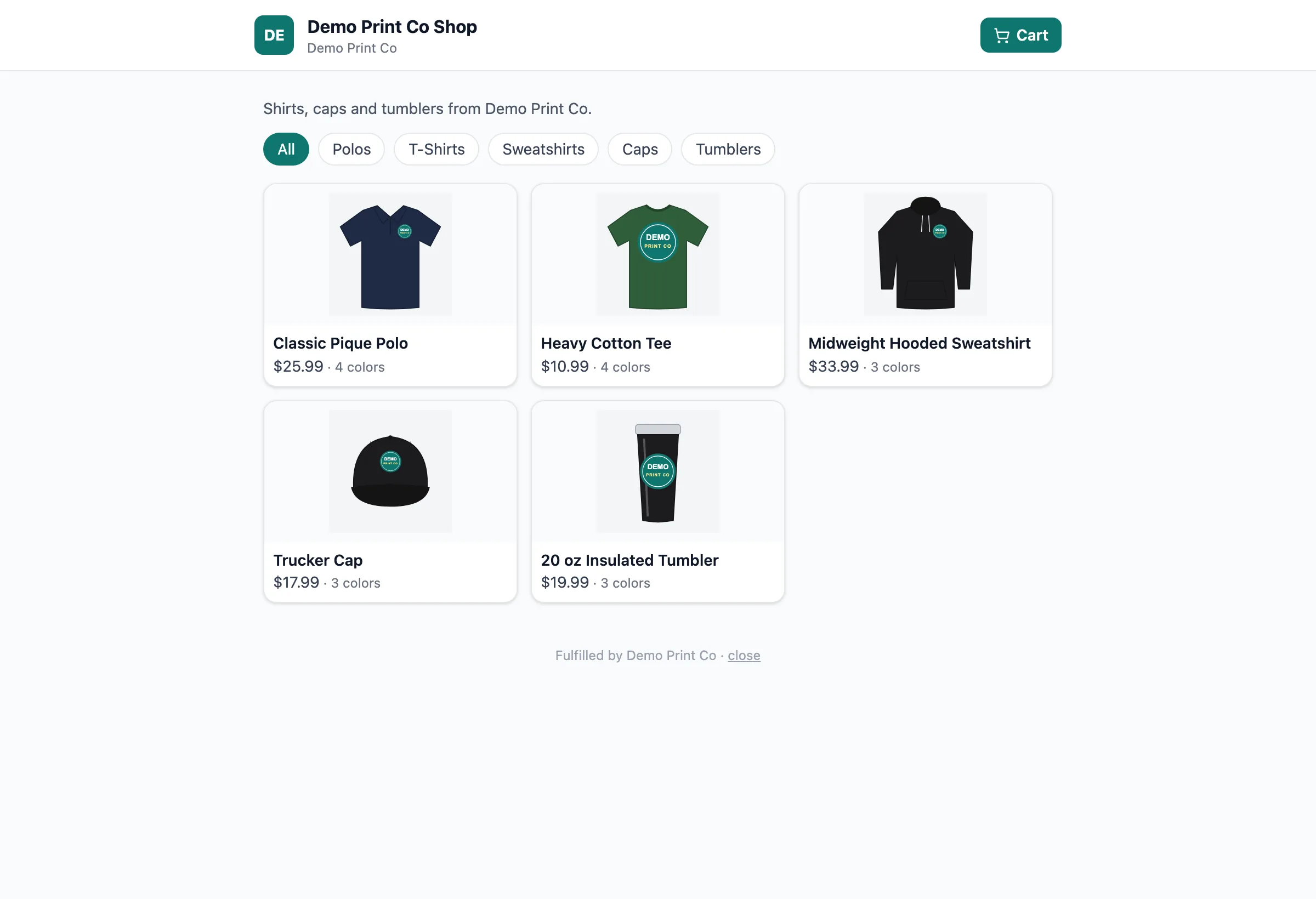
app.printcore.ai/s/demo-shop/shop
What shoppers see

What to do

Open your own link in a private browser window to see the store exactly as a shopper does.

Why it matters

Nothing to download and no account to create, so people actually finish ordering.
Step 9 of 11Public Stores

Checkout

The cart asks for a name and email, then Ship to me or Pick up at the shop. Shipping asks for an address; pickup doesn't. The total shows items, shipping and tax before the shopper pays. Pay by card goes to Stripe's secure checkout — card details never pass through Printcore.
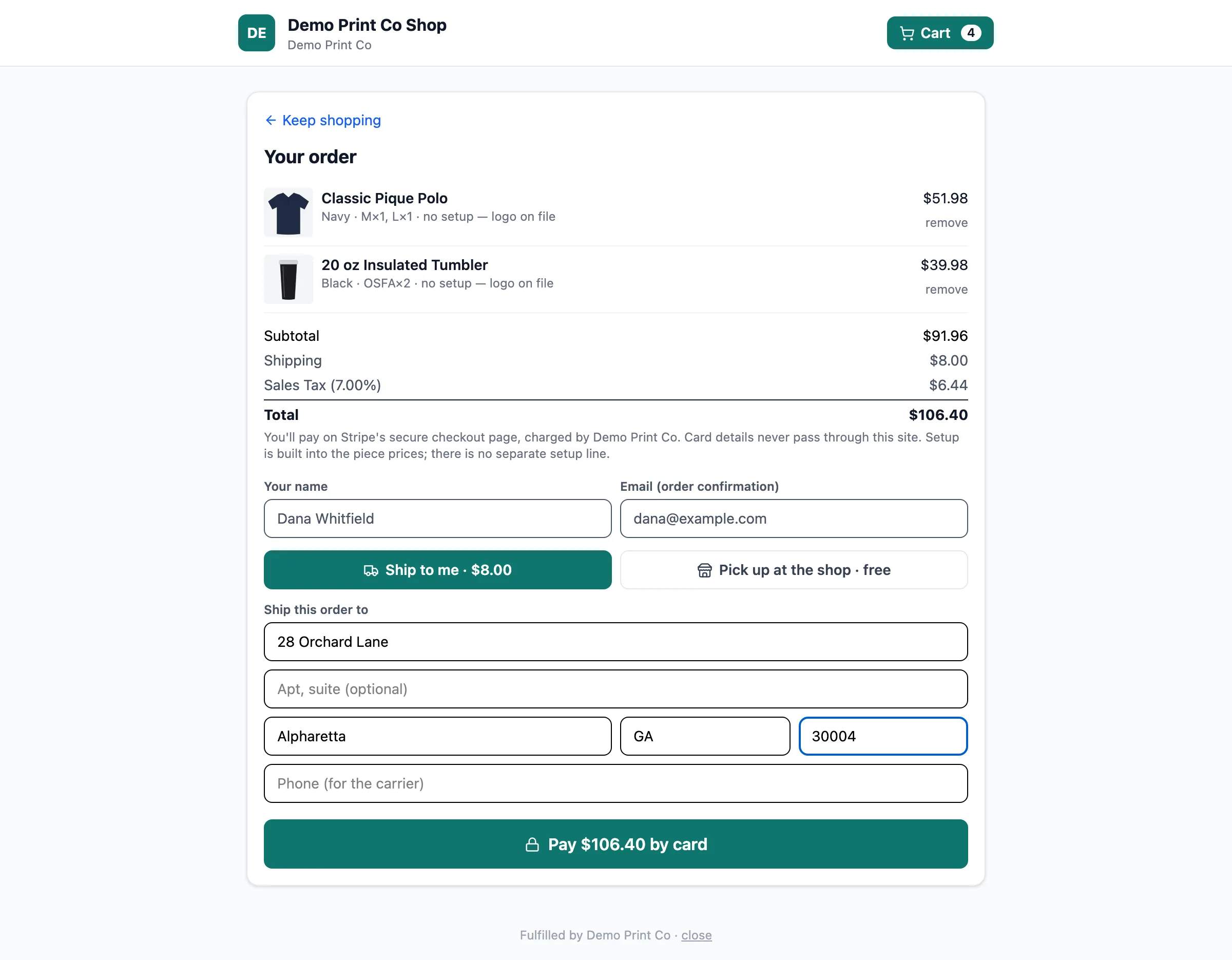
app.printcore.ai/s/demo-shop/shop
Checkout
Ship or pick up

What to do

Nothing for you to do here. The shopper gets a confirmation email in your shop's branding the moment the payment clears.

Why it matters

The order only becomes real once Stripe confirms the payment, so you never produce an unpaid order.
Step 10 of 11Public Stores

Orders become jobs

Each paid order appears on the store's Orders tab straight away and becomes its own job, with the shopper as the person who requested it, the ship-to address or Pickup at the shop, and a Shipping line when shipping was charged. The Store report shows card sales and what goes to your Stripe account after Printcore's fee.
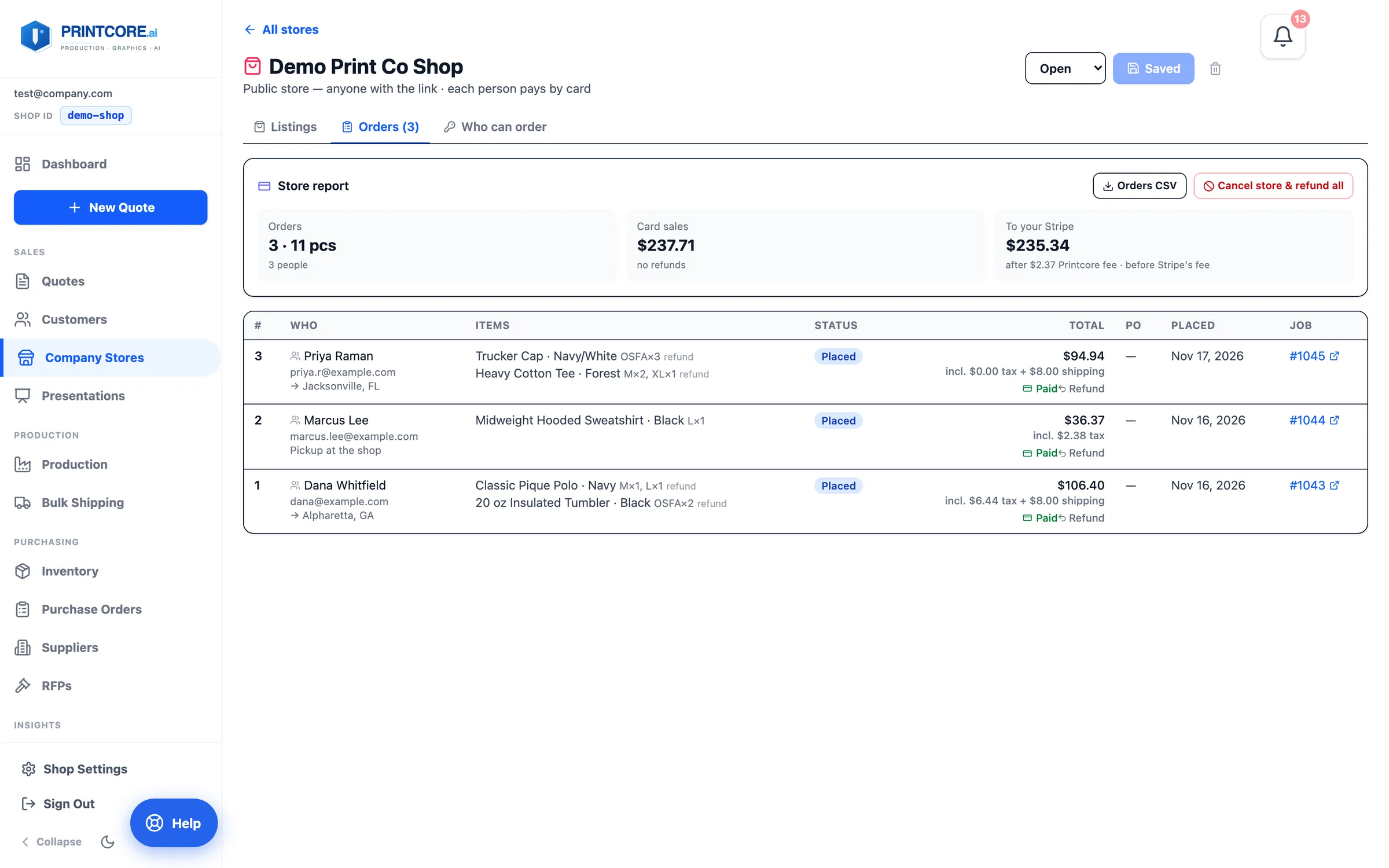
app.printcore.ai/stores
Orders become jobs

What to do

Click a job number to open the job. Use Refund for a whole order or refund beside a single line; Orders CSV exports everything. You also get a bell notification and an email for every new order.

Why it matters

A web order lands in production the same way as any other job — nobody has to re-key it.

Your shop is open to everyone 🌐

That's public stores, from the first click to the paid job. Next: the Order Desk — Studio's home screen, where every order shows its one next step.