
Printcore WALKTHROUGH

The Order Desk

← All walkthroughs
Step 1 of 13The Order Desk

Orders: your home screen on Studio

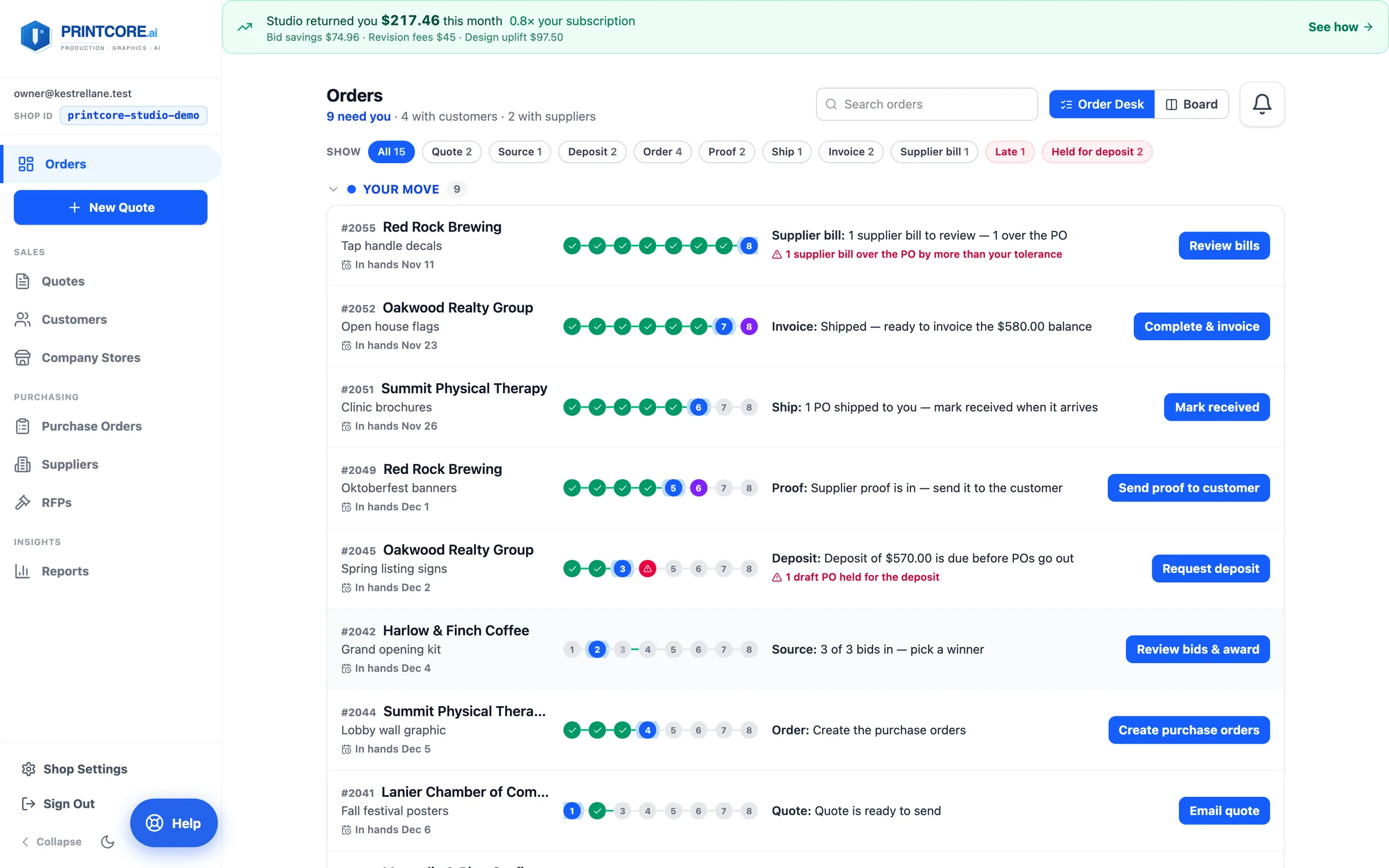
On the Studio plan you land on Orders, a work queue instead of the Shop Floor board. Every open order sits in one of three groups: Your move, Waiting on customer and Waiting on supplier. The line under the title counts them: 9 need you · 4 with customers · 2 with suppliers.
app.printcore.ai/
Orders: your home screen on Studio
Who has the ball

What to do

Work down Your move from the top. Within each group, late orders come first, then the soonest in-hands date. An order leaves the list once it is invoiced and paid and its supplier bills are approved.

Why it matters

You no longer scan a board and work out what each job needs. The list tells you which orders are waiting on you, and only those.
Step 2 of 13The Order Desk

Reading a row

Each row shows the job number, customer, project and in-hands date, then eight dots for the order path: Quote, Source, Deposit, Order, Proof, Ship, Invoice, Supplier bill. Green is done, blue is your move, amber is with the customer, purple is with a supplier, red is held. Beside the dots is what the order is waiting on in plain words, and one button for your next move.

app.printcore.ai/
Reading a row
The eight steps
Your next move

What to do

Click the button to do that step. Email quote and Complete & invoice run straight from the row; the others open the job at that step. Click anywhere else on the row to open the job.

Why it matters

One glance tells you how far along an order is and what is stopping it.
Step 3 of 13The Order Desk

Find late and held orders

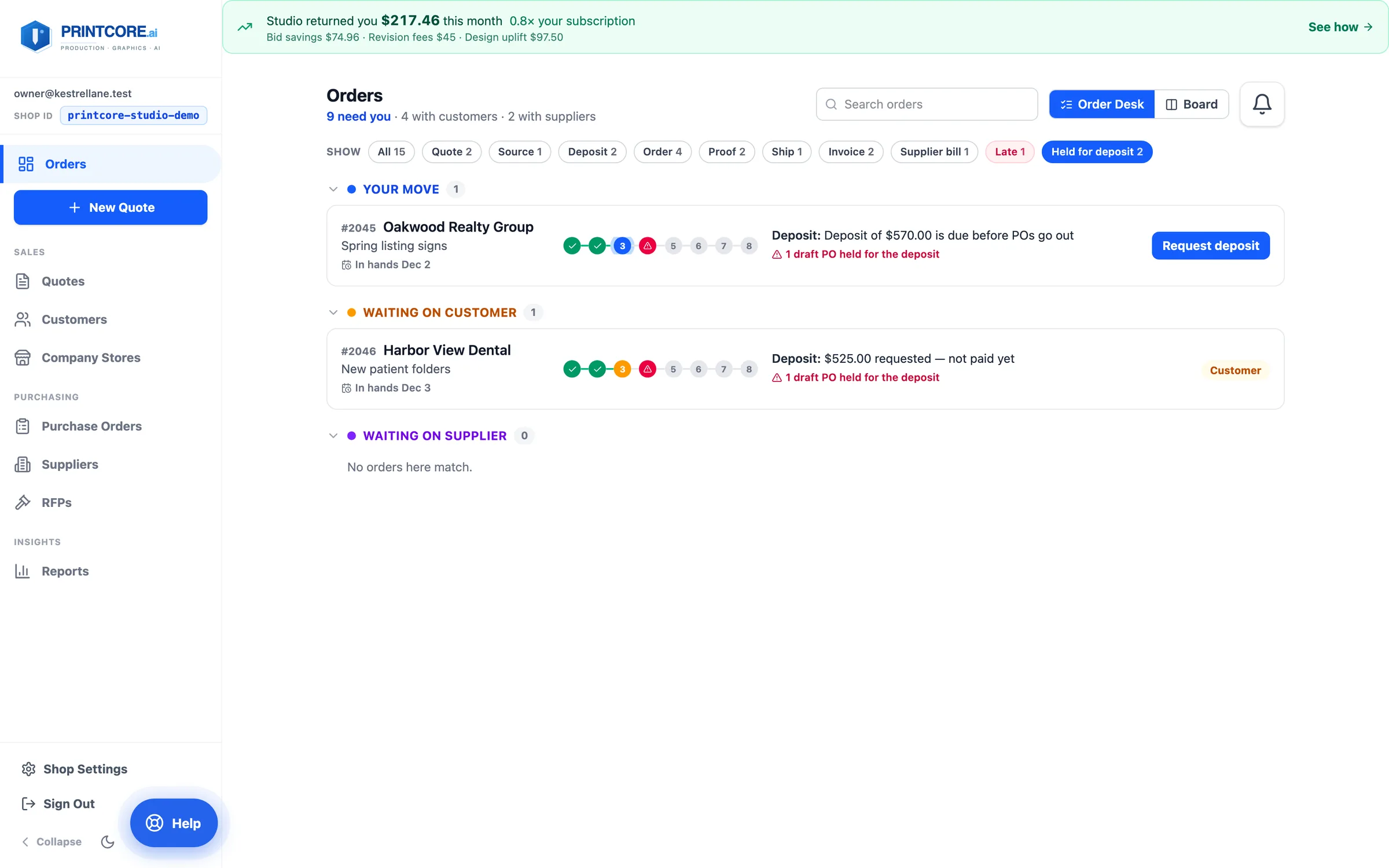
The Show chips narrow the list. There is a chip for each step orders are waiting on, plus Late (the in-hands date has passed and the order is neither shipped nor invoiced) and Held for deposit (draft purchase orders waiting on the customer's deposit).
app.printcore.ai/
Find late and held orders
Held for the deposit

What to do

Click a chip to filter, and click it again or All to clear it. Use Search orders to find one by job number, customer or project.

Why it matters

Chasing deposits or late suppliers becomes one click instead of a hunt.
Step 4 of 13The Order Desk

The Order tab on a job

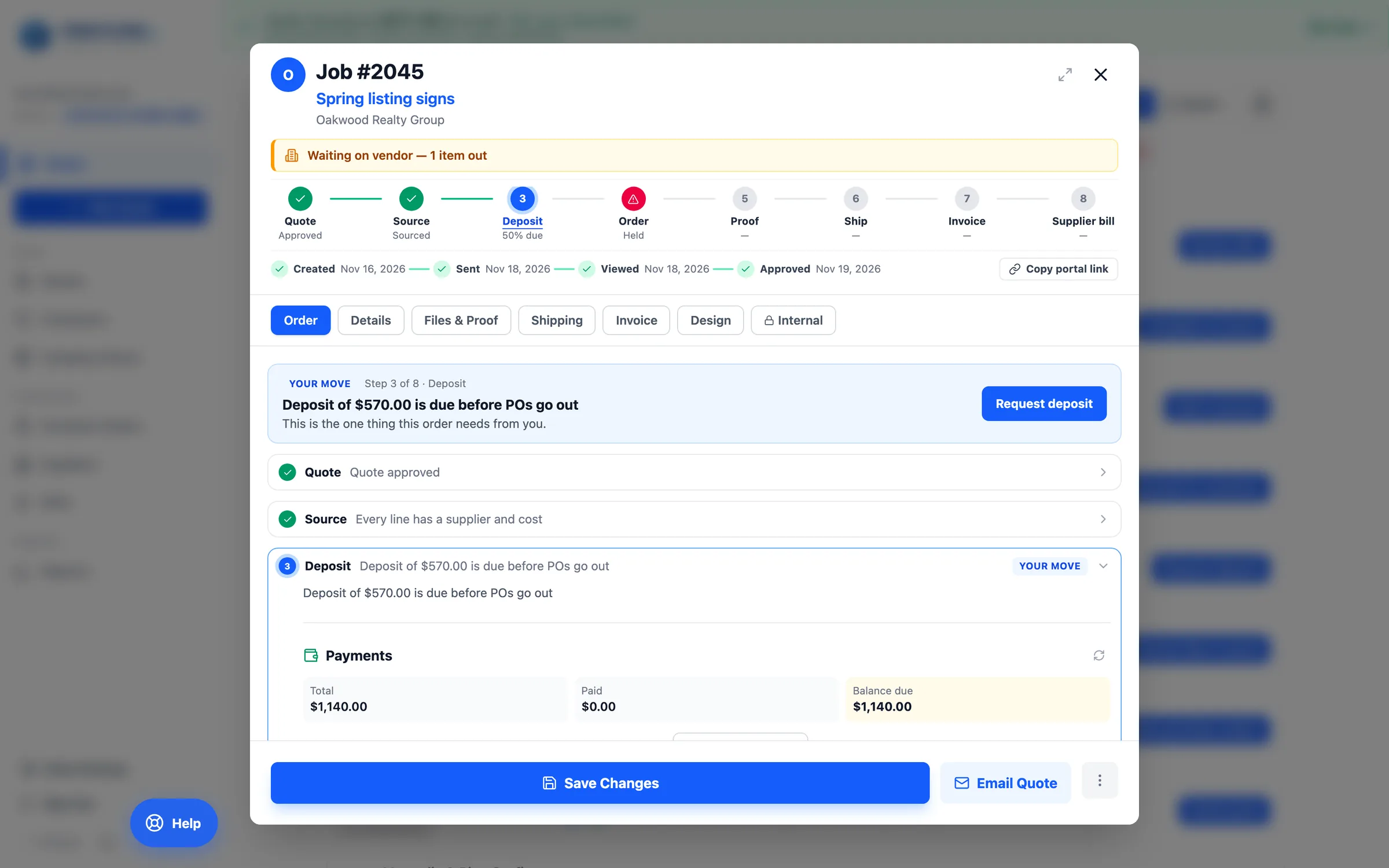
A Studio job opens on its Order tab. The same eight steps run across the header, and a Your move banner names the one thing the order needs. Each step opens to its own controls, so you request a deposit, send purchase orders or approve a bill without leaving the job. Here the customer approved the quote and the shop's rule asks for a 50% deposit before purchase orders go out.
app.printcore.ai/jobs/2045
The Order tab on a job
What this order needs now
Purchase order held

What to do

Open the Deposit step and record or request the payment. With online payments on, one button requests the deposit amount by email. The deposit rule itself is set under Purchase Orders.

Why it matters

The draft purchase order waits until the customer's money is in, so you never fund a job out of pocket by accident. A manager can still send it anyway.
Step 5 of 13The Order Desk

Bids price the quote

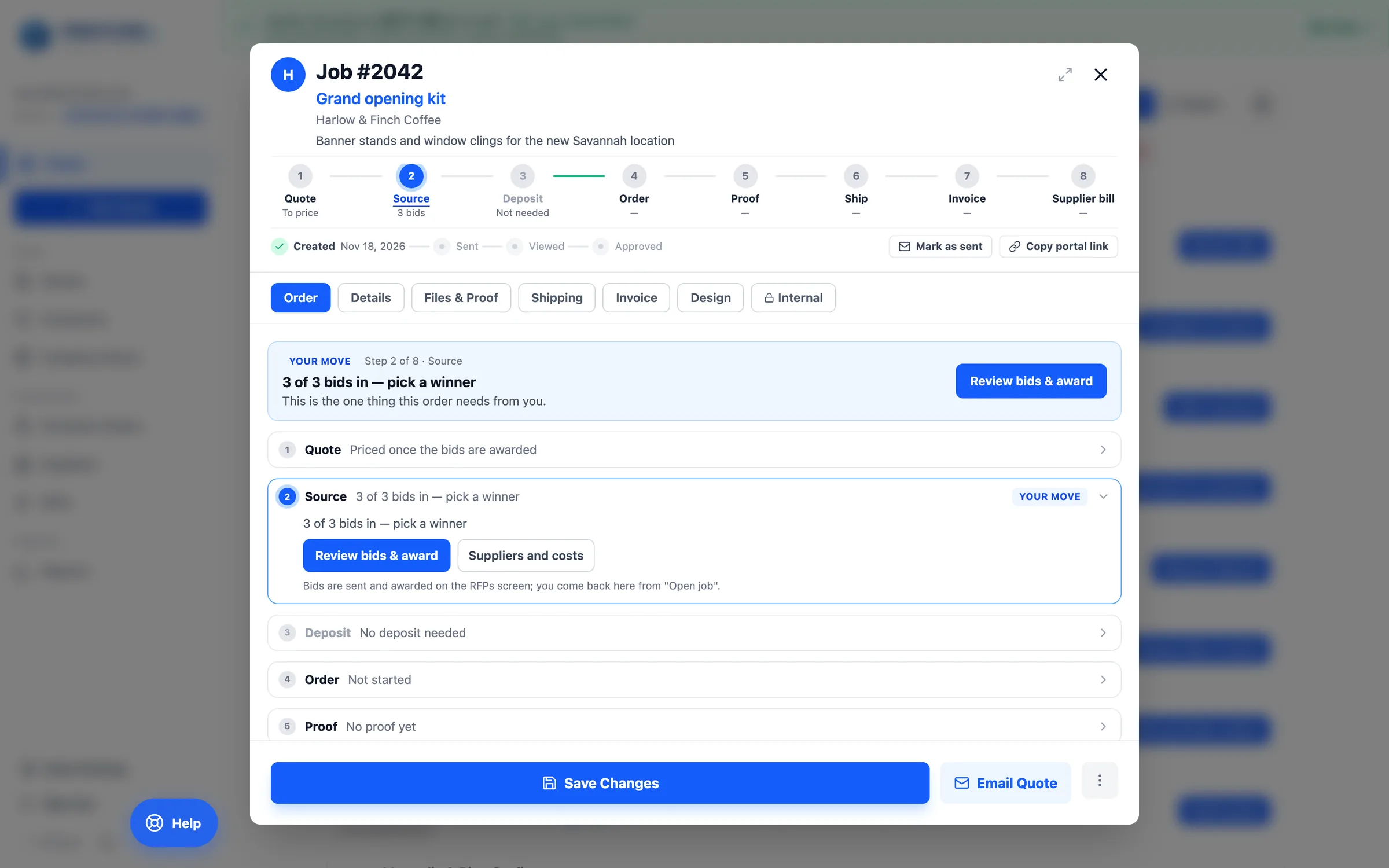
When you asked suppliers to bid before quoting, the order waits at Source until the bids are in. The Quote step reads Priced once the bids are awarded, and the row's button becomes Review bids & award.
app.printcore.ai/jobs/2042
Bids price the quote
Compare and award

What to do

Click Review bids & award. Bids are compared and awarded on the RFPs screen; Open job brings you back here with the supplier and cost filled in.

Why it matters

Your price comes from real supplier bids, and the saving against the other bids is counted in your Returns report.
Step 6 of 13The Order Desk

Send all purchase orders at once

When a job has two or more draft purchase orders, the Order step shows Send all purchase orders. One click emails every supplier their order and a no-login link. Blanks going to a decorator are sent first, so the decorator's order can refer to them.
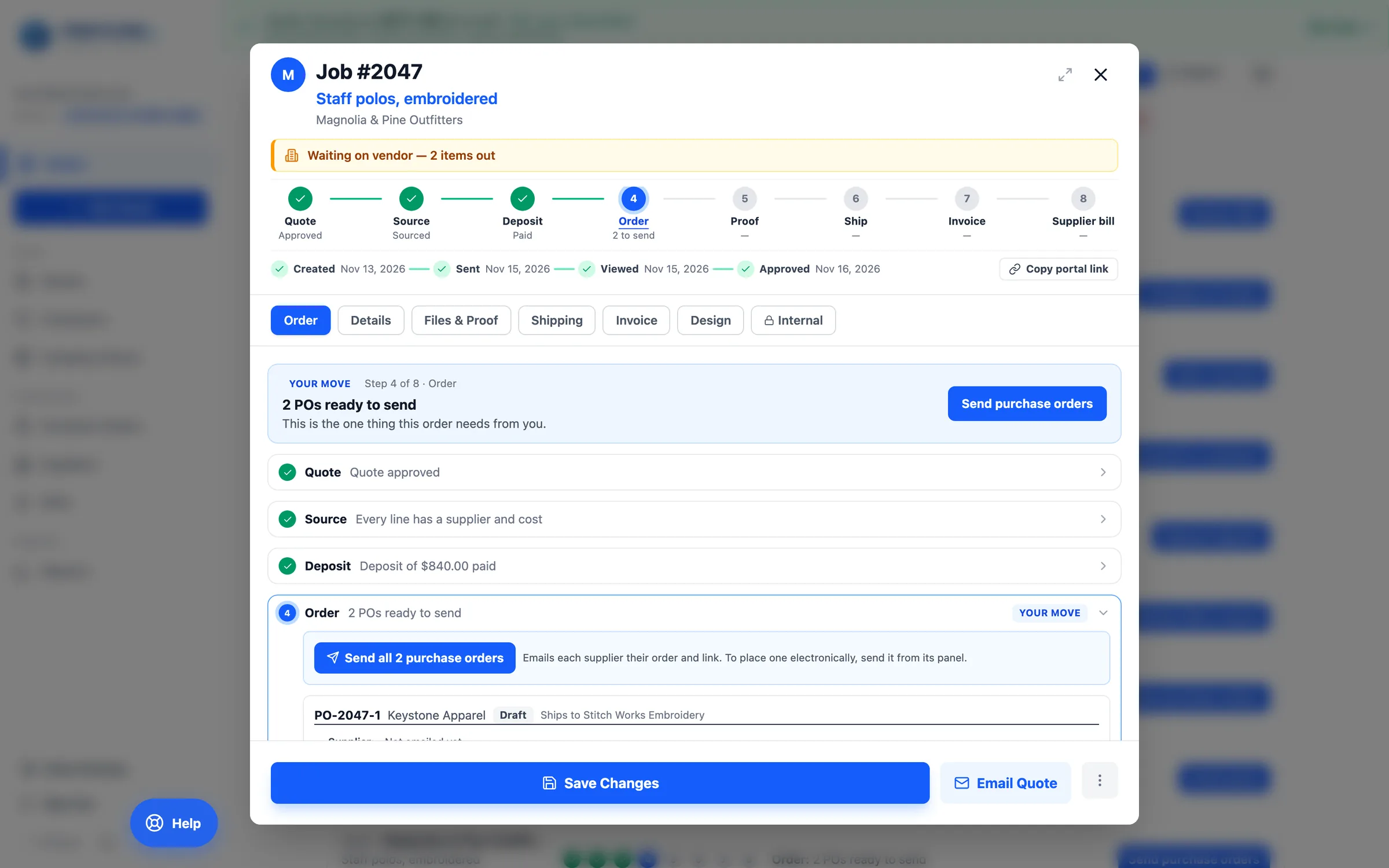
app.printcore.ai/jobs/2047
Send all purchase orders at once
One click, every supplier

What to do

Click Send all purchase orders. A list under the button says what happened to each one: emailed, sent but with no email on file, or held for the deposit. To place an order electronically in a supplier's own system, send that one from its panel instead.

Why it matters

A polo order with a blanks supplier and an embroiderer used to mean opening and sending two purchase orders. Now it is one click, and nothing is sent twice.
Step 7 of 13The Order Desk

What the supplier sees

The supplier needs no login. Their link shows the order, where to ship it, and (for a decorator) the blanks on their way. On it they confirm the order, upload a proof and add tracking. Each of those rings your bell, and clicking the alert opens the job.
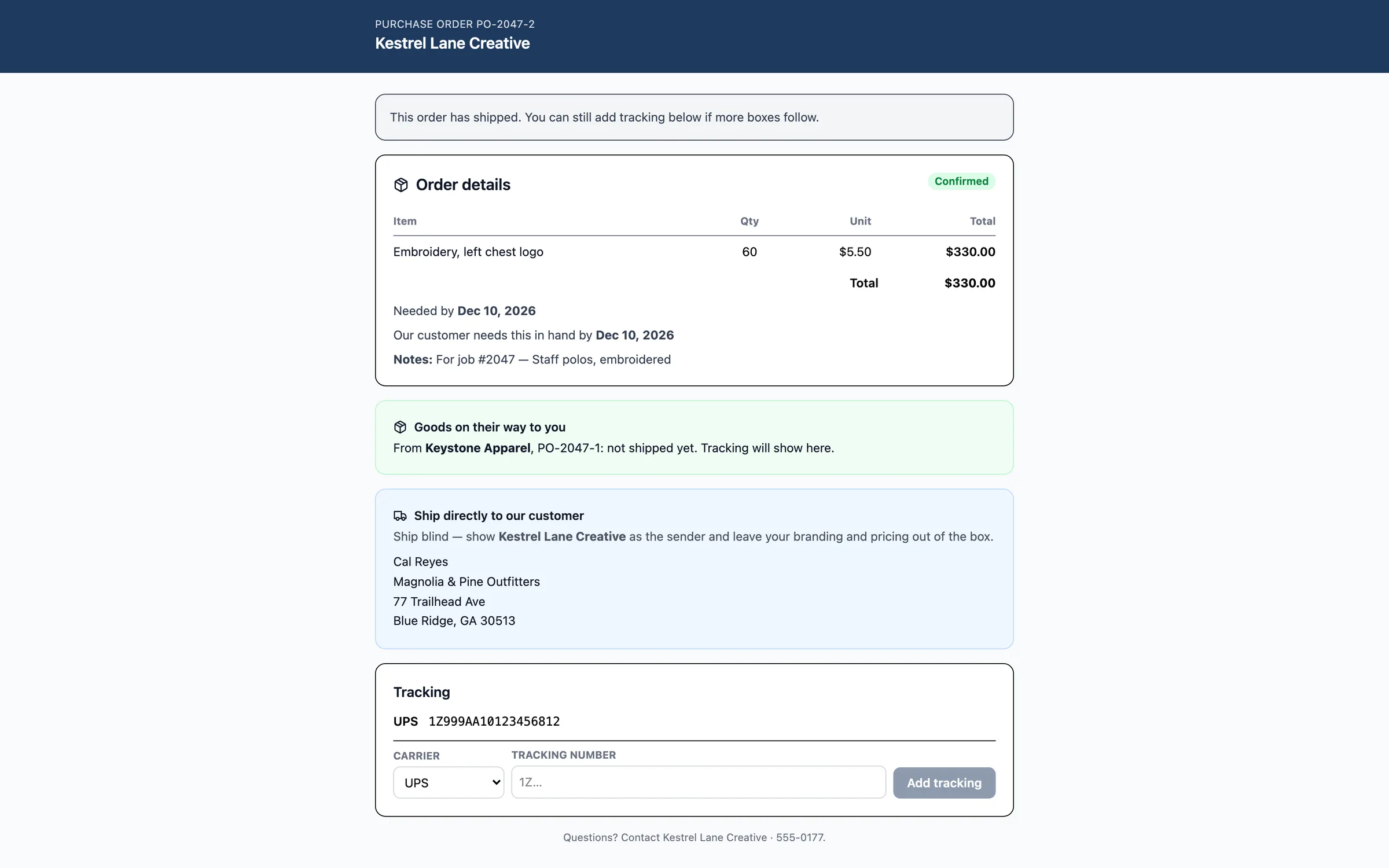
app.printcore.ai/po/…
What the supplier sees
The supplier adds tracking

What to do

Nothing to do here: this is the supplier's page. Drop-ship orders show your customer's address and ask the supplier to ship blind under your name.

Why it matters

Suppliers answer in one place and you stop relaying status by phone and email.
Step 8 of 13The Order Desk

Proofs, there and back

When the supplier uploads a proof, the order comes back to Your move: Supplier proof is in — send it to the customer. The proof is added to the job's files under your brand, with no supplier name. When the customer approves it, the supplier is emailed to go ahead with production, and their link shows Proof approved.
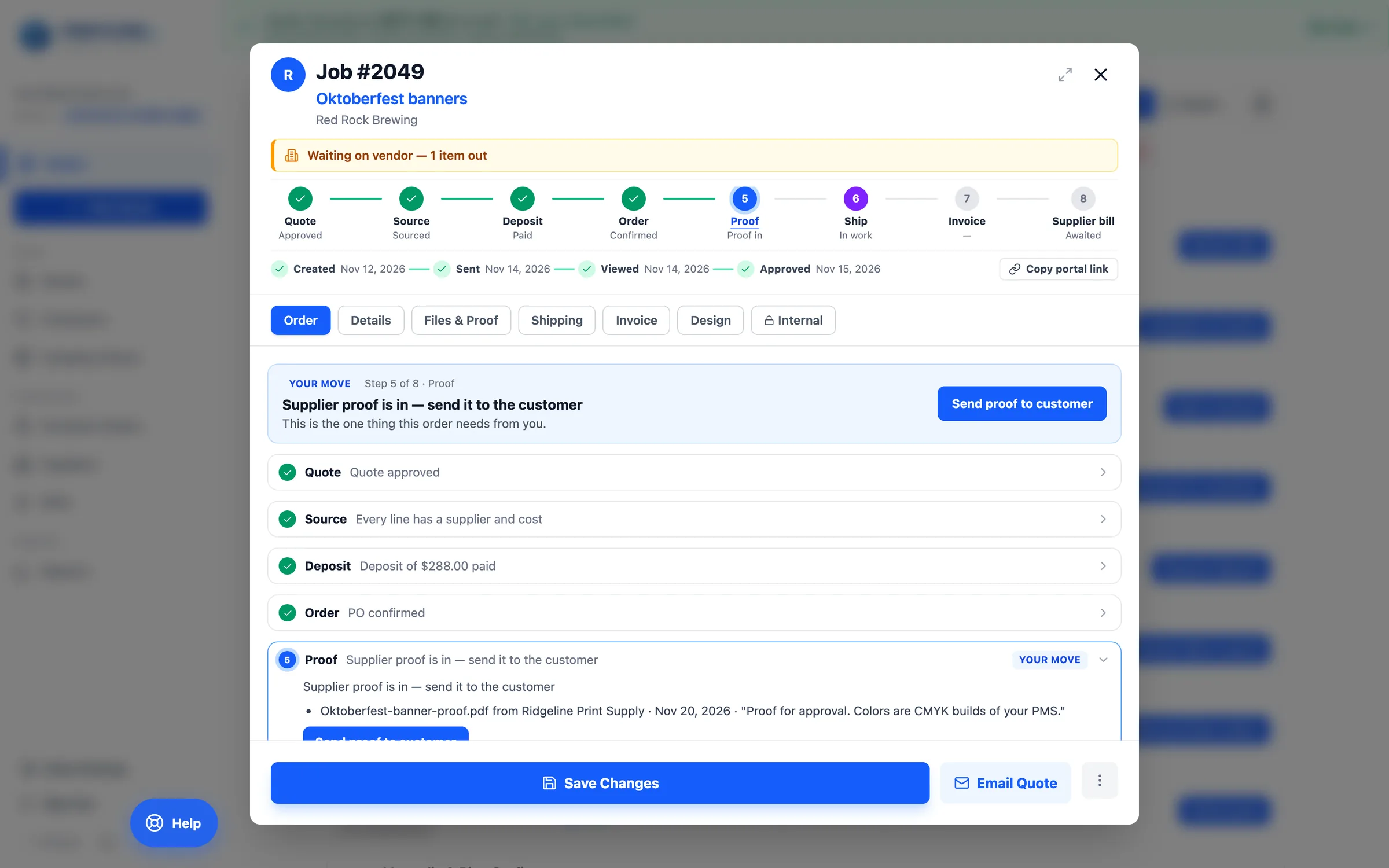
app.printcore.ai/jobs/2049
Proofs, there and back
Send it on to the customer

What to do

Click Send proof to customer to open Files & Proof, check the proof, and send it. You do not need to tell the supplier about the approval; Printcore does, once per purchase order.

Why it matters

The approval reaches the supplier the moment the customer clicks, so production starts without waiting on you.
Step 9 of 13The Order Desk

Drop-ships receive themselves

When a supplier adds tracking to a drop-ship purchase order, Printcore marks it Received, adds the shipment to the job, and moves the job to Shipping. That move sends your customer the tracking email. The bell tells you it happened.
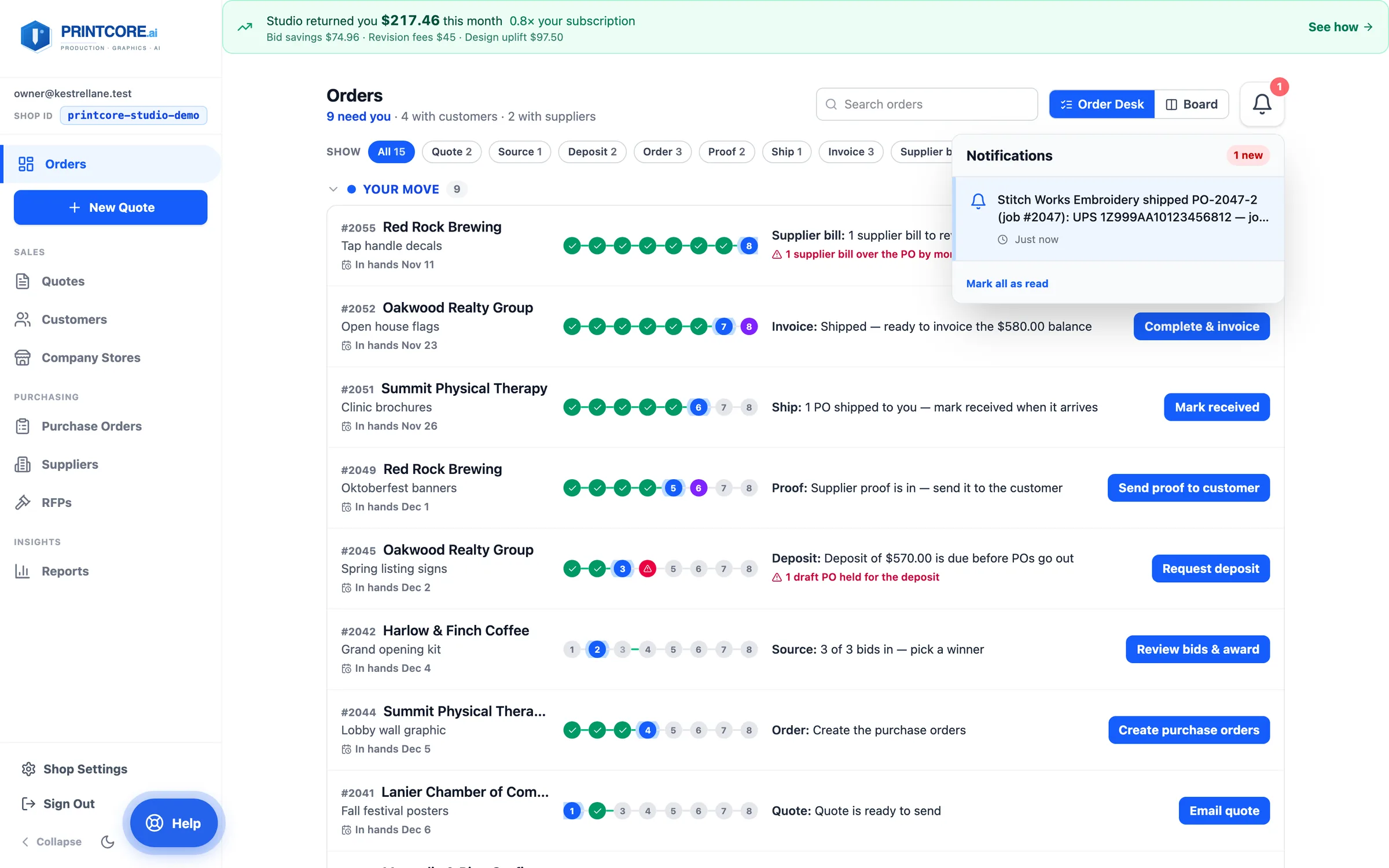
app.printcore.ai/
Drop-ships receive themselves
The supplier shipped

What to do

Click the alert to open the job. Purchase orders that ship to your shop are different: use Mark received in the Ship step when the boxes arrive, then ship to the customer from the Shipping tab.

Why it matters

The customer gets their tracking number without anyone moving a card or pasting a number.
Step 10 of 13The Order Desk

Invoice as soon as it ships

Once the order has shipped, the job reads Shipped — ready to invoice and the button is Complete & invoice. The Deposit step shows what was already paid, so the invoice is for the balance.
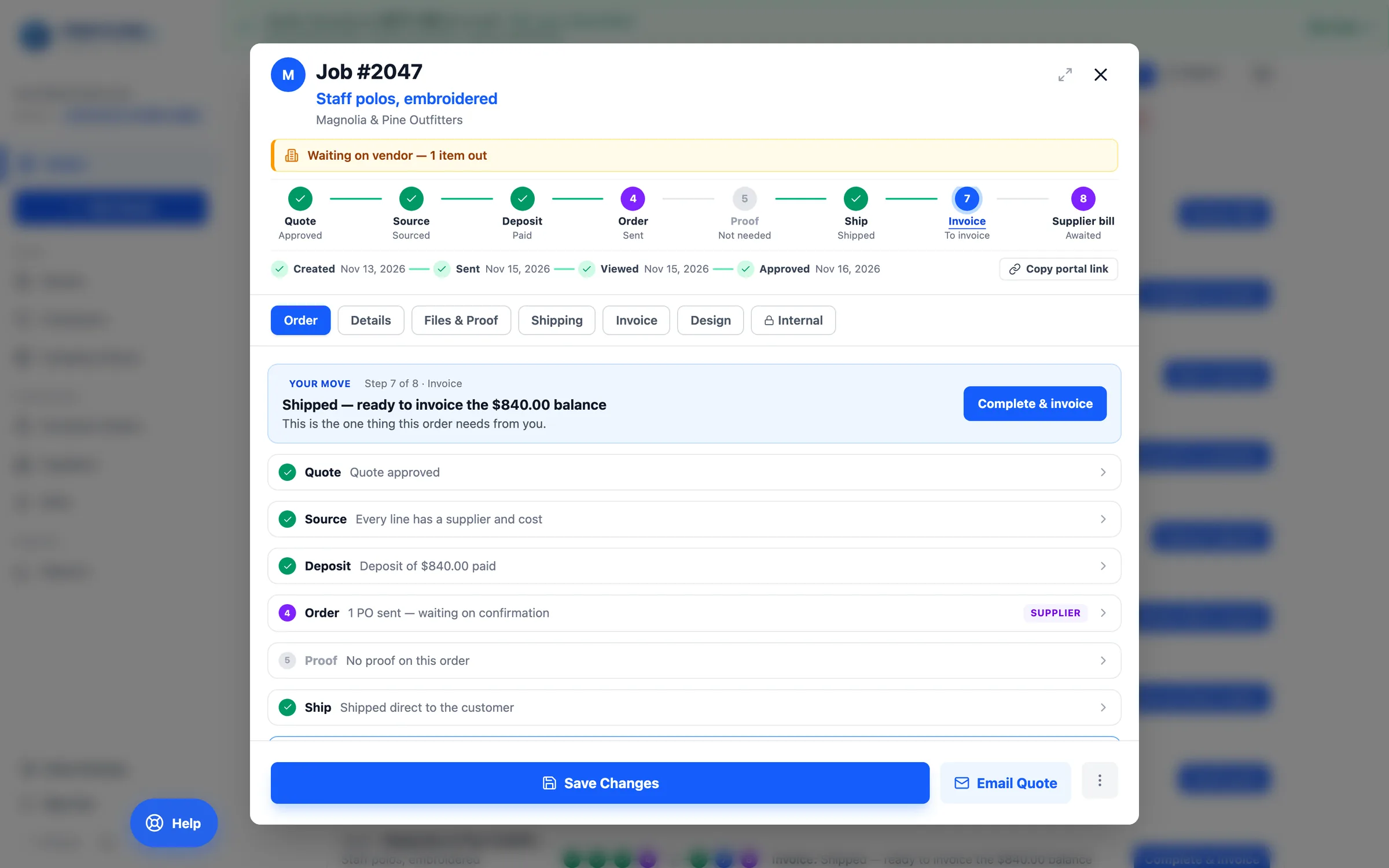
app.printcore.ai/jobs/2047
Invoice as soon as it ships
Bill the balance

What to do

Click Complete & invoice, here or on the order's row. The Invoice step also holds the payments panel for deposits, pay links and partial invoices.

Why it matters

Orders are invoiced the day they ship, not when someone remembers.
Step 11 of 13The Order Desk

Check the supplier's bill

The last step is the Supplier bill. Bills from connected suppliers arrive on their own; others you add on the purchase order. A bill that comes in over the purchase order by more than your tolerance is flagged, and the order returns to Your move even after the customer has paid.
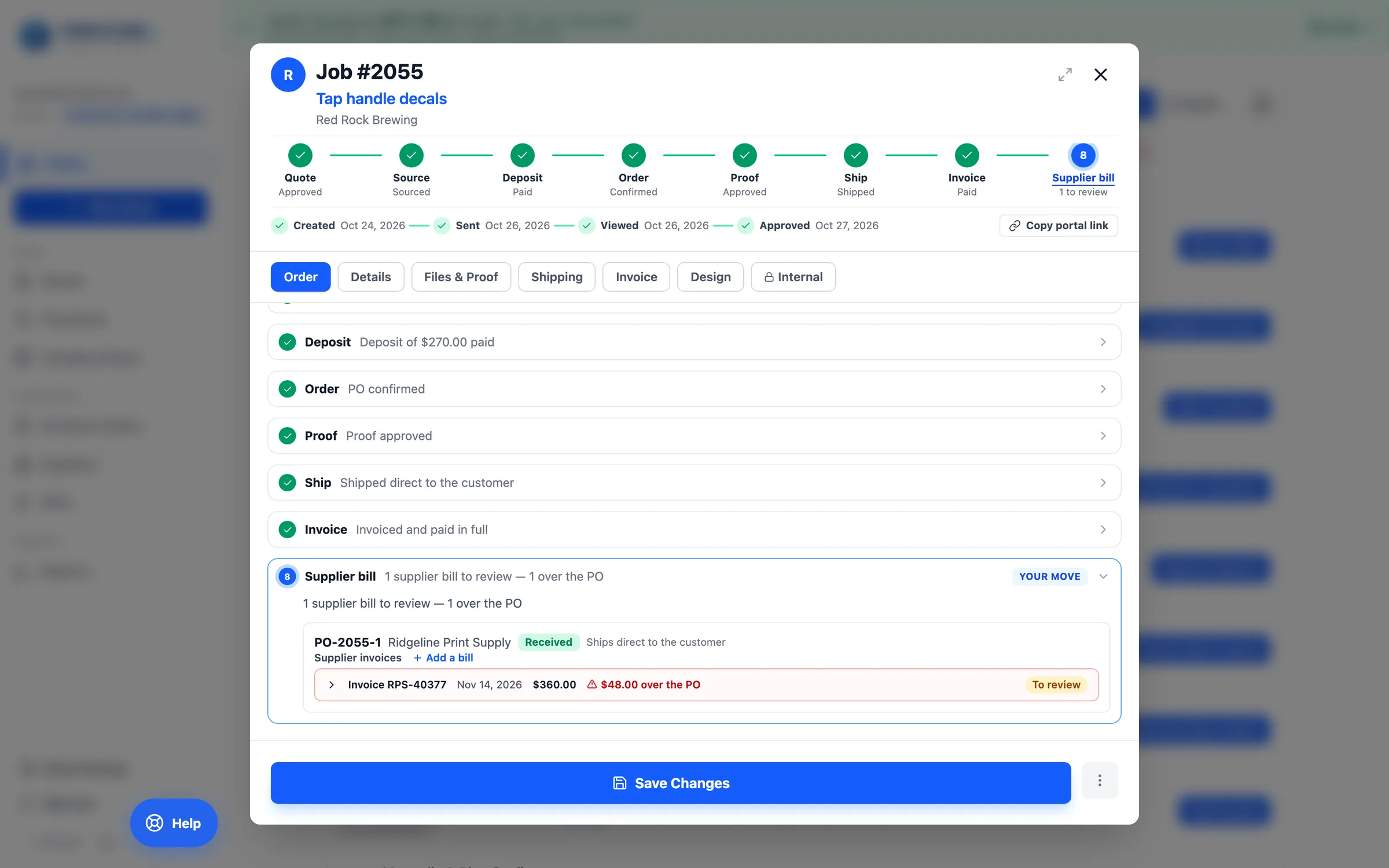
app.printcore.ai/jobs/2055
Check the supplier's bill
$48 over the purchase order

What to do

Open the bill, check the difference, and approve it or take it up with the supplier. An approved bill becomes the job's actual cost and can be sent to QuickBooks Online.

Why it matters

You catch a surprise rush fee before you pay it, and your margin on the job is the real one.
Step 12 of 13The Order Desk

The board is still there

Prefer columns? The Order Desk / Board switch at the top right shows the same jobs as the Shop Floor board. Your choice is remembered in that browser.
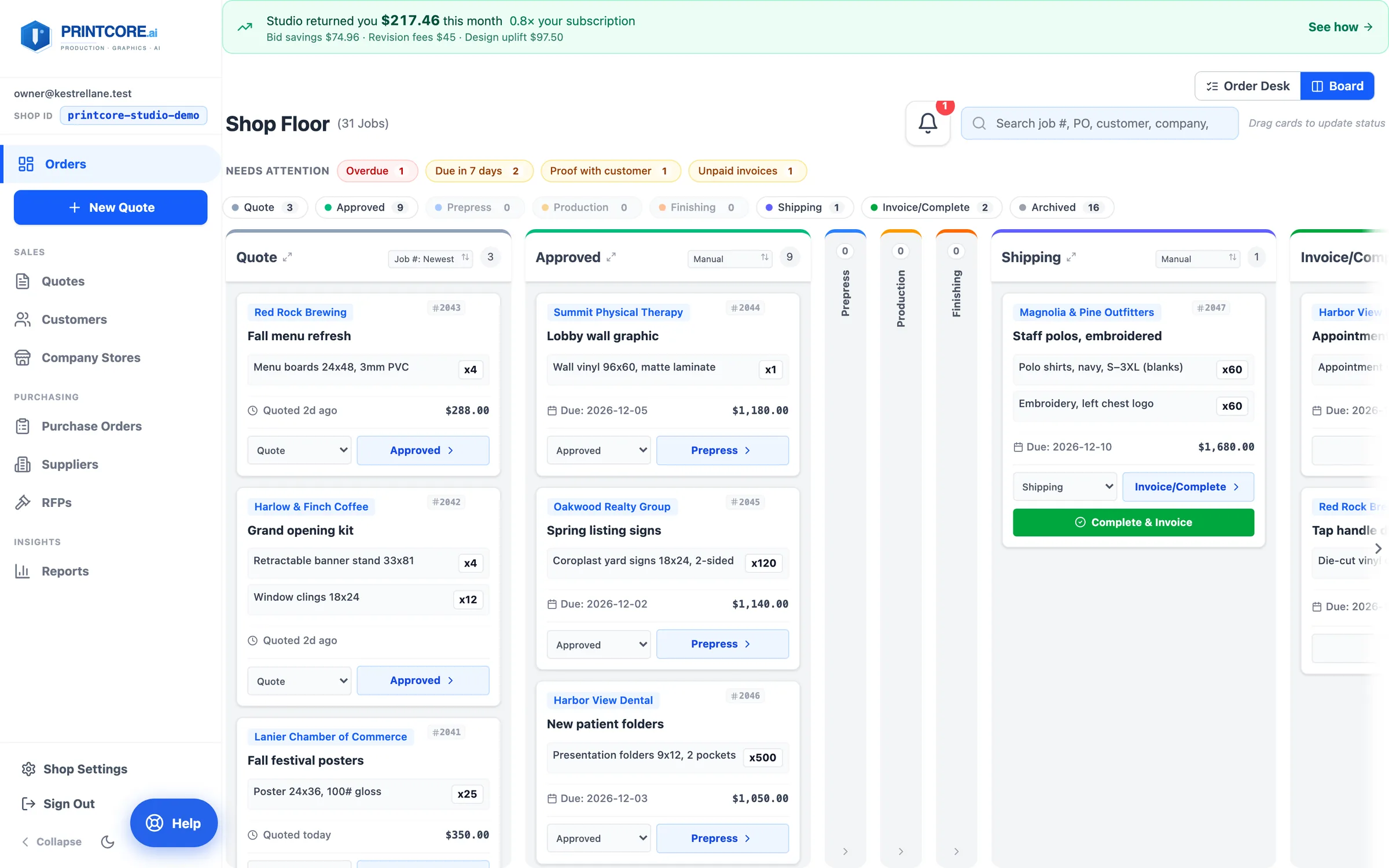
app.printcore.ai/
The board is still there

What to do

Click Board to switch, and Order Desk to come back. Starter, Pro and Enterprise shops keep the board as their home screen.

Why it matters

Nothing was taken away. The Order Desk is a faster way to see the same work.

Every order, one next step 🧭

That's the Order Desk, from the quote to the supplier's bill. Bookmark the index page and come back to any walkthrough whenever you need a refresher — and press F1 inside Printcore any time for the Help Assistant.