
Printcore WALKTHROUGH

Your Returns Report

← All walkthroughs
Step 1 of 9Your Returns Report

Your returns on the dashboard

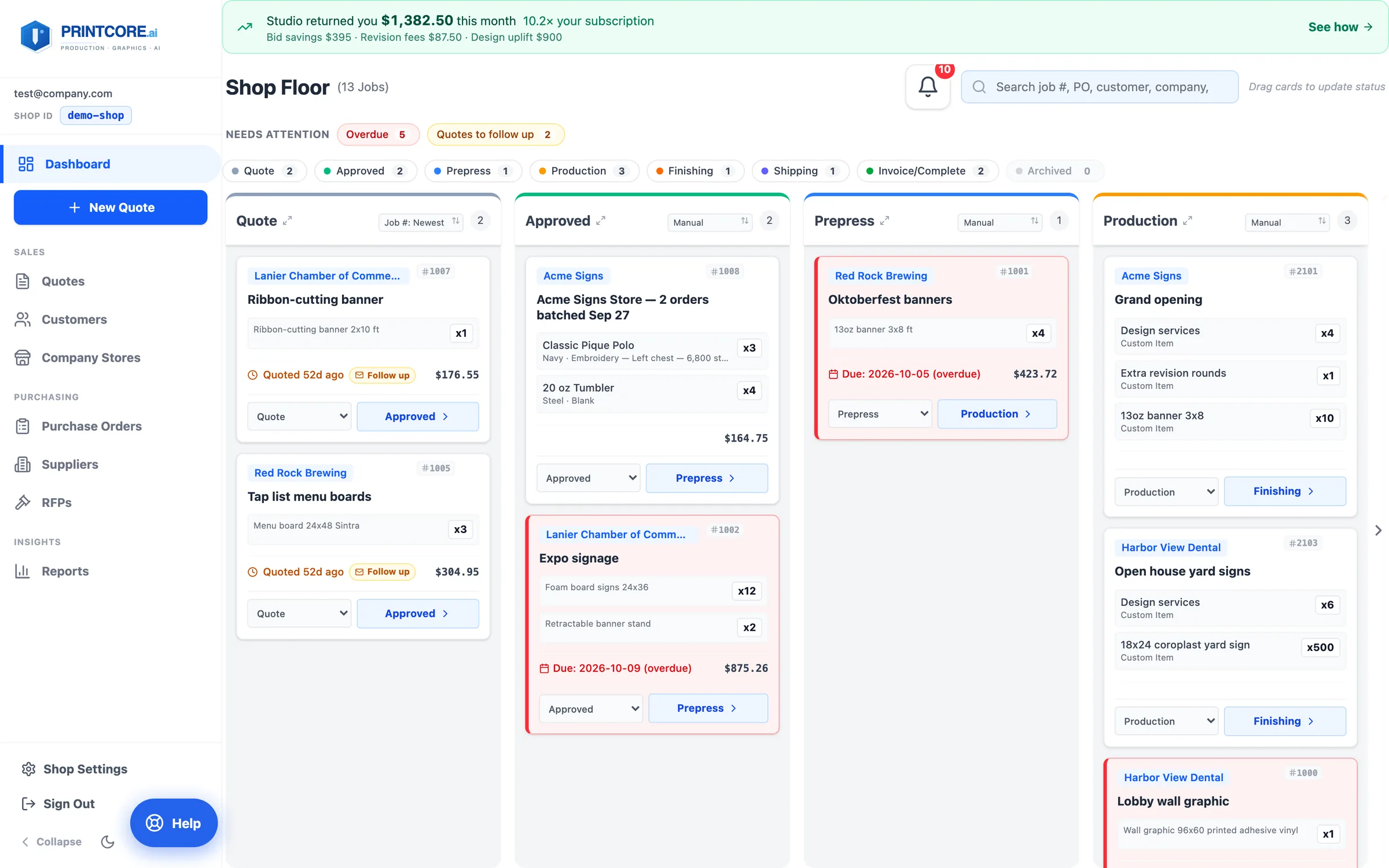
On the Studio and Pro plans, a green strip at the top of the Shop Floor shows what Printcore returned you so far this month, how that compares with what you paid, and the three figures that make up the total. Studio shops see Studio returned you; Pro shops see Printcore returned you.
app.printcore.ai/
Your returns on the dashboard
This month's returns

What to do

Click See how → to open the full report. Owners, admins and managers see the strip; roles that can't see prices don't.

Why it matters

You see every day whether the software is paying for itself, in dollars, from your own work.
Step 2 of 9Your Returns Report

The full report

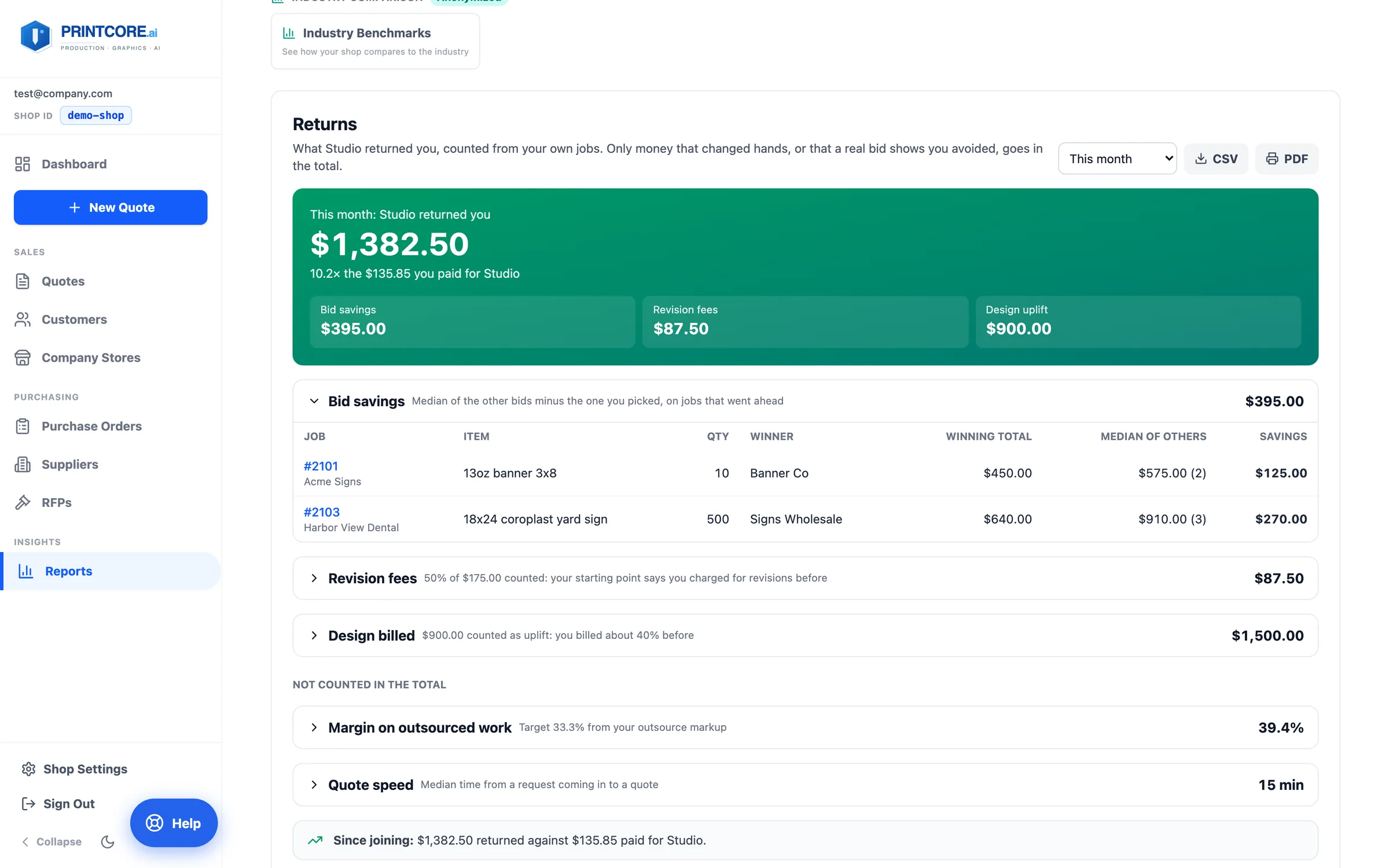
Reports → Returns (or /reports/returns) opens with the total for the period and what you paid for the same days. Only money that changed hands, or that a real supplier bid shows you avoided, goes in the total. Three figures add up to it: Bid savings, Revision fees, and Design uplift.
app.printcore.ai/reports/returns
The full report

What to do

Pick This month, Last month, Last 90 days, Last 12 months or Since joining. CSV downloads every row; PDF gives you a clean copy to send your accountant or a partner.

Why it matters

Every figure is counted conservatively: when a number could be worked out two ways, the report uses the smaller one. Quotes and lost jobs never count.
Step 3 of 9Your Returns Report

How bid savings are counted

When you send an RFP and more than one supplier bids, the report compares the bid you picked with the median of the other bids on that line and quantity. For example, you pick $640 when the others bid $860, $910 and $1,020: the median of the others is $910, so you saved $270. A line with only one bid saves $0, and a winner above the median never counts as a loss.

app.printcore.ai/reports/returns
How bid savings are counted
Every line, with the bids behind it

What to do

Open Bid savings to see each line: the job, the item, the winning supplier, the winning total, the median of the others (and how many bids that was), and the savings. Click a job number to open the job.

Why it matters

The median keeps one supplier pricing far above the rest from inflating the number. If you told us you used to get prices from, say, 2 suppliers per job, a line only counts when more than 2 bid — you'd have had those prices anyway.
Step 4 of 9Your Returns Report

Revision fees and design billed

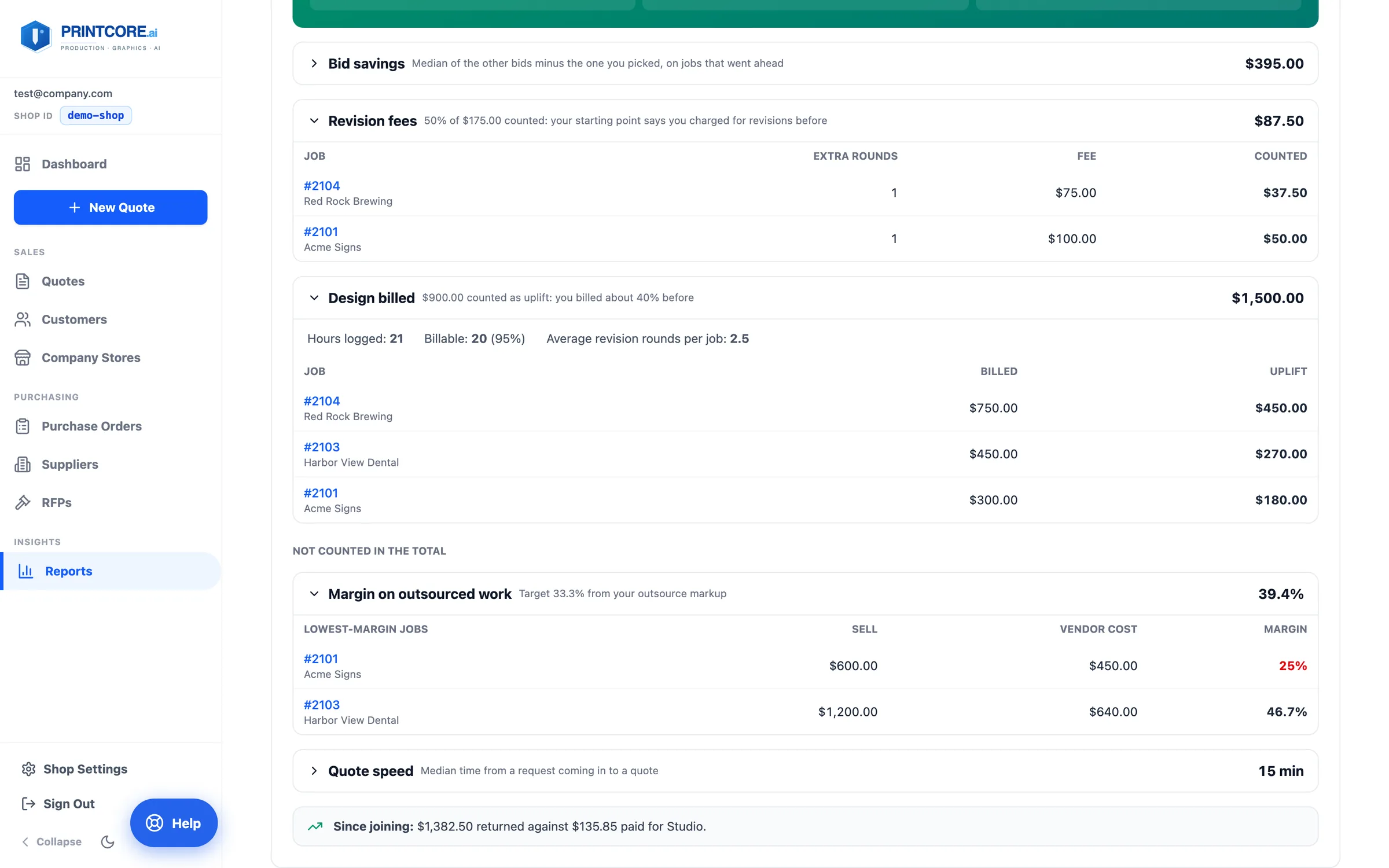
Revision fees are the extra-round charges Printcore adds when a customer goes past the proof rounds in the quote. Design billed is every design line on jobs that went ahead; Design uplift is the part of it that's new, based on how much design time you said you billed before. Each dollar counts once: a revision fee is never also counted as design billed.
app.printcore.ai/reports/returns
Revision fees and design billed

What to do

Open each section to see the jobs behind it. Revision fees show the full fee and the share counted: all of it if you didn't charge for extra rounds before, half if you sometimes did, none if you always did. Design billed also shows hours logged, the share billed, and the average revision rounds per job.

Why it matters

Design time is where most small shops give work away. This shows how much of it you now get paid for.
Step 5 of 9Your Returns Report

Useful numbers outside the total

Under Not counted in the total: your margin on outsourced work against the target your outsource markup sets (1.5× markup = 33.3%), with the lowest-margin jobs listed; quote speed, the median time from a request coming in to a finished quote; and, if you hold POs until a deposit is paid, how much supplier spend your customers paid for before you ordered.

app.printcore.ai/reports/returns
Useful numbers outside the total
Margin on outsourced work

What to do

Open Margin on outsourced work and look at any job shown in red: it came in under your target margin.

Why it matters

These show where money leaks or arrives early, but they're timing and percentages, not money made — so they stay out of the headline. Time saved is labelled as an estimate for the same reason.
Step 6 of 9Your Returns Report

Set your starting point

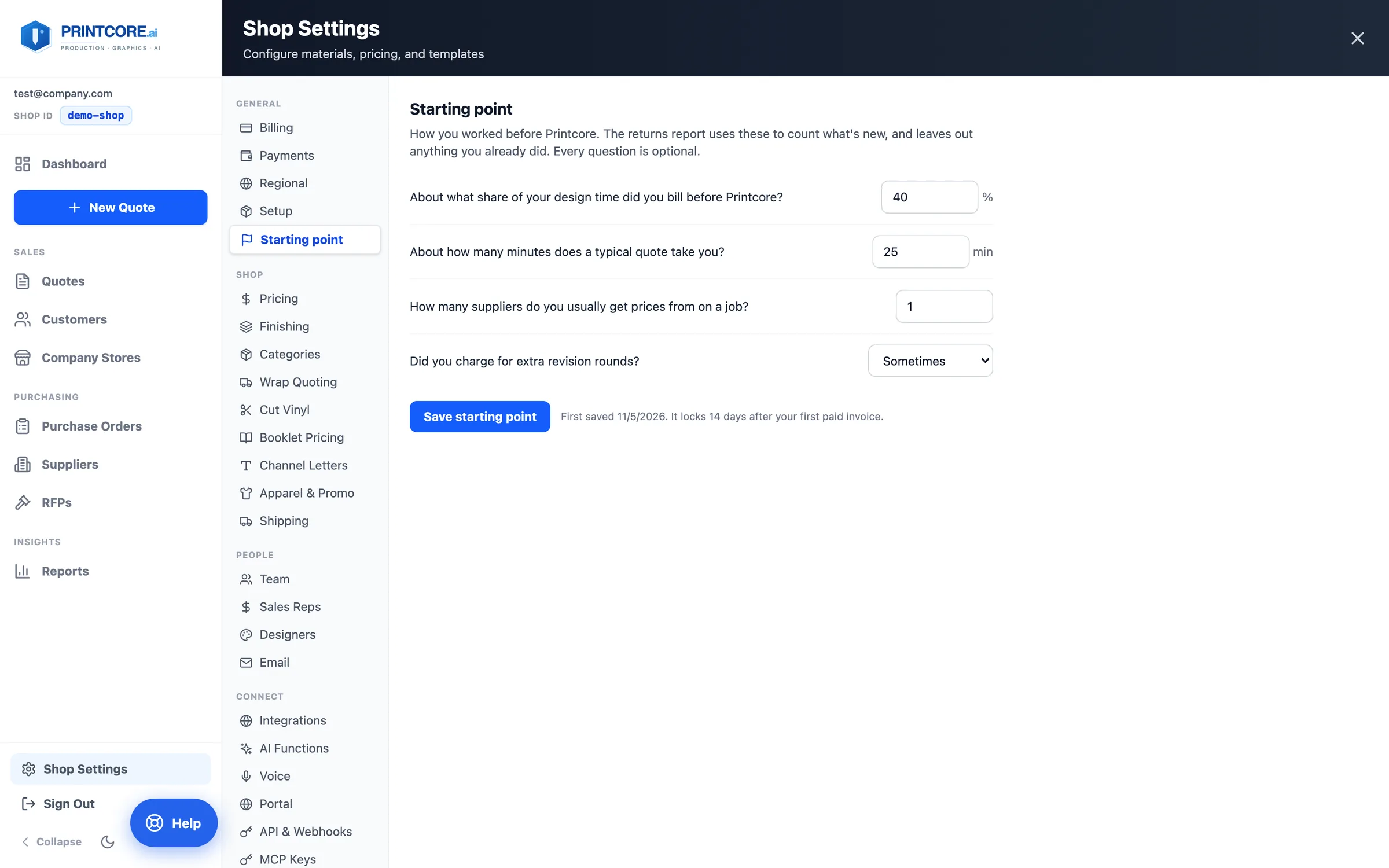
Four optional questions about how you worked before Printcore: the share of design time you billed, how long a quote took, how many suppliers you got prices from, and whether you charged for extra revision rounds. The report uses them to count only what's new.
app.printcore.ai/settings/starting_point
Set your starting point

What to do

Open Shop Settings → General → Starting point, answer what you can, and click Save starting point. Studio shops are also asked during the Setup Guide.

Why it matters

Without a starting point, design uplift stays at $0 and time saved isn't shown — the report would rather undercount than guess. Your answers can be changed for 14 days after your first paid invoice; after that they're locked so the before-and-after stays fair. Contact support if something needs correcting.
Step 7 of 9Your Returns Report

The monthly email

At 9 am on the first business day of each month, in your shop's time zone, the account owner gets an email with last month's total — Studio returned you $1,840 in October — the three figures, and a link to the report. Months with nothing to report are skipped, and trials don't get it.

What to do

Nothing to set up. To stop it, use the link at the bottom of the email.

Why it matters

Once a month's email has gone out, that month is saved: Last month and Since joining keep showing the figures you were sent, even if a job changes later.
Step 8 of 9Your Returns Report

The Studio 90-day guarantee

On Studio, if Printcore doesn't return at least what you paid in your first 90 days, your next month is free. The guarantee counts only bid savings and revision fees — real bids and real money — and leaves out design uplift and estimates, because those rest on your starting-point answers.

What to do

The 90 days start at your first paid invoice. Printcore tracks it for you; there's nothing to claim.

Why it matters

You're not asked to take the value on trust. The report shows the jobs behind every dollar.

You can see what you get back 📈

That's the returns report, from the dashboard strip to the monthly email. Next: public stores — a storefront anyone can open from a link on your website.