Step 1 of 16Imposition & Gang Runs
Imposition starts at the quote
Imposition is how pieces are laid out on a sheet or roll. Printcore does it for every wide-format and digital line as you quote: it fits the pieces on the stock you picked, counts the sheets or feet of roll, and shows the yield — how much of the stock ends up printed. The price comes from that real usage, not from square footage alone. (Booklets do the same for press sheets and impressions — see walkthrough 6.)
app.printcore.ai/quotes/wide-digital
What to do
In New Quote → Wide/Digital, enter a material and size, then open the calculated price chip. The roll or sheet layout shows how the pieces sit. If the yield is low, try another stock width or turn the piece.
Why it matters
You catch a waste-heavy layout before the quote goes out, so the customer pays for the job and you don't pay for the scrap.
Step 2 of 16Imposition & Gang Runs
Oversize prints tile into panels
When a print is bigger than your roll both ways — say a 288" × 108" wall on 54" vinyl — Printcore splits it into panels. Auto picks the direction that uses the least roll, and the preview draws each panel (P1…P6) with the overlap shaded.
app.printcore.ai/quotes/wide-digital
What to do
Leave Panels on Auto (least material), or choose Vertical or Horizontal to match how you'll produce it. The overlap is set in Shop Settings → Pricing → Roll Panel Overlap (3" if you never set it).
Why it matters
The quote prices the roll you'll actually use, and the job shows the operator the panel count and linear feet.
Step 3 of 16Imposition & Gang Runs
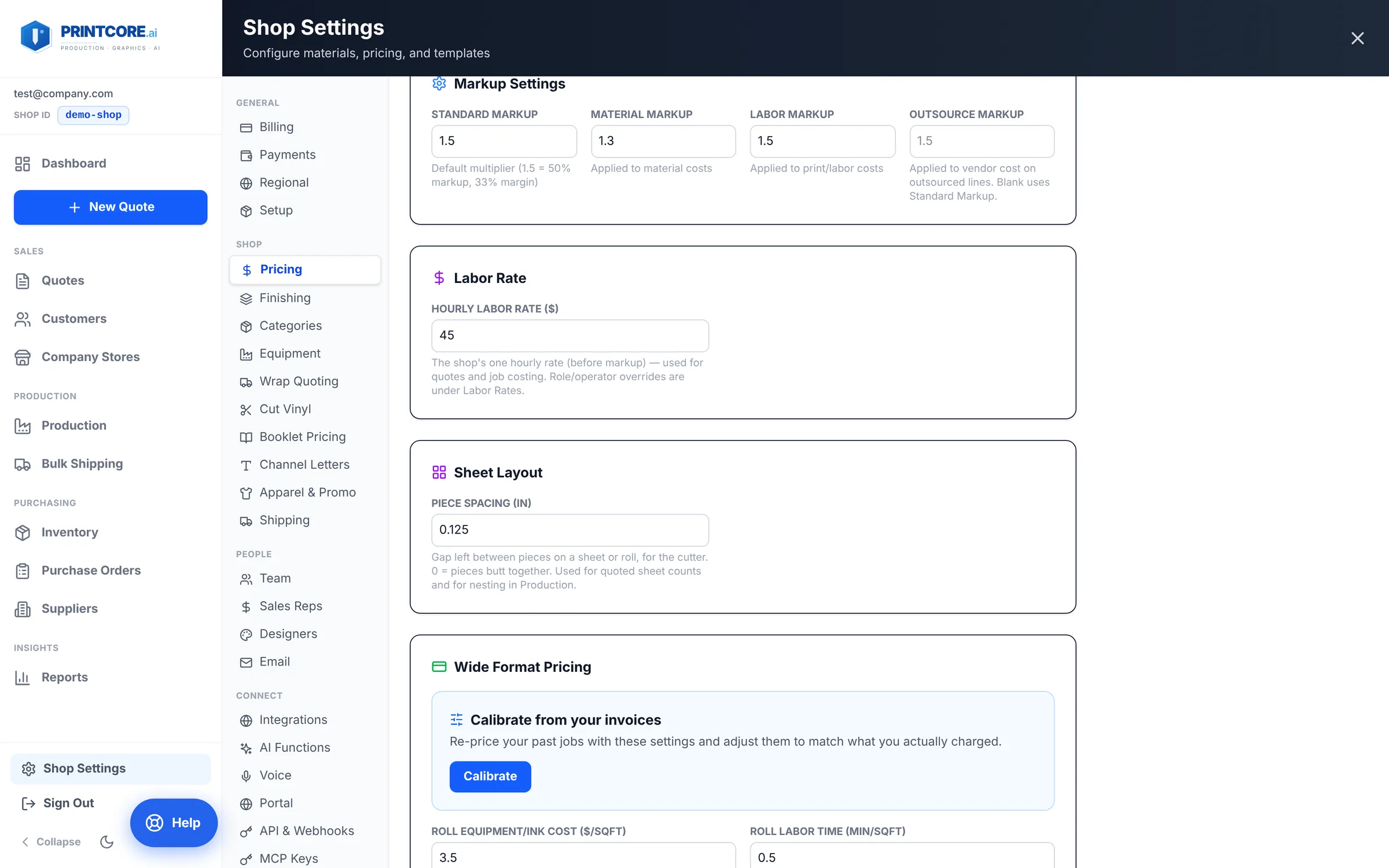
Set your piece spacing once
Piece Spacing is the gap left between pieces on a sheet or roll, for the cutter. 0 means pieces butt together. The same number is used everywhere: the quote's sheet count, the nesting estimates in Production, and the starting gap in a gang file.
app.printcore.ai/settings/pricing
Piece Spacing
What to do
Open Shop Settings → Pricing and find Sheet Layout. Enter the gap in inches (for example 0.125) and save.
Why it matters
One setting means the sheets you quoted and the sheets you nest in production agree. A quote that says 47 sheets won't turn into 49 on the press floor.
Step 4 of 16Imposition & Gang Runs
Stock & nesting on the job ticket
Every job ticket has a Stock & nesting panel under Line Items. For each stock the job prints on, it shows how this job's pieces nest on their own, which other open jobs use the same stock and haven't started yet, and what ganging with them would save. It updates as you edit the line items, before you save. Customers never see it.
app.printcore.ai/jobs/1201
What to do
Open any job and scroll to Stock & nesting. To run the jobs together, click Open gang run →: it opens Production → Gang Runs on that station with the stock highlighted.
Why it matters
Whoever quotes or schedules the job sees the ganging chance without leaving the ticket.
Step 5 of 16Imposition & Gang Runs
Gang Runs: find what to gang
A gang run prints or cuts several jobs that use the same stock together, on one sheet or roll. Gang Runs groups a station's open work by stock, matched on name and thickness (plus roll width or sheet size), so 3mm and 6mm PVC, or a 54" and a 60" roll, never mix. Groups with two or more jobs ready to start are marked Gang candidate and listed first.
app.printcore.ai/production/gang-runs
What to do
Open Production → Gang Runs and pick a station from the chips across the top. A chip with a layers badge has stock worth ganging. Each group shows its nesting estimate — sheets or feet of roll, the yield, and what it saves against running each job alone. Untick any job that won't fit this run and the estimate updates.
Why it matters
Three jobs on one sheet instead of three sheets saves material and a media change, and you know how much before you load the printer. The estimate is for planning; your RIP's nesting usually does a little better.
Step 6 of 16Imposition & Gang Runs
Run a gang run
Start gang run starts every ticked job together as one run. The run bar shows the load to pull (for example 2 × 48×96" sheets · 38% yield) with Pause run, Resume, and Complete run.
app.printcore.ai/production/gang-runs
What to do
Click Start gang run. When the sheet or roll is printed, click Complete run. Steps in a run show a Gang ×N badge in the Queue and in My Work.
Why it matters
One start and one finish for the whole run. The time is split across the jobs by their estimates, so each job is still costed correctly, and each job's next step (cut, laminate) is queued automatically.
Step 7 of 16Imposition & Gang Runs
Gang runs on the Timeline
Reschedule lines up same-stock work back to back on each station — but only within the same priority and when due dates are within two days of each other, so rush work never waits behind a gang. On the Timeline, a violet bracket marks each run and leads with what to pull (2 sheets, 5 ft).
app.printcore.ai/production/timeline
What to do
Click Reschedule, then open the Timeline. Hover a bracket, or click a step in the run, for the full nesting estimate and the job numbers.
Why it matters
The schedule itself groups the work that should run together, instead of leaving it to the operator to notice.
Step 8 of 16Imposition & Gang Runs
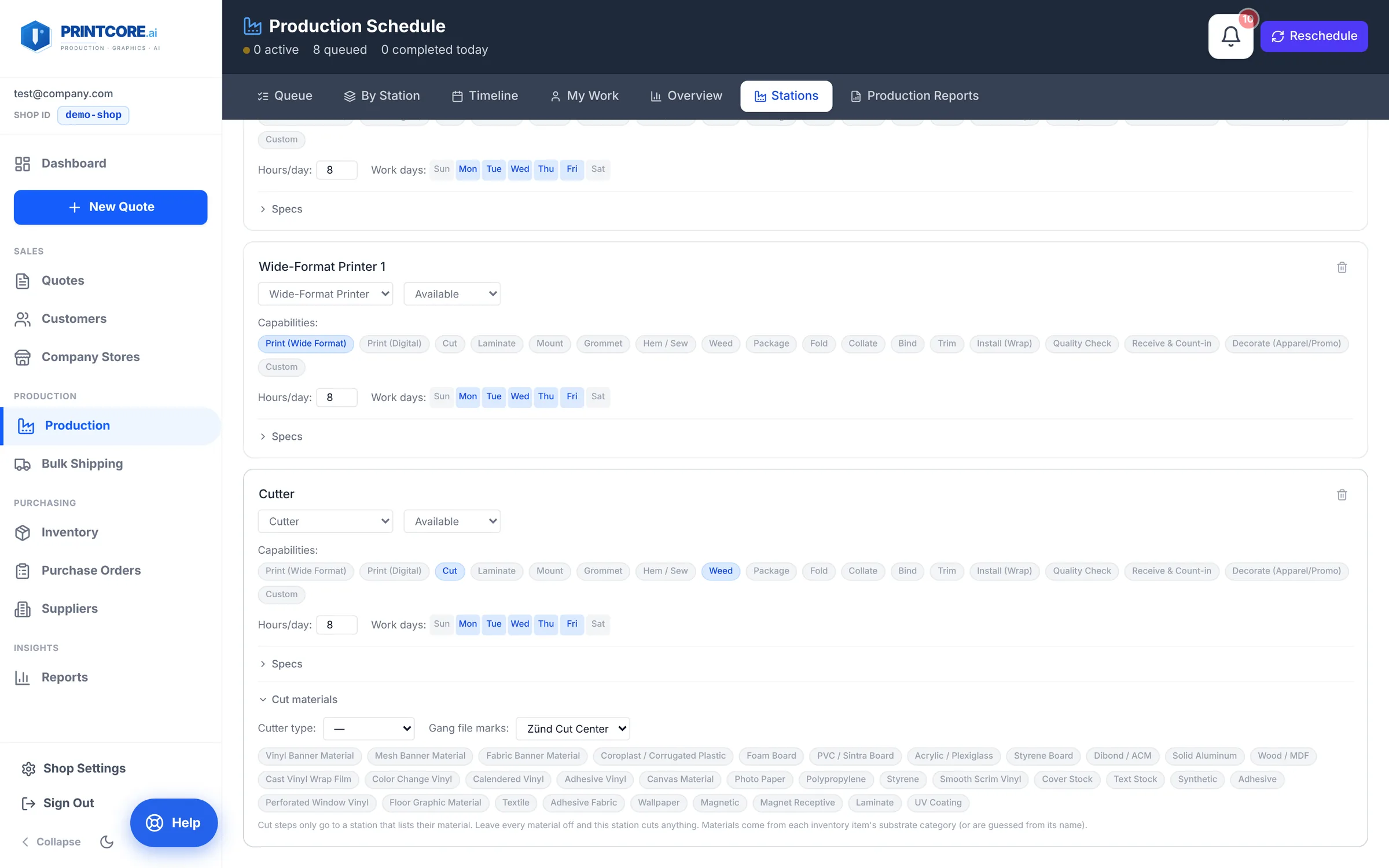
Tell Printcore which cutter you use
Gang files carry cut lines and registration marks for your cutter. Zünd Cut Center gets the spot color Thru-cut; Esko i-cut gets CutContour. Both use 5 mm registration dots, 10 mm in from the edge, no more than 400 mm apart.
app.printcore.ai/production/stations
Gang file marks
What to do
Open Production → Stations, find your cutter, open Cut materials, and set Gang file marks to Zünd Cut Center or Esko i-cut. In your cutter software, map that spot color to your thru-cut tool, then print and cut one test sheet to check the camera finds the dots.
Why it matters
Set it once and every gang file comes out in your cutter's convention. If your cutter expects a different spot name or dot size, Printcore support can change it for your shop.
Step 9 of 16Imposition & Gang Runs
Build a print-ready gang file
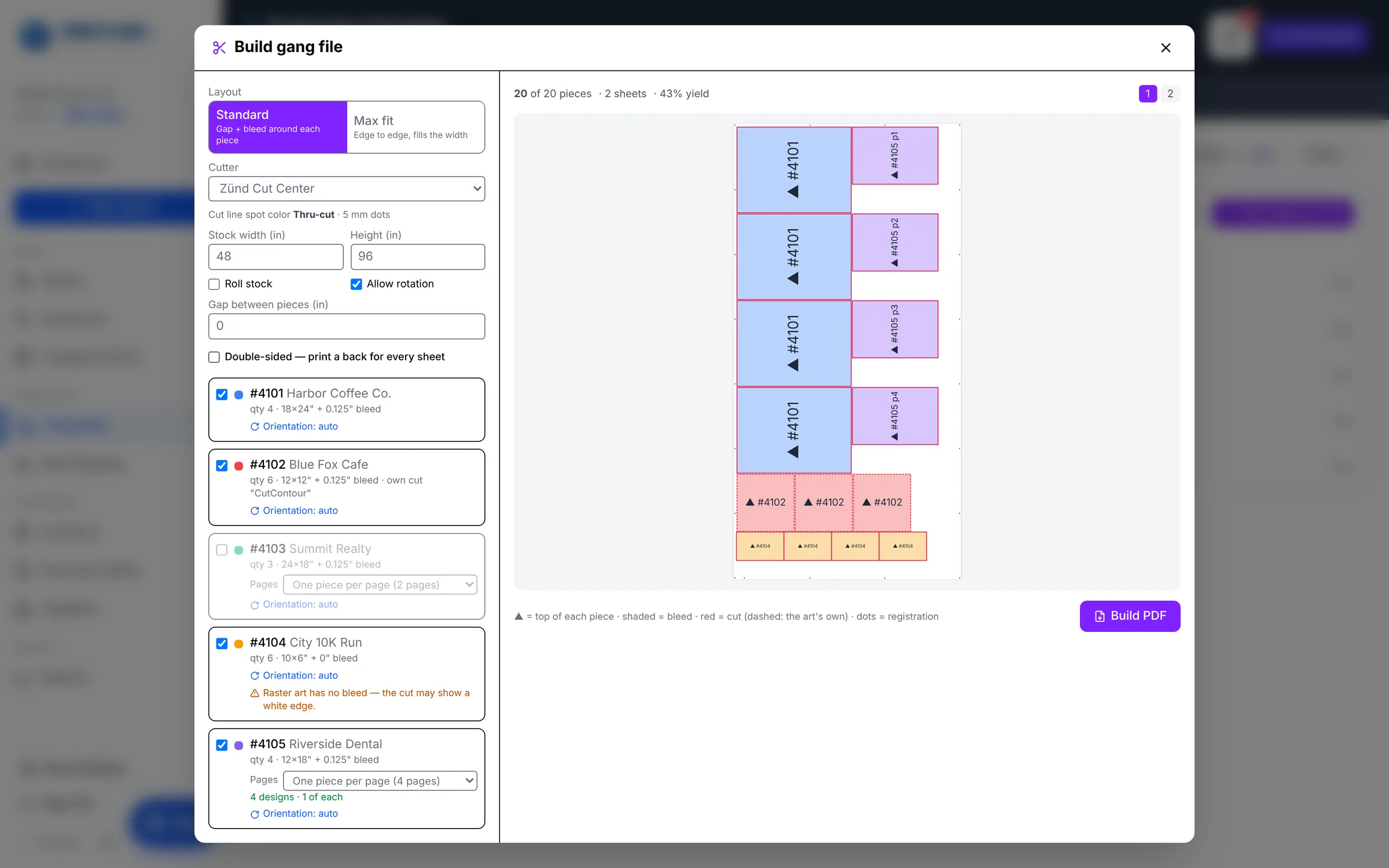
Build gang file turns a group into one PDF. Printcore finds each job's artwork, reads its trim and bleed, and nests every copy on the sheet or roll. The preview shows ▲ for the top of each piece, the bleed shaded, red cut lines (dashed when the art brings its own cut), and the registration dots.
app.printcore.ai/production/gang-runs
What to do
On Gang Runs, tick the jobs in a print group and click Build gang file (a running gang has a Gang file button too). Change the cutter, stock size, gap, or rotation if you need to. Click a piece, or Orientation, to turn a job; untick a job to leave it out; or pick a different artwork file when a job has several.
Why it matters
No more rebuilding the gang by hand in Illustrator — the file comes straight from the jobs, with the cut line at trim and the marks your cutter reads.
Step 10 of 16Imposition & Gang Runs
Check the size, set the quantity, add same-size files
Each job shows the size it expects, for example Expects 4×6", before you pick a file, and the picker reads Pick a 4×6" file…. Once a file is chosen, its own size and bleed show underneath so you can see it matches. Each file has a Qty box that starts at the ordered quantity. Change it to run more or fewer copies; ordered N — reset puts it back.
What to do
When a job has several artwork files at the same size (design A, B and C on one 4×6" order, say), click + Add another file at 4×6" to add a row, pick its file, and give it its own Qty — for example A × 25, B × 40, C × 35. Added rows never pick a file for you; remove one with its ✕. The preview, sheet count and PDF use the quantities you enter.
Why it matters
Pick the right file the first time, run extra copies or split an order across several designs without editing the job. Each saved gang file records which files ran, at what quantity, and how many pieces were placed.
Step 11 of 16Imposition & Gang Runs
One piece per page of a multi-page PDF
When a job's artwork is a PDF with several pages — 13 different names on a qty-13 order, say — each copy prints the next page, in sheet order. Each piece in the preview is labelled with the page it prints (#4105 p1…p4). Every page must be the same size and bleed as page 1; if not, page 1 is used and you get a warning.
app.printcore.ai/production/gang-runs
Pages
What to do
In Build gang file, a multi-page job shows a Pages picker: One piece per page or Page 1 only. The job also shows how the copies divide, for example 13 designs · 1 of each.
Why it matters
Name badges, versioned signs, and other one-of-each work gang up correctly, instead of page 1 printing thirteen times.
Step 12 of 16Imposition & Gang Runs
Double-sided gang files
Tick Double-sided — print a back for every sheet. It's on already when a job in the group is 2-sided. Choose how the sheet is flipped: Side to side or Top to bottom. Each job gets a Back: page 2 of its PDF (picked automatically when there is one), Same as front, another file on the job, or No back.
app.printcore.ai/production/gang-runs
What to do
Switch the preview to Back to see the back as it will print. A back that isn't the same size and orientation as its front is flagged in red and blocks Build PDF until you fix it or choose No back.
Why it matters
In the PDF each sheet's back follows its front, mirrored so it lands behind its own front after the flip — no hand-mirroring a back file. Print one test sheet to check your printer's flip registration.
Step 13 of 16Imposition & Gang Runs
Max fit for yard signs
For solid or no-background work, switch Layout to Max fit. Pieces go at trim size with no gap and no bleed, filling the stock width edge to edge: 24×18" signs go two across a 48×96" sheet. Printcore can resize a piece by up to Resize up to (%) (5% by default, proportions kept) so a whole number fit across.
app.printcore.ai/production/gang-runs
What to do
Pick Max fit at the top of the dialog. Each job shows how it fits, such as 2 across · exact size or resized 102.1%. Shared edges are cut once, and registration dots run only along the top and bottom. The choice is remembered on your browser and works with Double-sided.
Why it matters
Every inch of the sheet is printed and the cutter makes fewer, longer cuts.
Step 14 of 16Imposition & Gang Runs
Check the warnings, then build
Each job in the dialog flags anything that would spoil the sheet: No bleed, Image is only N ppi, artwork that isn't the ordered size (same-shape art is scaled up for you), Keeps its own cut, Won't fit this stock, or No artwork on this job. Build PDF stays off while pieces overlap, run into the dot margin, or a back doesn't match its front.
What to do
Fix what's flagged — attach the print file to the job, pick the right artwork, or untick the job — then click Build PDF.
Why it matters
Problems show up on screen, not on a printed sheet of expensive substrate.
Step 15 of 16Imposition & Gang Runs
Download the print file and cut files
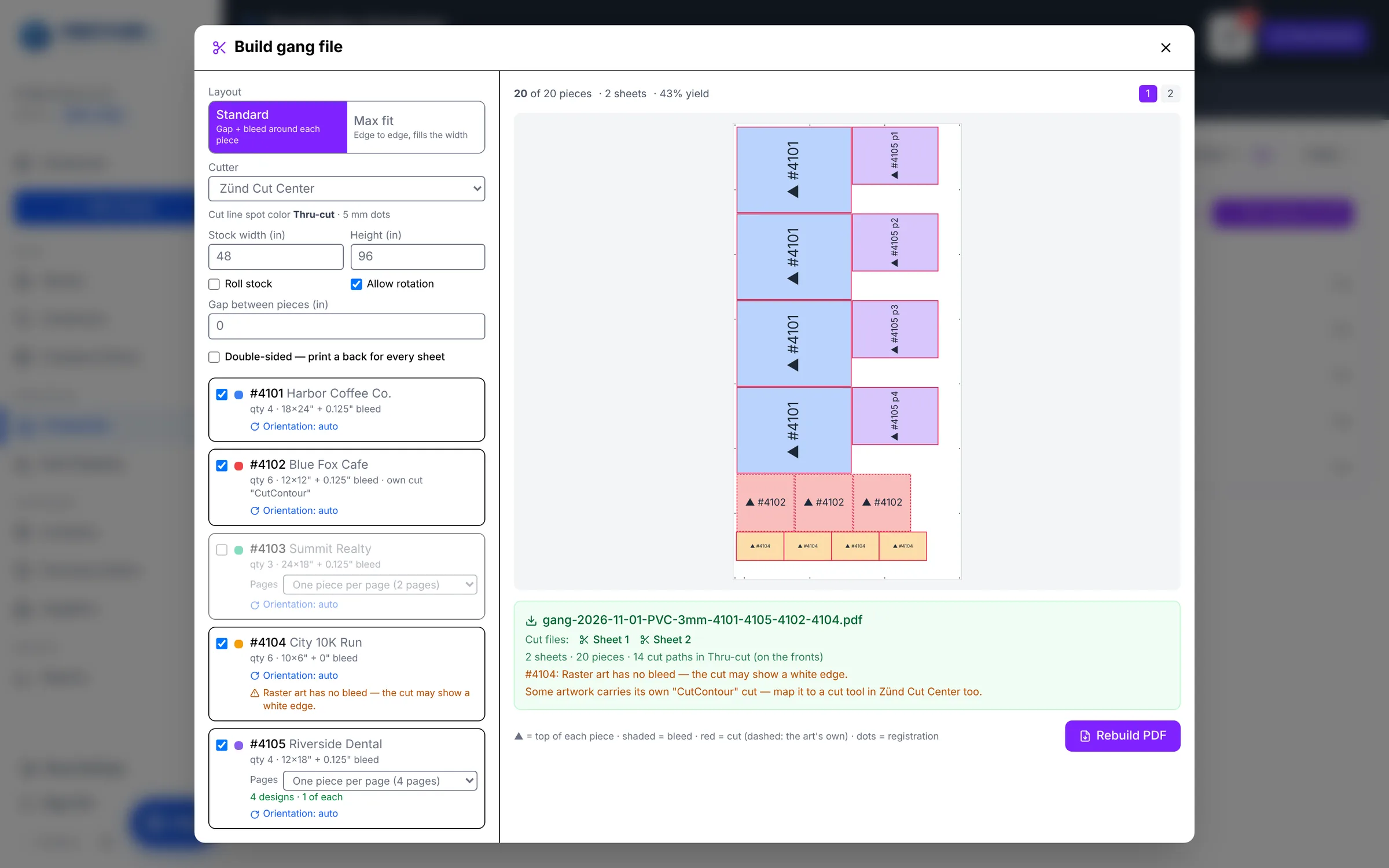
Every build makes the print PDF and one cut-only PDF per sheet: the same page size, registration dots, and cut paths, with no art. Files are kept in Printcore's cloud storage, and each build is saved as a new file — rebuilding never overwrites an old one.
app.printcore.ai/production/gang-runs
Cut files, one per sheet
What to do
Right after building, a green box shows the print file and its Cut files (one per sheet). Later, the group on Gang Runs has Gang file and Cut files buttons. Download links last an hour; click again for a fresh one. Open the files in your RIP and cutter software, or drop them in your hot folder — Printcore doesn't send them automatically.
Why it matters
The printer gets the art, the cutter gets a clean cut file, and both line up from the same marks.
You can gang like a pro 🧩
That's imposition and gang runs, from the quote layout to the cut file. Next: your returns report — what Printcore made or saved you this month, job by job.