Step 1 of 7Inventory, Purchase Orders & Suppliers
Your inventory list
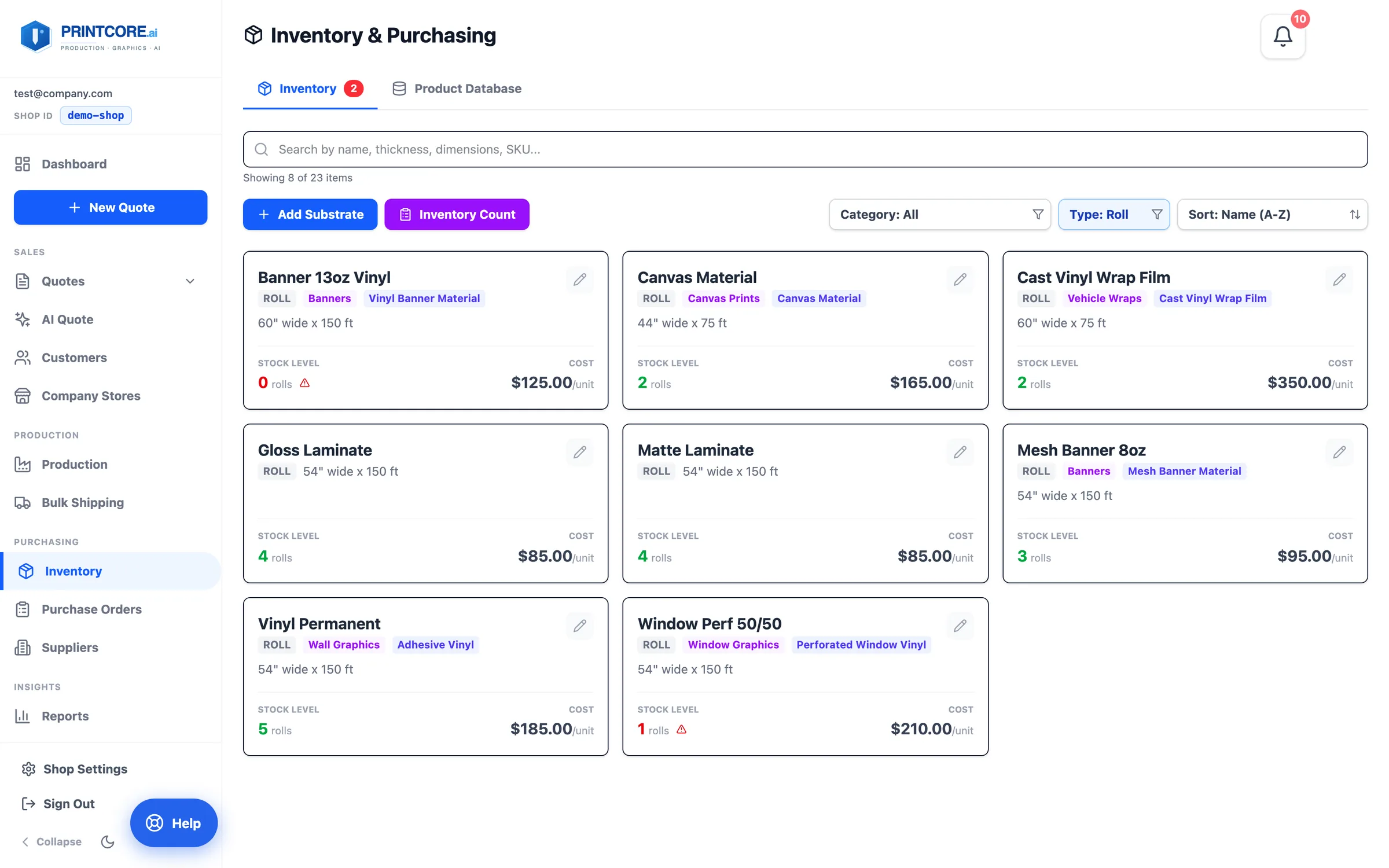
Every substrate, ink, and consumable, with quantity on hand, cost, and thickness. Stock auto-deducts the moment a job moves into Production and restores if it moves back.
app.printcore.ai/inventory
What to do
Click Inventory in the side menu. Narrow the list with the Category filter (a product category like Banners, or one substrate under it) and the Type filter (Roll, Rigid, Sheet) — a Showing X of Y count tells you a filter is on. Sort by name, stock, or type. Items below their minimum are flagged.
Why it matters
Your stock count stays accurate without anyone manually logging usage. The number on screen is the number on the shelf.
Step 2 of 7Inventory, Purchase Orders & Suppliers
Open an item to see the details
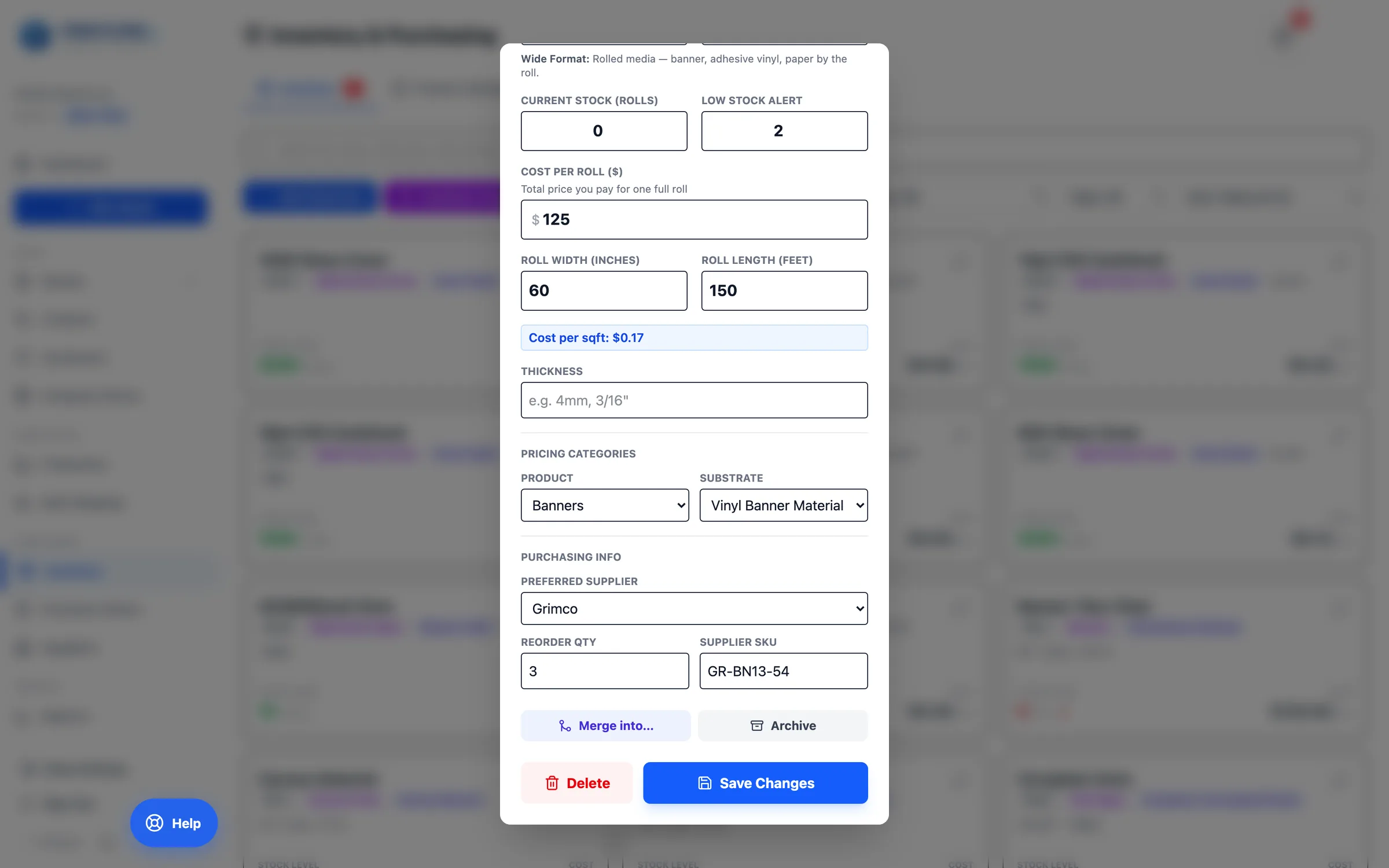
Each item has current stock, low-stock alert, cost per unit, dimensions, thickness, the quoter it feeds, and a preferred supplier with SKU and reorder quantity. A material's identity is its name plus thickness, so 3mm and 6mm PVC are separate items — but a second record with the same name and thickness is blocked.
app.printcore.ai/inventory
What to do
Click the pencil on any item. Adjust the Low Stock Alert, set the Reorder Qty and Supplier SKU, and pick a Preferred Supplier. Under Pricing Categories, the substrate list is your shop's own — pick Add new … substrate to create one on the spot. Save.
Why it matters
Setting these once means Printcore knows exactly when to alert you and what to reorder.
Step 3 of 7Inventory, Purchase Orders & Suppliers
Substrate Forecast (AI)
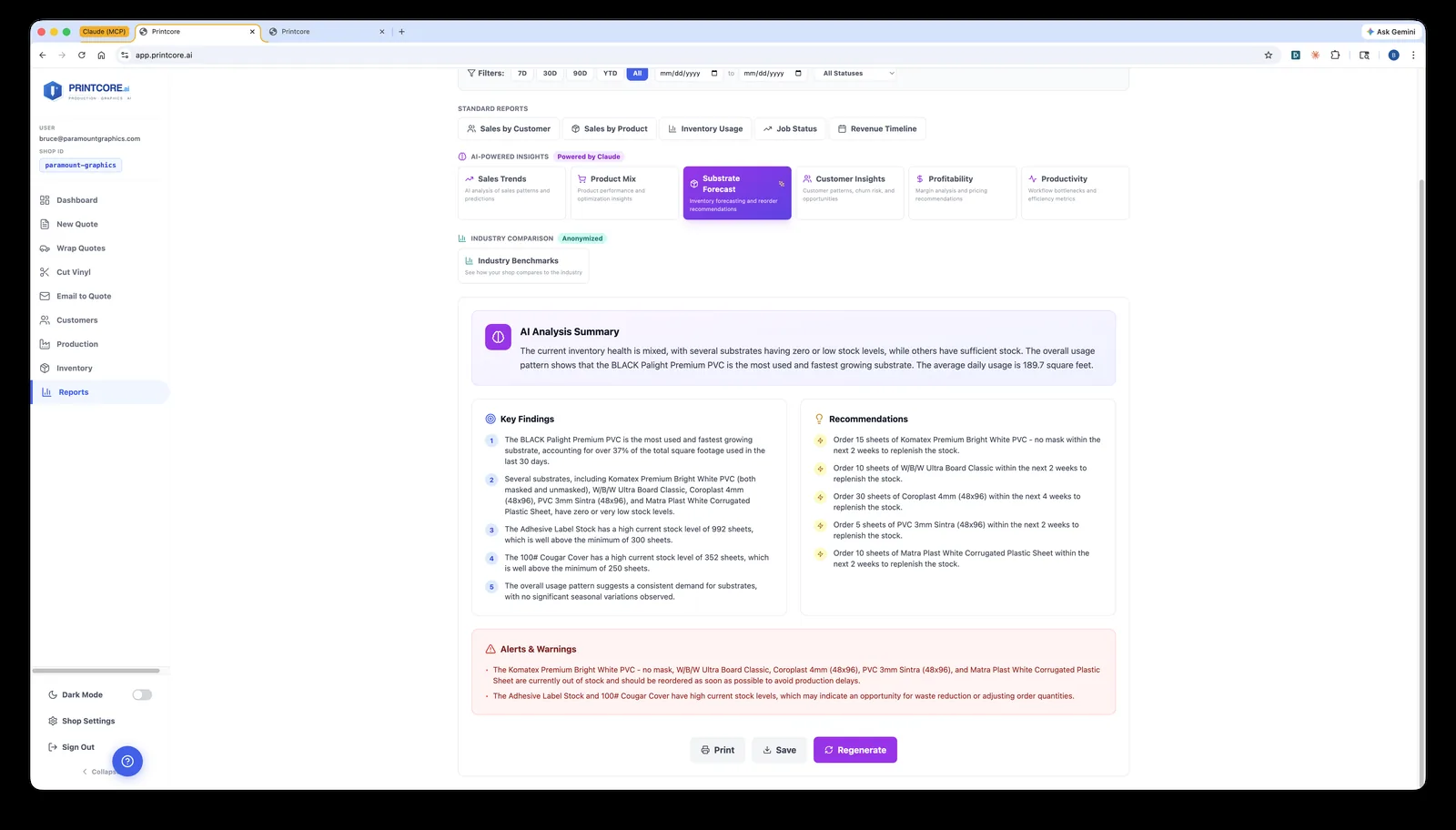
Based on the jobs in your queue, Printcore predicts when you'll run out of each material.
What to do
Open Reports and pick the Substrate Forecast tile. The AI summary flags materials that are running short, with key findings and reorder recommendations.
Why it matters
Reactive shops lose to slow restocks. Forecasting lets you place suppliers' orders early — and at better prices.
Step 4 of 7Inventory, Purchase Orders & Suppliers
Purchase Orders
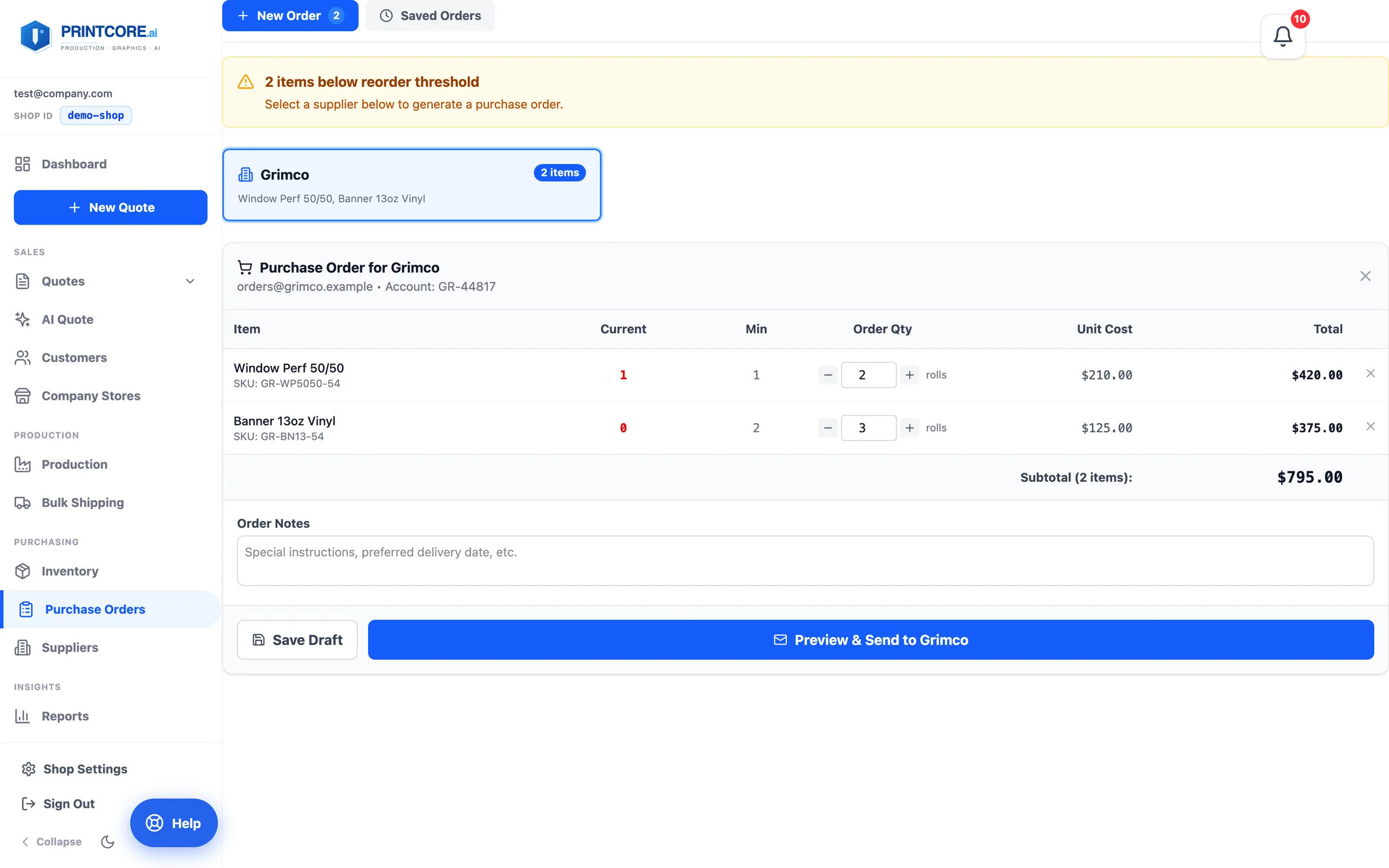
Purchase Orders have their own place in the sidebar. For stock, Printcore groups everything below its reorder point by supplier; for outsourced work, a PO is raised straight from the job ticket. Unsent POs are flagged so they're easy to find.
app.printcore.ai/purchase-orders
What to do
Click Purchase Orders. New Order shows what's below its reorder threshold, grouped by supplier — pick a supplier, review the suggested quantities, adjust, and Save Draft or Preview & Send it to the supplier. Saved Orders lists every PO with its status — Draft → Sent → Confirmed → Received — and receiving updates stock.
Why it matters
Less paperwork, fewer mistakes — and one place to see everything you've ordered, from stock to outsourced fabrication.
Step 5 of 7Inventory, Purchase Orders & Suppliers
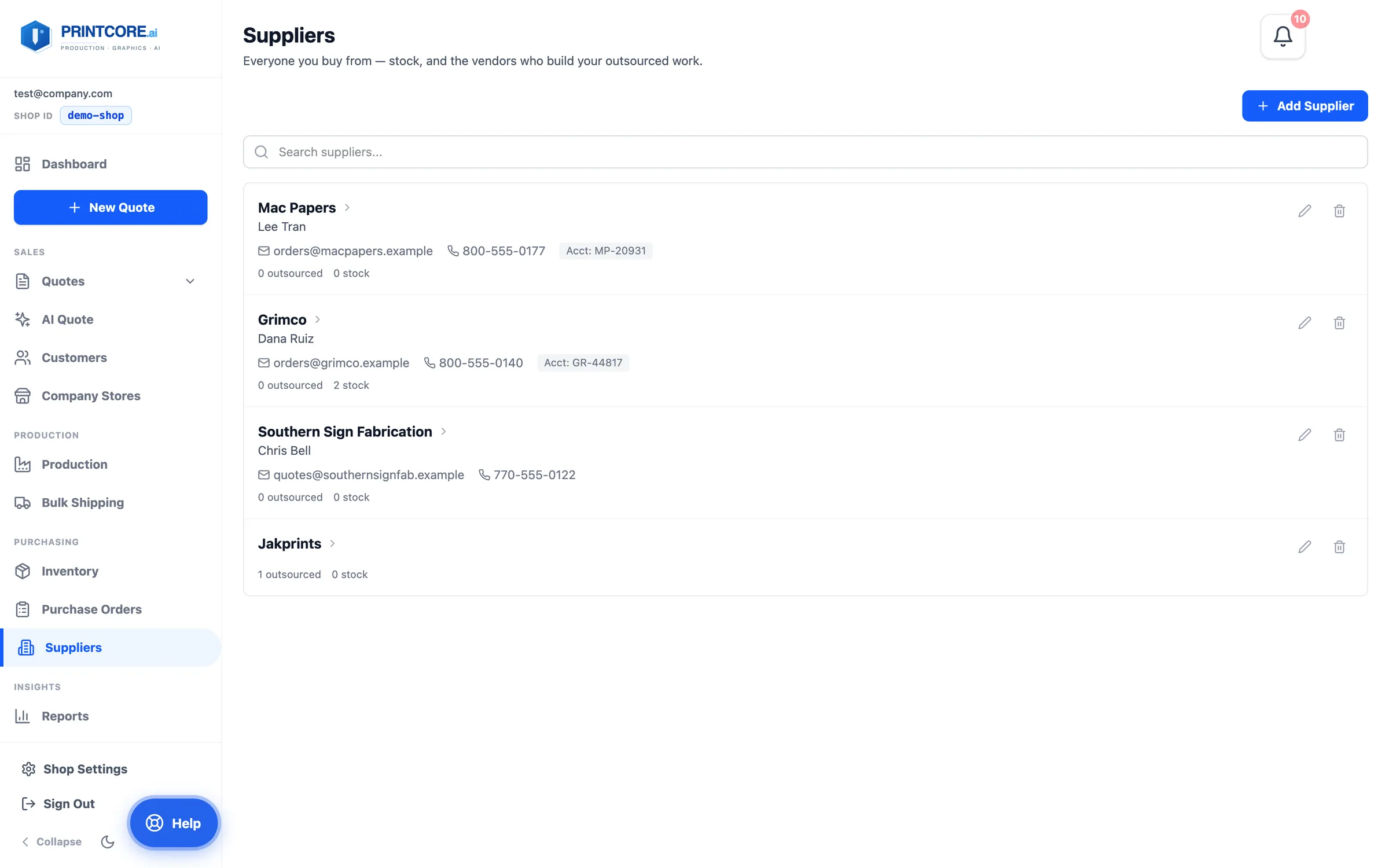
Suppliers
Suppliers are on their own screen — one row per supplier with contact details, account number, and how many outsourced lines, stock items, and open POs point at it. A supplier can be where stock comes from, a vendor who fabricates outsourced work, or both.
app.printcore.ai/suppliers
What to do
Click Suppliers. Click a row to see everything attached to that supplier; use the pencil to edit. Add Supplier takes contact, terms, and account number. Suppliers connected through Apparel & Promo (S&S, SAGE) are added here automatically.
Why it matters
You never have to type substrate specs by hand, and every outsourced line and PO points at a real supplier record.
Step 6 of 7Inventory, Purchase Orders & Suppliers
Keep it clean: Housekeeping
Duplicate materials creep in over time. Shop Settings → System → Housekeeping (admins) lists records that share a name and lets you Merge into… one — stock is summed, open jobs are re-pointed, and you see a dry run first. Archived items stay hidden unless you toggle Show archived.
app.printcore.ai/settings/housekeeping
What to do
Open Housekeeping once a quarter. Nothing is automatic and nothing is deleted — every row is Archive, Merge, or Ignore.
Why it matters
Clean inventory means the material picker offers one right answer, not three near-duplicates.
Stock under control 📦
Now the strategic view — Reports show the trends that explain your numbers.