Step 1 of 11Production
The Production Queue
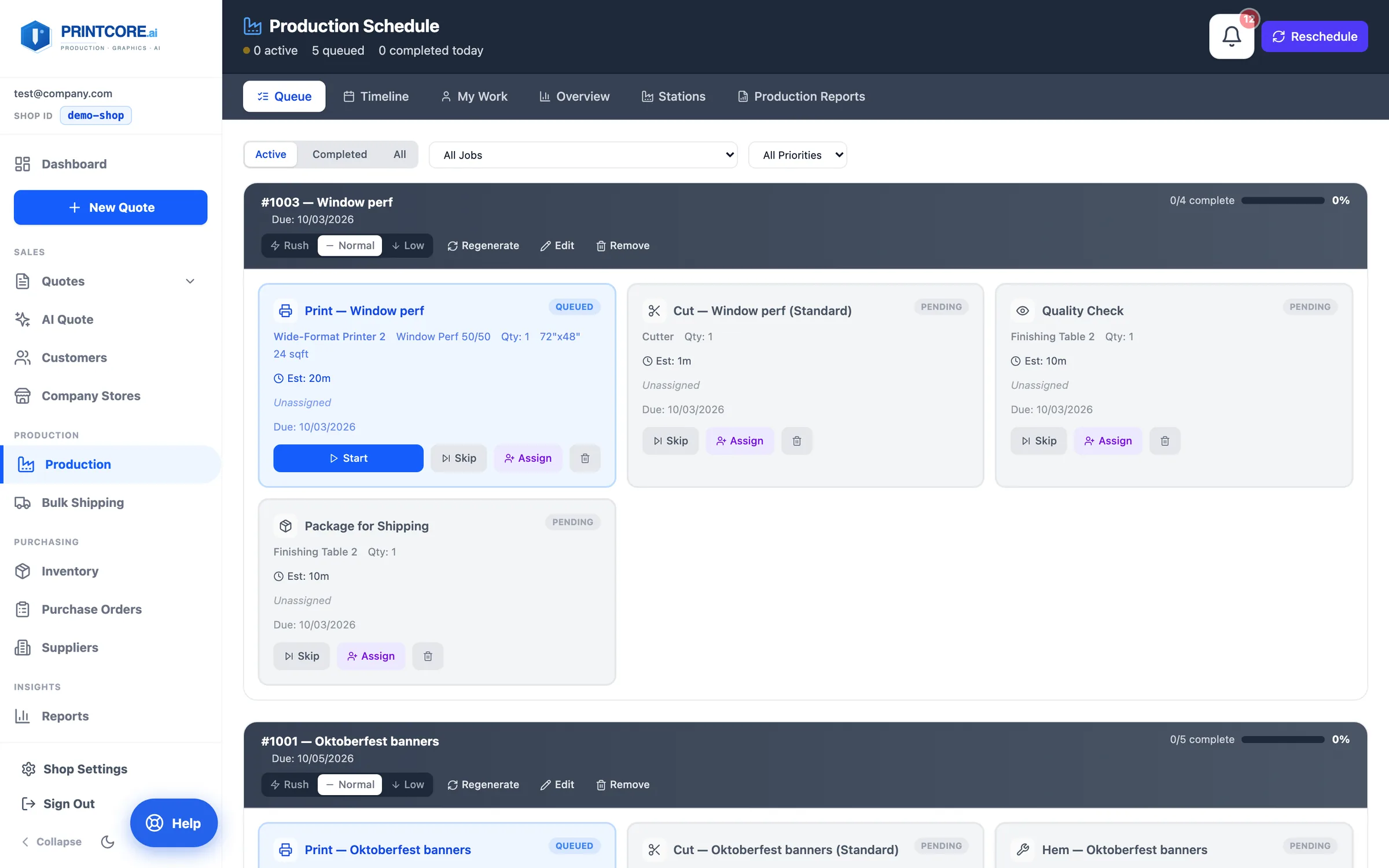
A focused view of what's actually being worked on — sorted by due date and station. Each Production view has its own address: /production, /production/by-station, /production/timeline, /production/my-work, /production/overview, /production/stations, /production/reports.
app.printcore.ai/production
What to do
Click Production in the side menu. The Queue opens first; each job shows its operations as cards with Start, Skip, and Assign, and rush jobs are flagged.
Why it matters
On the dashboard, every job is visible. The queue narrows to what your operators need to do today.
Step 2 of 11Production
Generate operations
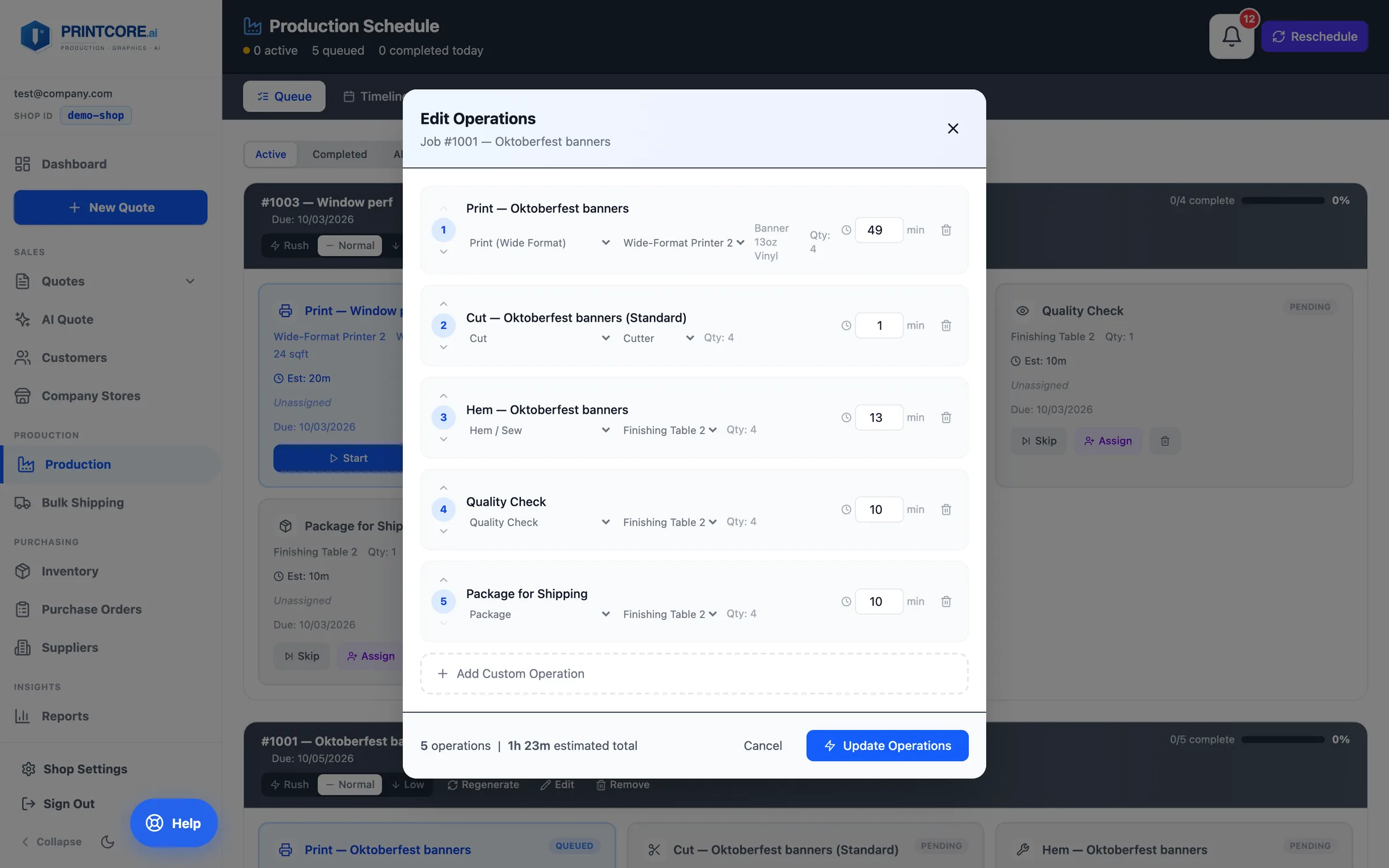
For any approved job, Printcore breaks the work into the discrete operations needed to produce it — print, laminate, cut, grommet, QC, package — with a time estimate for each, and routes them to stations that can actually run them.
app.printcore.ai/production
What to do
A banner at the top of the Queue lists approved jobs that still need operations. Click one to review its steps, stations, and minutes (managers and admins), add a custom operation if your shop runs an extra step, then Generate Schedule — or use Generate all. On a job that already has operations, Edit opens the same list to re-time or re-route a step.
Why it matters
Every operation is named, sequenced, and time-budgeted the way the work is really handled — the digital press and guillotine are timed per sheet, QC and packing count bundles and decal stacks rather than single pieces, and small decals are weeded by area — and the estimates get more accurate as your operators record real times.
Step 3 of 11Production
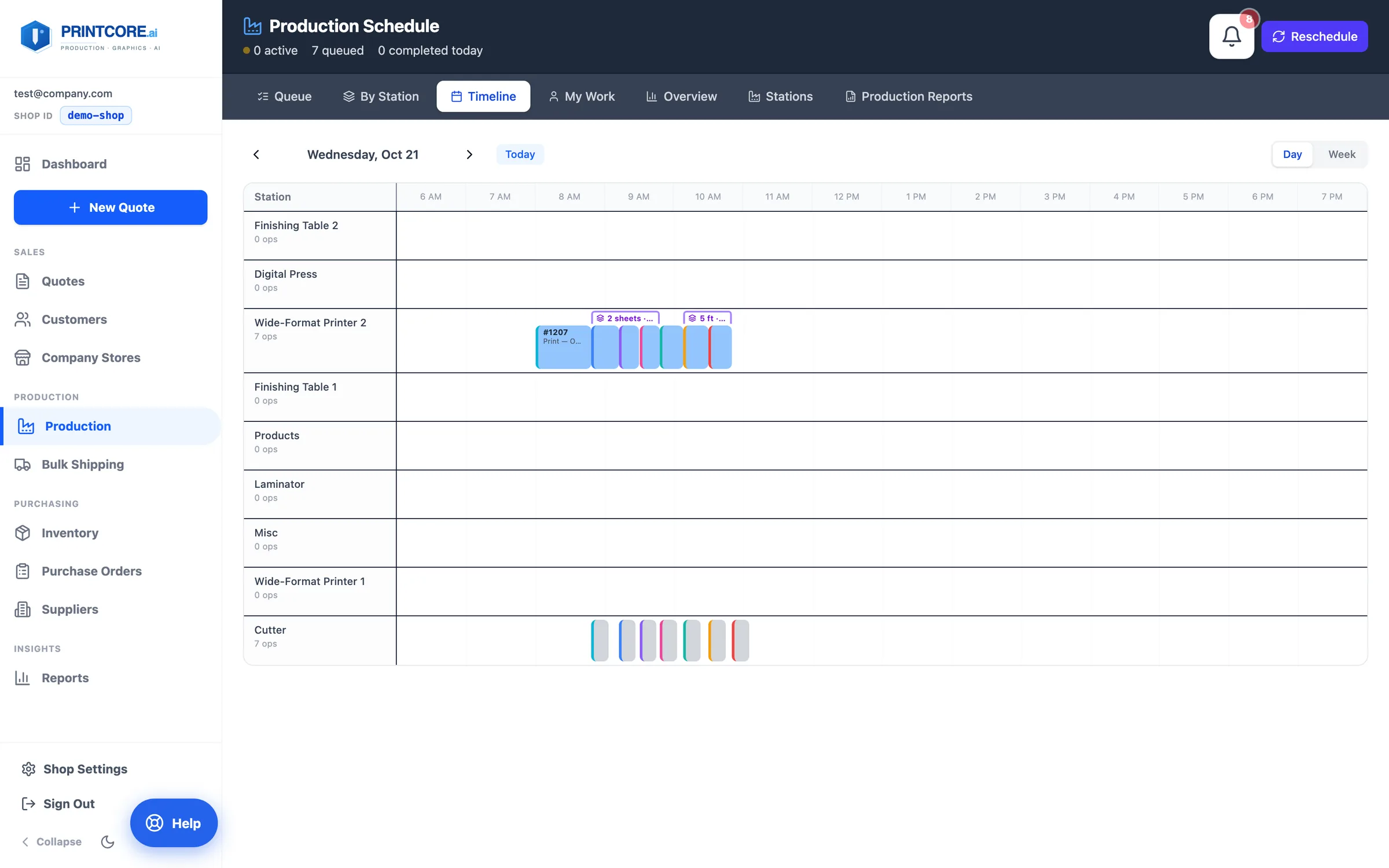
Timeline and My Work
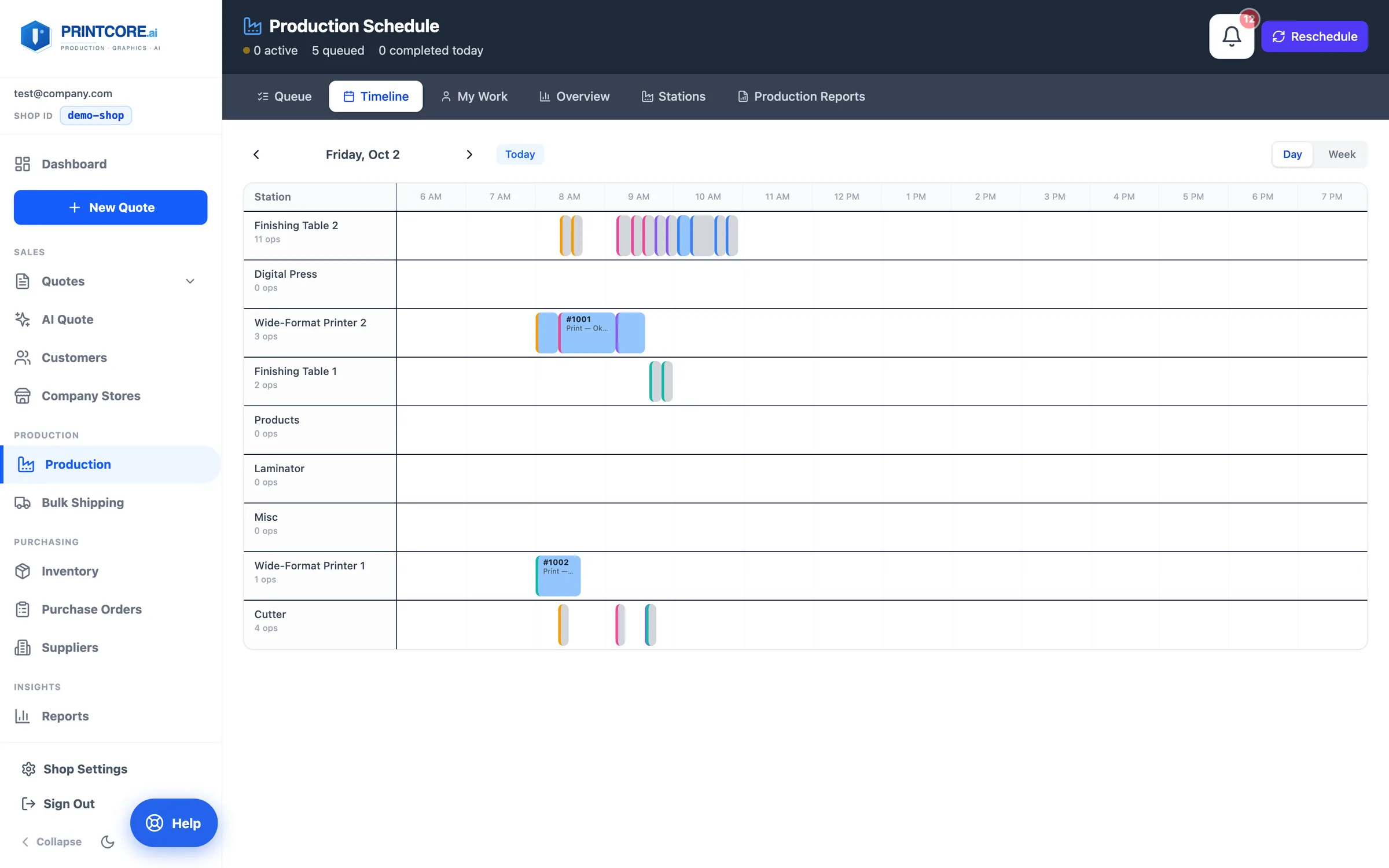
The Timeline is a Gantt view per station that opens on today. My Work is the operator's screen: their current job, what's next, Start / Pause / Complete with a live timer.
app.printcore.ai/production/timeline
What to do
Operators open My Work on their phone at the station — the layout fits a 375px screen with no sideways scrolling.
Why it matters
Operators don't see the noise of the whole shop — just what they need to print, cut, or finish next.
Step 4 of 11Production
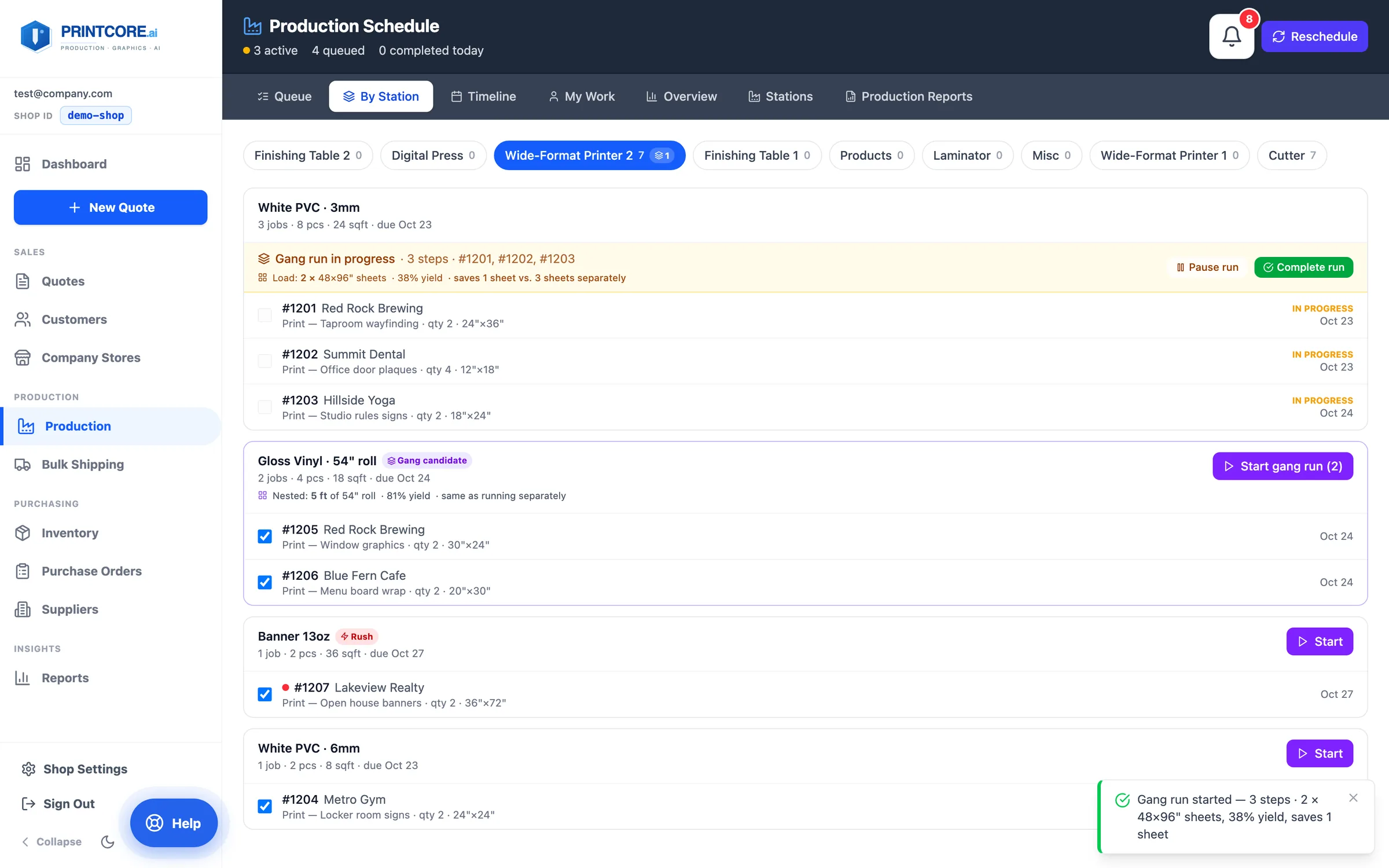
By Station: see what to gang
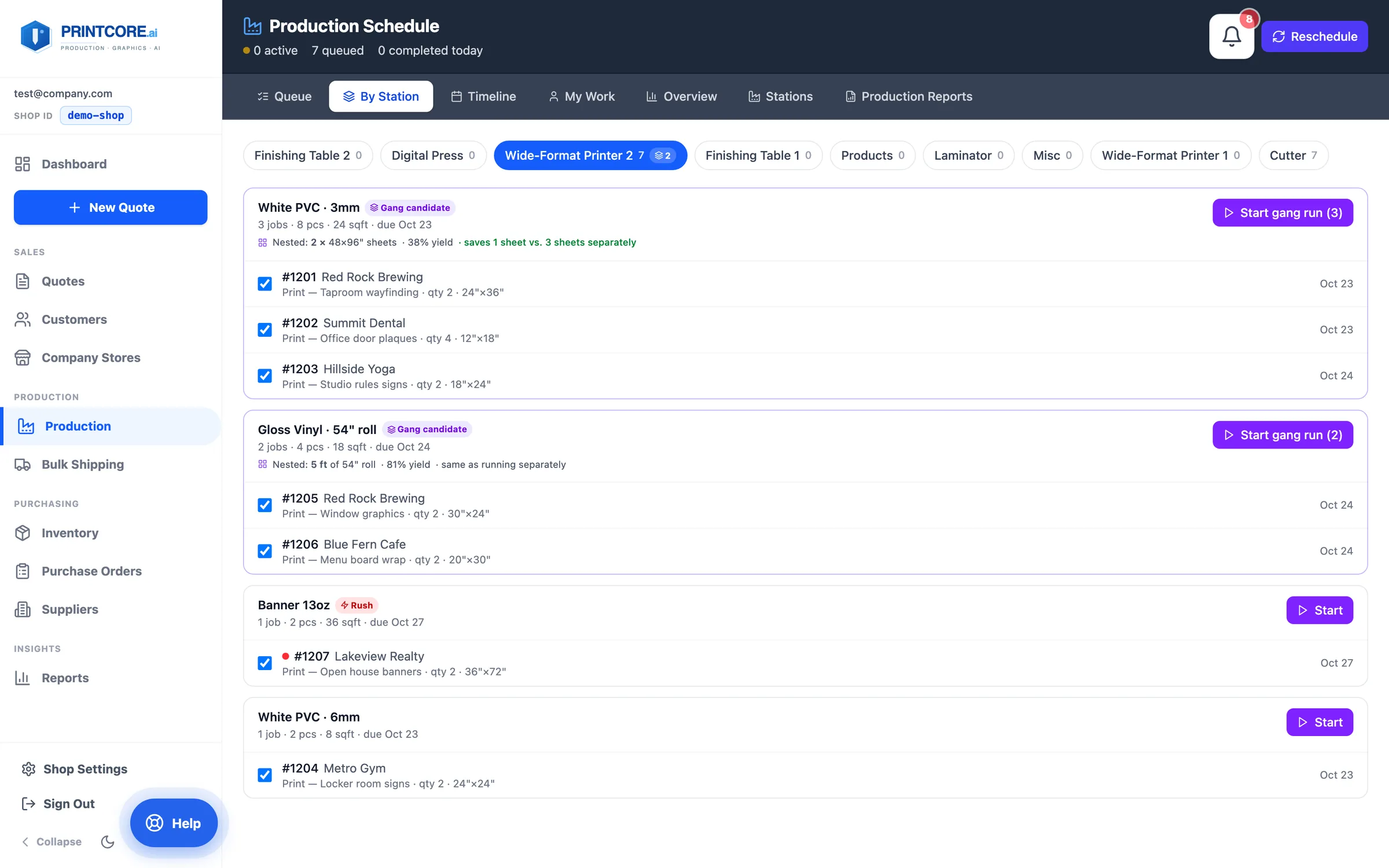
By Station shows one station's open work grouped by the stock it runs on, matched on name and thickness (plus roll width or sheet size), so 3mm and 6mm PVC never mix. Groups with two or more jobs ready to start are marked Gang candidate and listed first. Each one shows a nesting estimate: how many sheets or feet of roll the ganged pieces take, the yield, and what it saves against running each job on its own.
app.printcore.ai/production/by-station
What to do
Click the By Station tab and pick a station from the chips across the top. A chip with a layers badge has stock worth ganging. Untick any job that won't fit this run; the estimate updates as you do.
Why it matters
Printing three jobs on one sheet instead of three separate sheets saves material and a media change, and the estimate tells you how much before you load the printer.
Step 5 of 11Production
Run a gang run
Start gang run starts every ticked job together as one run. The run bar shows the load to pull (for example 2 × 48×96" sheets · 38% yield) and has Pause run, Resume, and Complete run. Completing the run splits its time across the jobs by their estimates, so job costing stays accurate, and each job's next step (cut, laminate) is queued automatically.
app.printcore.ai/production/by-station
What to do
Click Start gang run on a group. When the sheet or roll is printed, click Complete run. Steps in a run show a Gang ×N badge in the Queue and in My Work.
Why it matters
One start and one finish for the whole run, with every job still advancing and costed correctly on its own.
Step 6 of 11Production
Gang runs on the Timeline
Reschedule lines up same-stock work back to back on each station. It only does this within the same priority and when due dates are within two days of each other, so rush work never waits behind a gang. On the Timeline, a violet bracket marks each run and leads with what to pull (2 sheets, 5 ft). Hover it, or click a step in the run, for the full nesting estimate and the jobs in it.
app.printcore.ai/production/timeline
What to do
Click Reschedule, then open the Timeline. Short runs show a short label; hover the bracket to read all of it.
Why it matters
The schedule itself now groups the work that should run together, instead of leaving it to the operator to spot.
Step 7 of 11Production
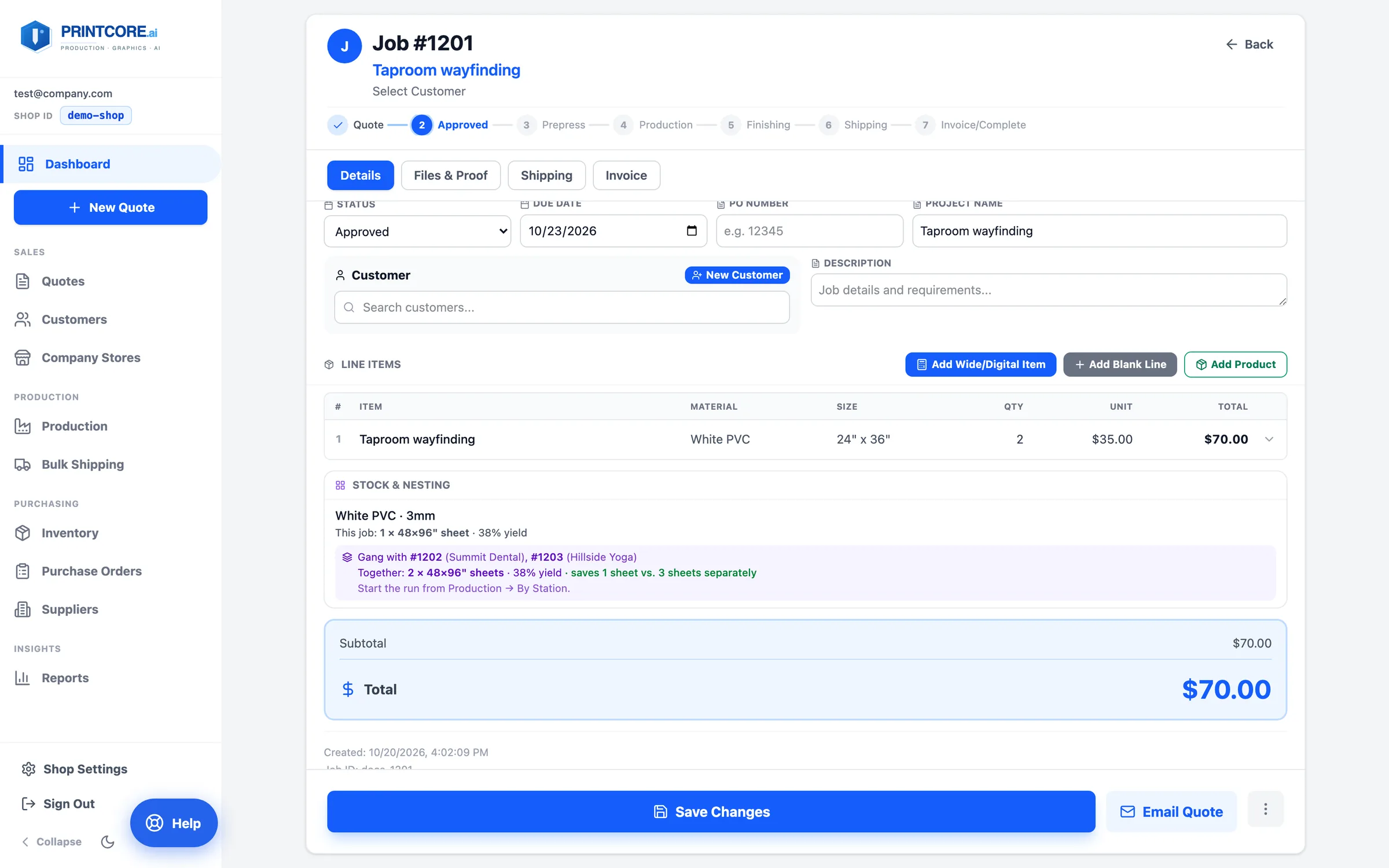
Stock & nesting on the job ticket
Every job ticket has a Stock & nesting panel under Line Items. For each stock the job prints on, it shows how this job's pieces nest on their own, which other open jobs use the same stock, and what ganging with them would save. It follows your edits to the line items before you save.
app.printcore.ai/jobs/1201
What to do
Open any job and scroll to Stock & nesting. To run the gang, go to Production → By Station.
Why it matters
Whoever schedules or quotes the job sees the ganging opportunity without leaving the ticket. Stock sizes come from the line, or from the matching inventory item when the line didn't record one.
Step 8 of 11Production
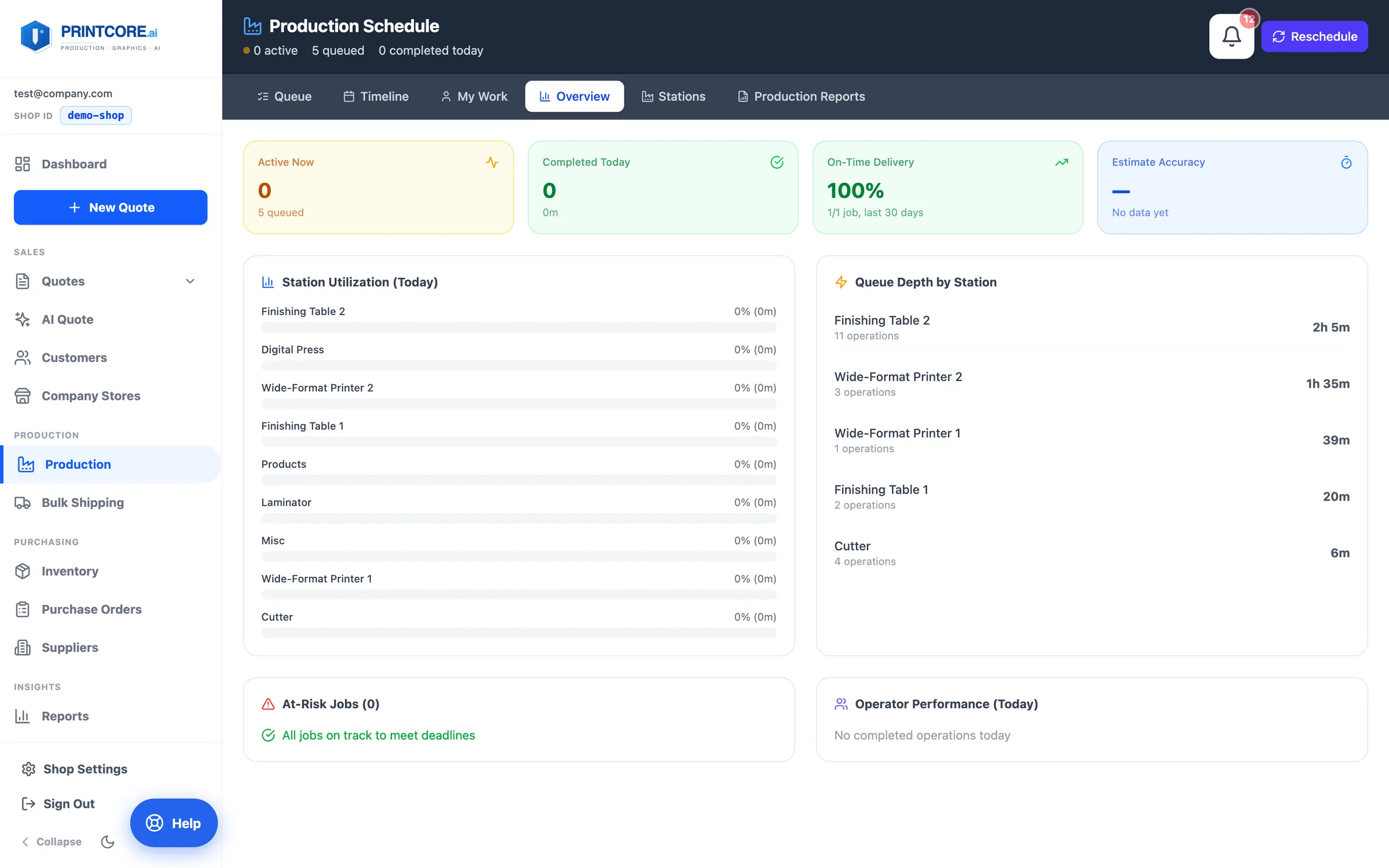
Overview
A cross-shop view: utilization per station with overload flags, queue depth, at-risk jobs, and estimate accuracy.
app.printcore.ai/production/overview
What to do
Click the Overview tab. Spot the press that's overloaded or the operator who needs help — before it becomes a missed deadline.
Why it matters
You manage from numbers instead of walking the floor asking.
Step 9 of 11Production
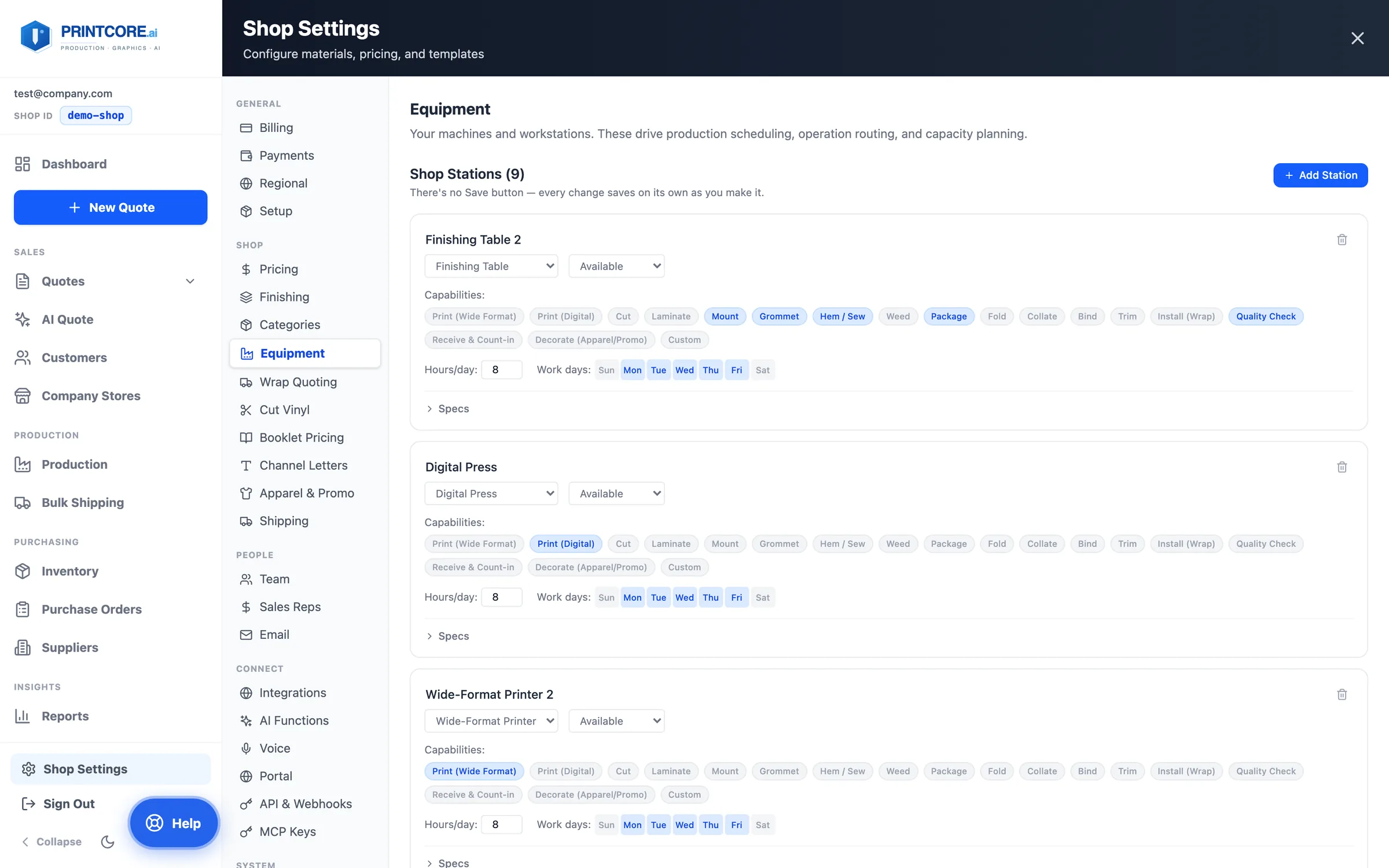
Equipment and its limits
Each station has hours, work days, capabilities — and optional capability specs: max width, max length, max thickness, throughput. Blank means no limit.
app.printcore.ai/settings/equipment
What to do
Open Shop Settings → Equipment. Tick what each station can do, set its hours and work days, and open Specs to enter its limits. Every change saves as you make it.
Why it matters
Once entered, the limits are enforced in quoting and routing: a 5×10 sheet never gets priced onto a 4×8 flatbed, and operations route only to stations that can run them.
Step 10 of 11Production
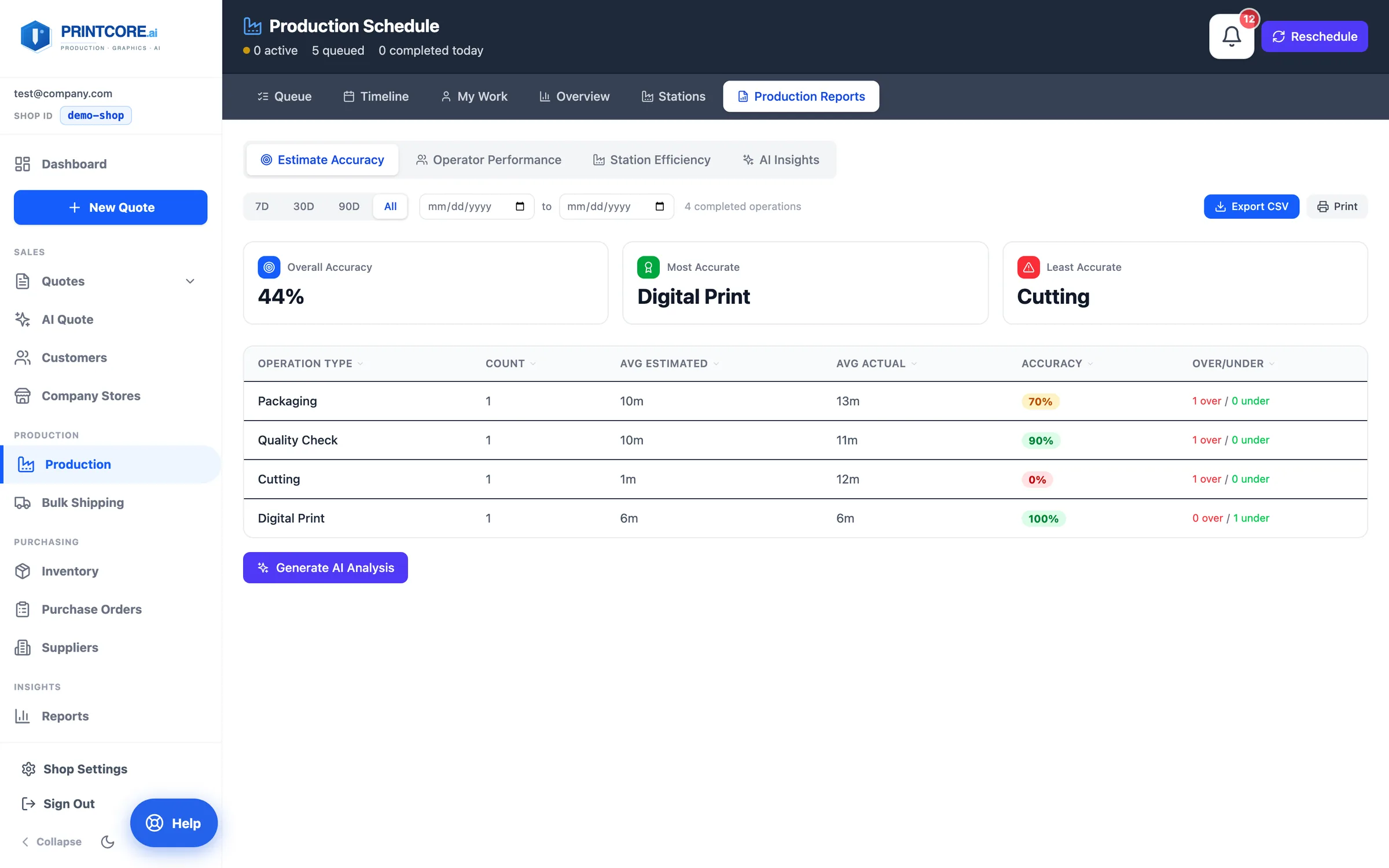
Production reports
Estimate accuracy, operator performance, station efficiency, and an AI analysis of bottlenecks — all built from the real timings your operators record. Operations still open when a job is invoiced are closed automatically and kept out of these numbers.
app.printcore.ai/production/reports
What to do
Click the Production Reports tab. Filter by 7, 30, or 90 days and export to CSV.
Why it matters
You can spot the press that's always behind, the finishing step that always slips. Data > opinions.
Production runs itself 🏭
Next: keep your shelves stocked. Check out Inventory, Purchase Orders, and Suppliers.