Step 1 of 6The Job Ticket
Open a job as a page
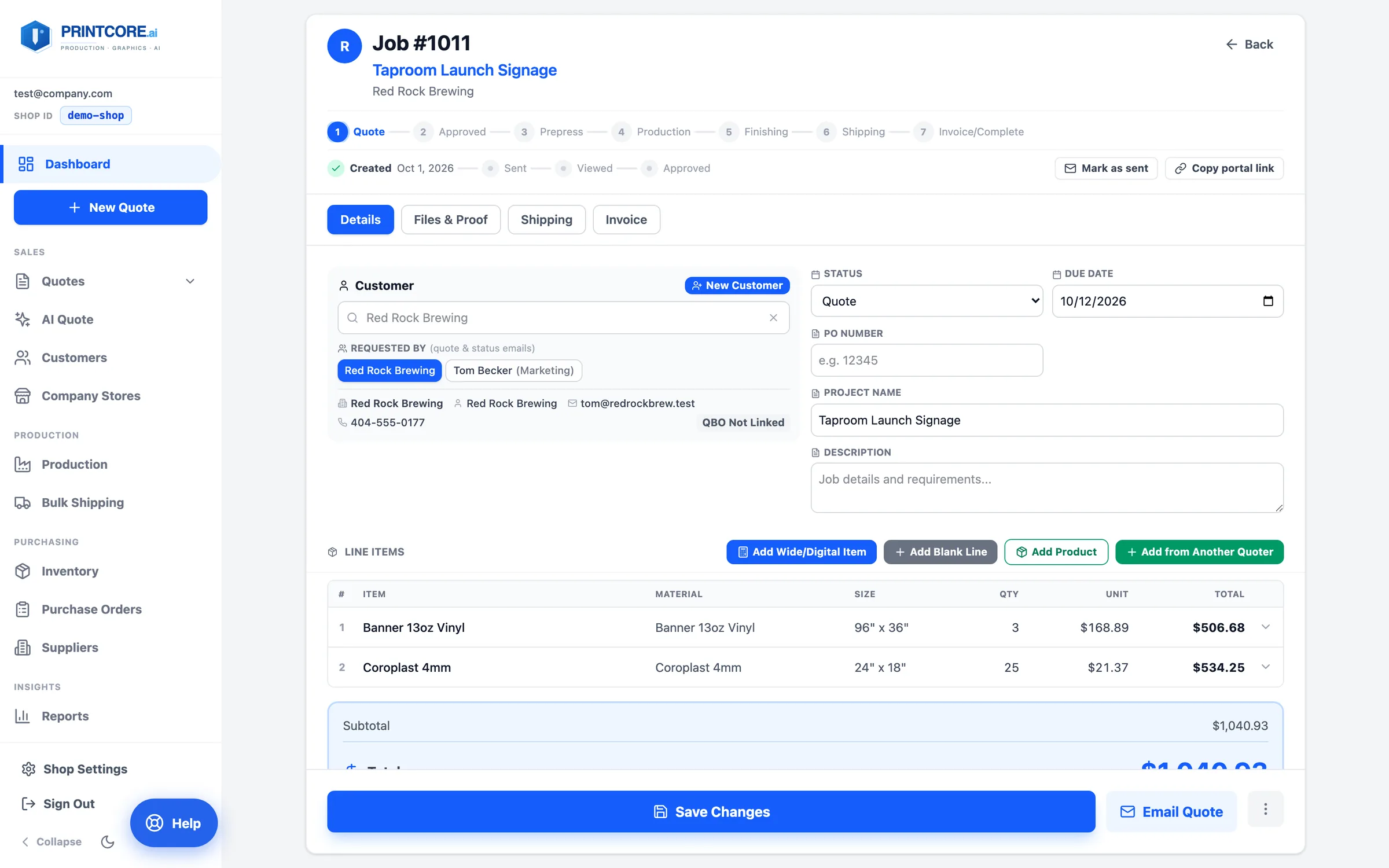
Click a card on the board for the quick-edit window, or open the job as a full page at /jobs/<job number> — bookmarkable, shareable, and Back-button friendly.
app.printcore.ai/jobs/1011
What to do
From the quick-edit window click Open as a full page, or type the job's address. The Details tab shows the customer and job header side by side, with the line items directly below.
Why it matters
Line items are above the fold. You see what the job is without scrolling.
Step 2 of 6The Job Ticket
Edit a line in place
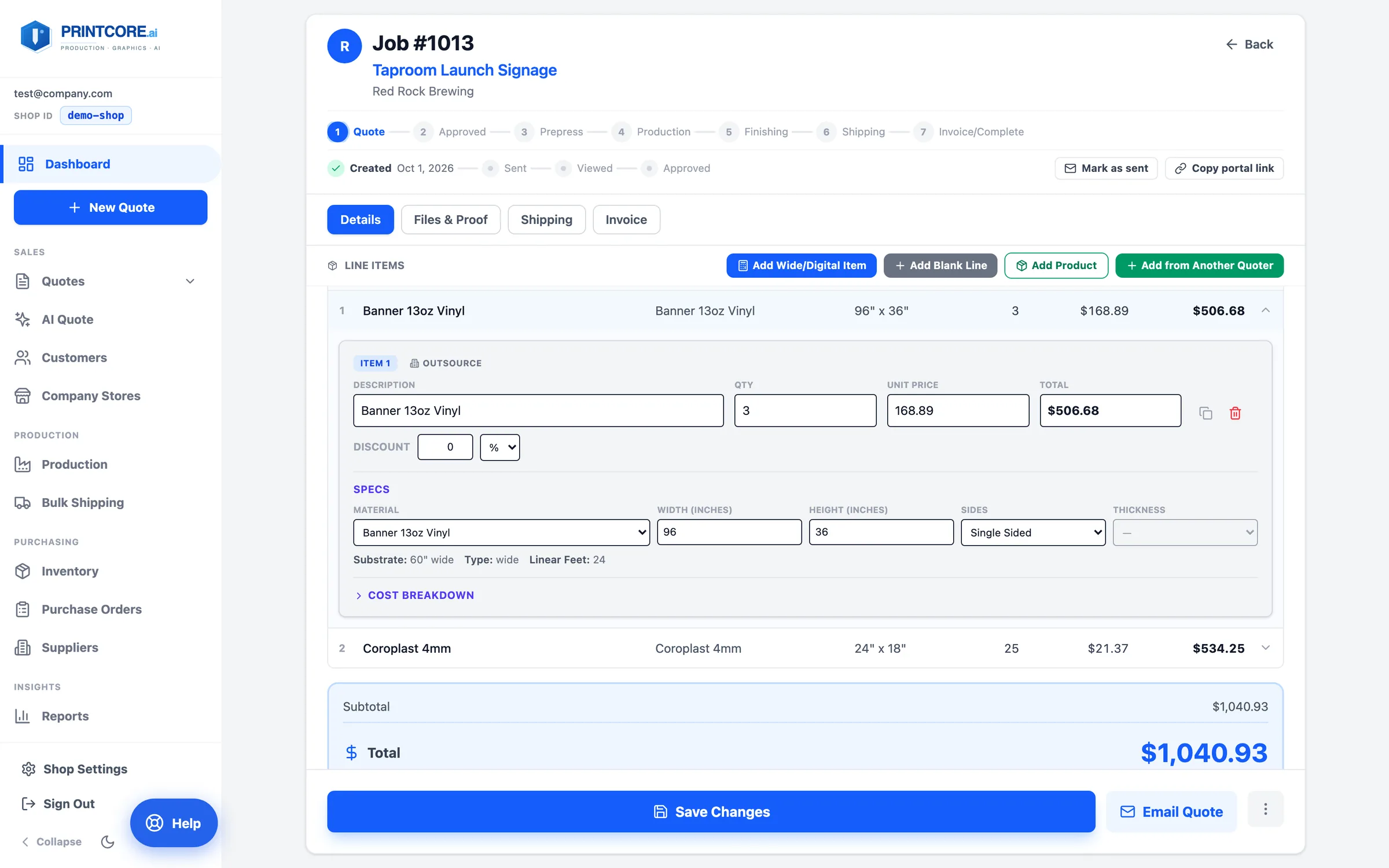
Line items are a compact table — item, material, size, quantity, unit, total. A chevron opens one row at a time into the inline editor.
app.printcore.ai/jobs/1013
What to do
Click a row's chevron. Change material, size, sides, or quantity and the line re-prices live; a unit price you edit by hand is preserved. Set a per-line discount here too.
Why it matters
You fix a quote without going back to the calculator — and the customer-facing price stays exactly what you typed.
Step 3 of 6The Job Ticket
Add lines four ways
Above the table: Add Wide/Digital Item (priced by the calculator), Add Blank Line, Add Product (your catalog, and Apparel & Promo when it's on), and Add from Another Quoter (booklet, wrap, cut vinyl, channel letter). An open line also has a Duplicate button for another quantity tier.
app.printcore.ai/jobs/1011
What to do
Use the buttons above the line-item table. Lines from every calculator sit on the same job.
Why it matters
One job carries the whole order — the banner, the booklet, and the decals — with one total.
Step 4 of 6The Job Ticket
Quote status, links, and the ⋮ menu
The status strip shows Created → Sent → Viewed → Approved with dates, Copy portal link, and Mark as sent…. Save Changes and Email Quote stay in the footer; Print, Duplicate, and Delete live in the ⋮ menu.
app.printcore.ai/jobs/1011
What to do
Send the quote from Email Quote. Set the Requested By contact — quote, proof, and status emails all go to that person, and the proof panel shows Will send to before you send. Closing with unsaved edits asks first.
Why it matters
The ticket is the single source of truth for the quote's state — no separate tracking spreadsheet.
Step 5 of 6The Job Ticket
Files, proofs, shipping, invoice
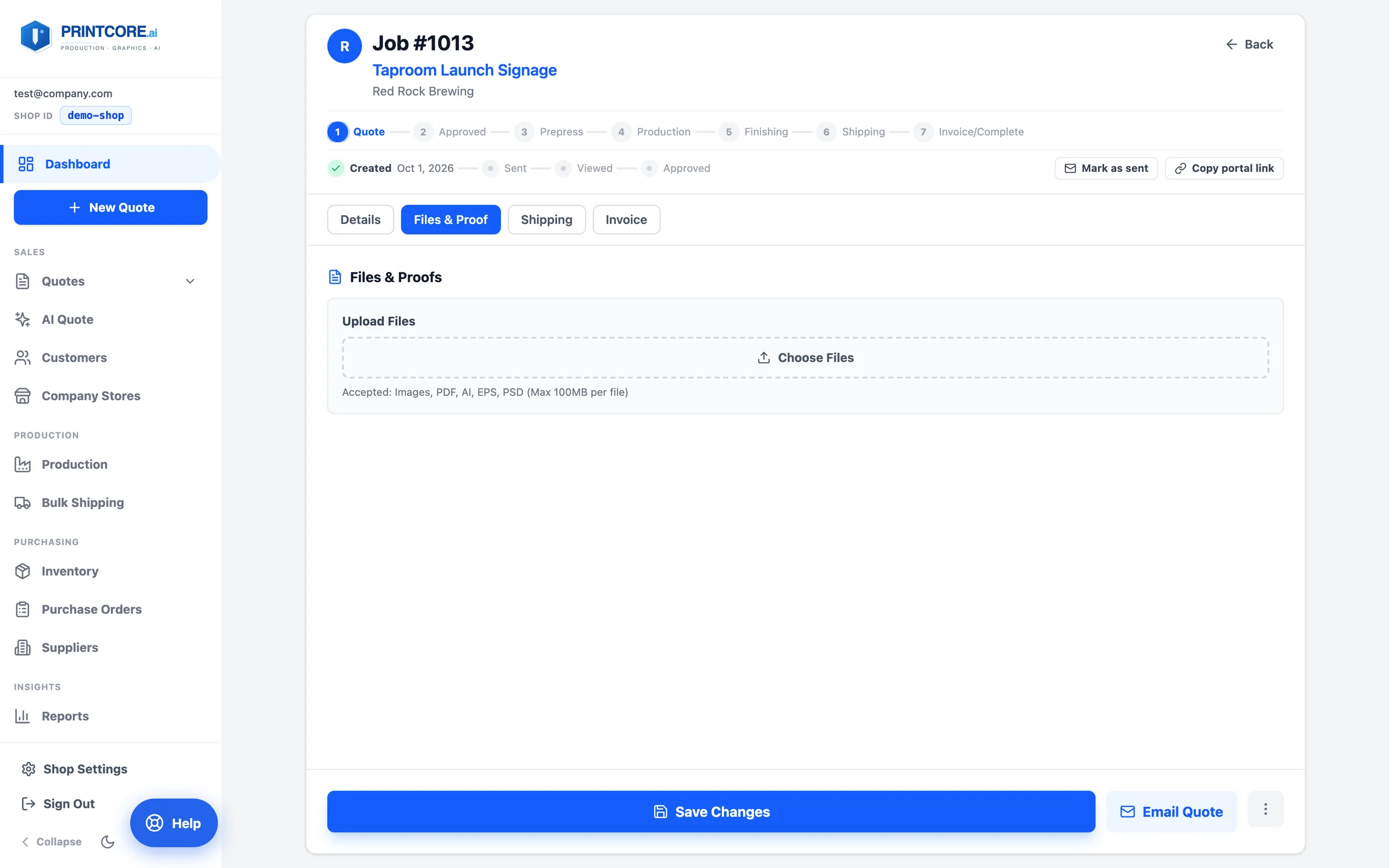
The other tabs: Files (uploads up to 100 MB, AI Proof Check, downloadable trim proof, send-for-approval), Shipping (boxes, rates, labels, packing slips), and Invoice (creates the invoice in your accounting software with per-line discounts and the PO number).
app.printcore.ai/jobs/1013
What to do
Work the tabs left to right as the job progresses. Moving the job to Invoice/Complete closes any open production operations automatically.
Why it matters
Nothing about a job lives anywhere else. Files, approvals, boxes, and the invoice are all on the ticket.
That's the full tour 🎫
Next: Ask Printcore — describe a job in plain words and get a priced draft back.