Step 1 of 7Product Presets
Build your catalog
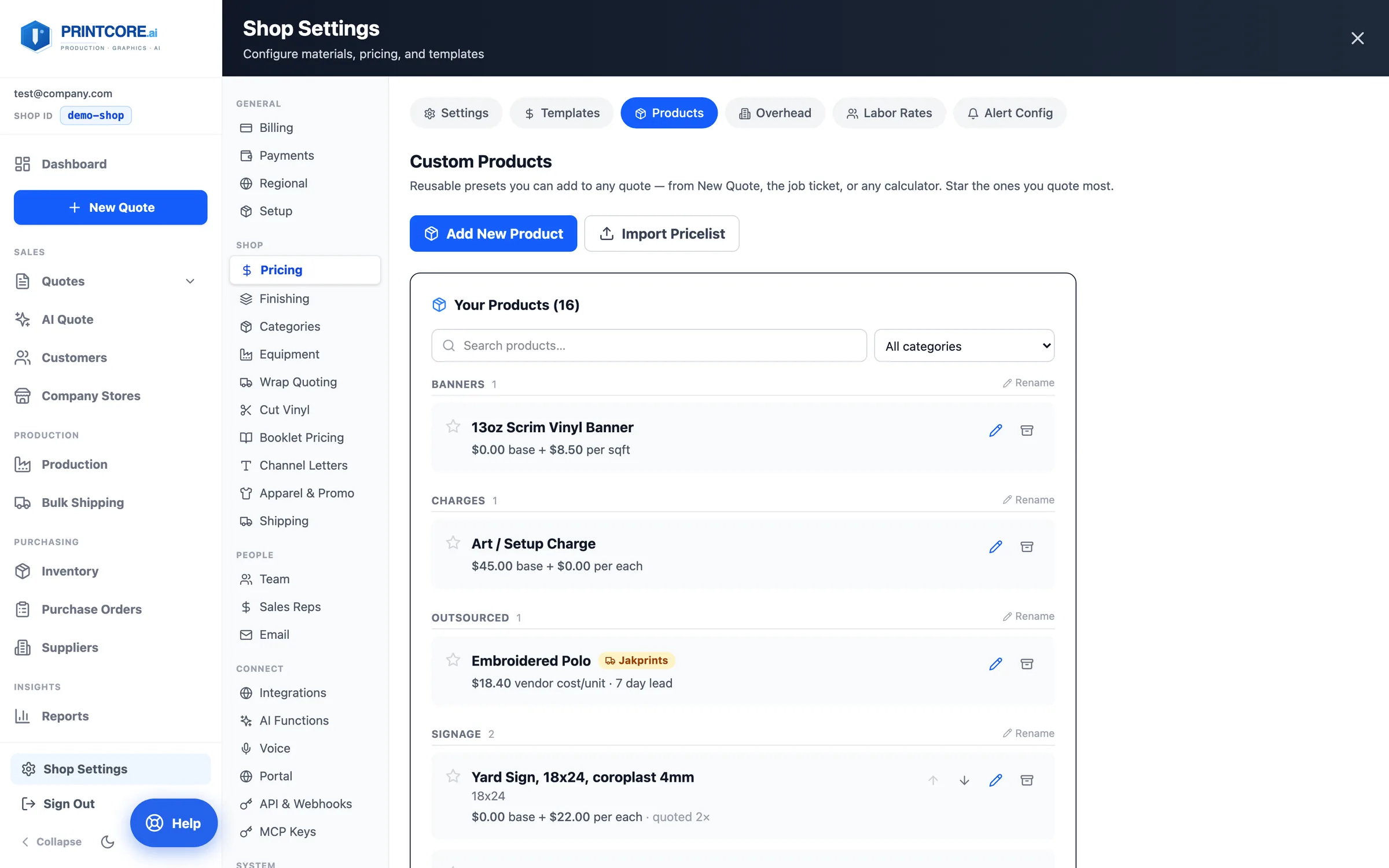
Shop Settings → Pricing → Products holds your presets — yard signs, retractable banners, business cards, coroplast with H-stakes — each with a setup fee and a per-unit or per-square-foot price (priced off the finished size).
app.printcore.ai/settings/pricing/products
What to do
Add a product with its name, category, and pricing. Star favorites to pin them to the top of every picker, reorder within a category, rename a category, and Archive instead of delete so old jobs still re-price.
Why it matters
The things you quote ten times a week shouldn't be rebuilt from material and dimensions every time.
Step 2 of 7Product Presets
Import the price list you already have
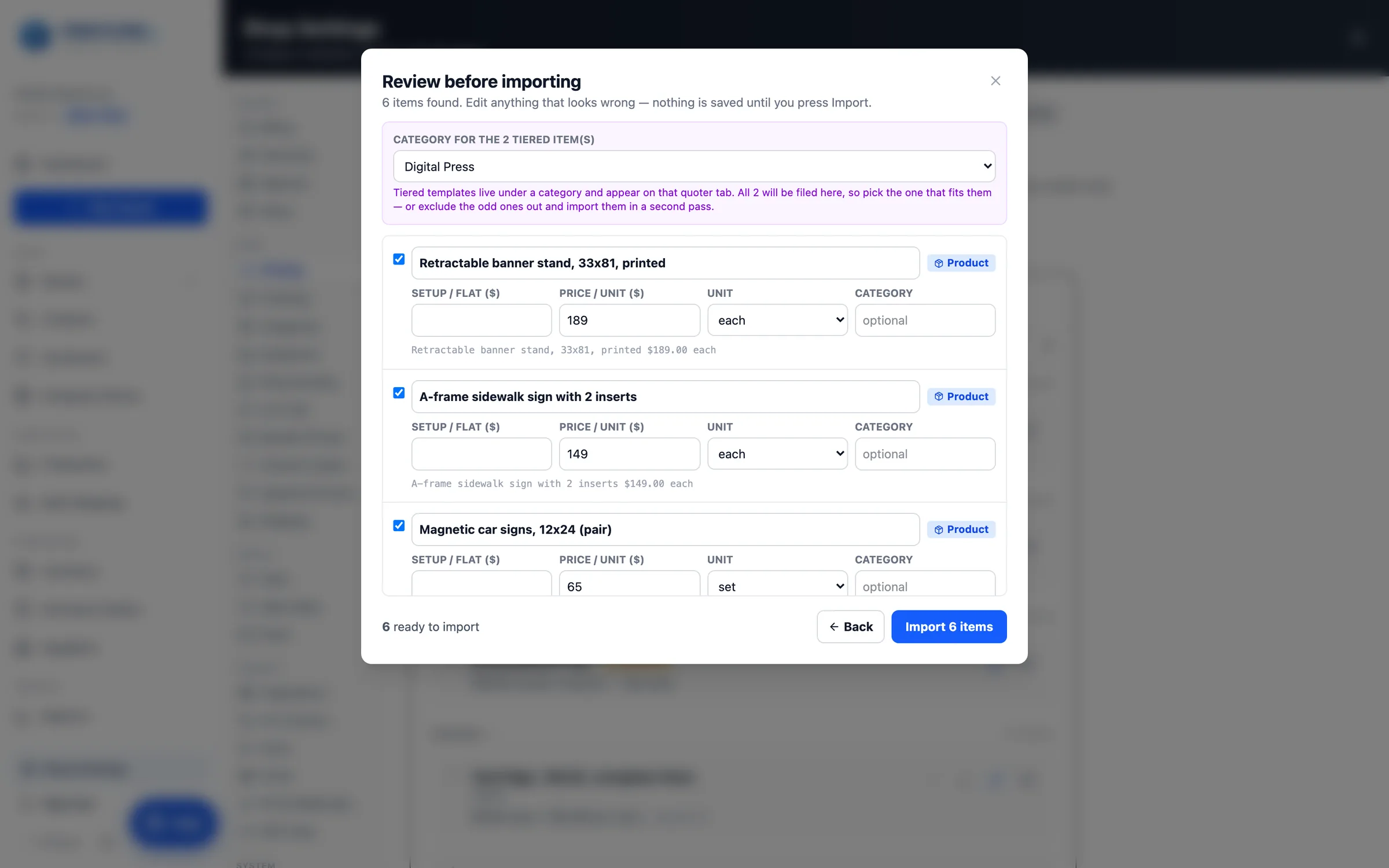
Import Pricelist reads your existing price sheet — a CSV, a table pasted out of Excel, text lifted from a PDF rate card — and proposes catalog entries. Flat prices become products; anything with quantity breaks becomes one pricing template with its tiers intact. It never invents a price or a unit: "call for quote" is skipped, not guessed at.
app.printcore.ai/settings/pricing/products
What to do
Click Import Pricelist on the Products page — or use the Pricelist step in the setup wizard. Paste or upload the list, then review: nothing is saved until you press Import. Red rows are blocked until fixed; the one to know is "These look like tier TOTALS, not per-unit prices" — press Divide by quantity and the row repairs itself. Check the unit on every row before importing.
Why it matters
Typing a rate card in by hand is the slowest hour of onboarding. And a tier total left in the per-unit field is invisible on screen — it quotes 1,000 business cards at 1,000 × $89. Feeding the same sheet to Import Pricing Data instead is a different tool for a different job: that one learns from past invoices, this one sets exact prices.
Step 3 of 7Product Presets
Quote a preset from New Quote
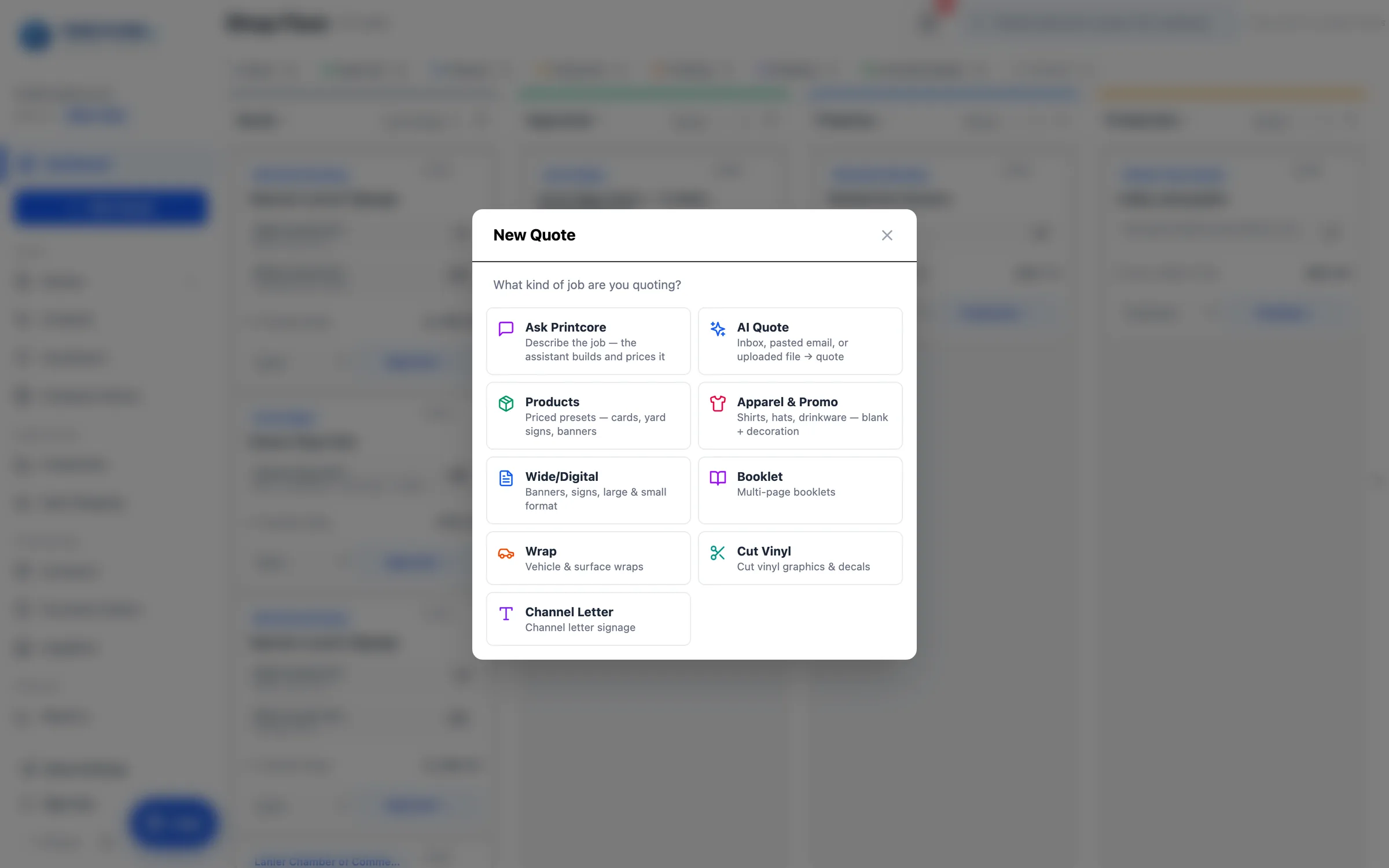
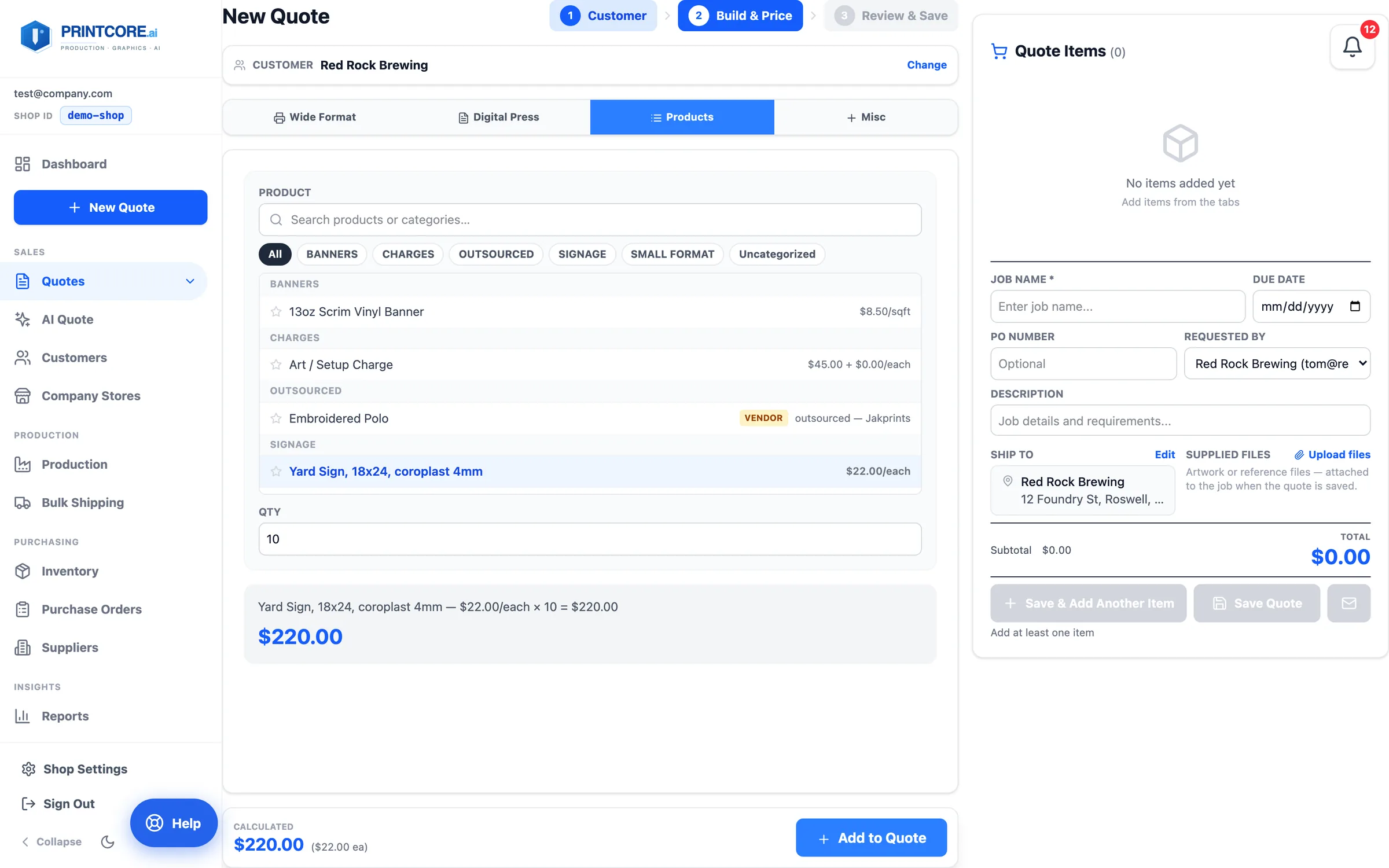
The Products tile on the New Quote picker is the fastest quote in Printcore: pick a customer, pick a preset, set the quantity. Your merch catalog has its own Apparel & Promo tile when it's switched on.
What to do
Click New Quote → Products. Choose the customer and the preset, then Add to Quote to keep building — or Add & Send Quote to file the line and open the email preview immediately.
Why it matters
A standard reorder goes from phone call to sent quote in under a minute.
Step 4 of 7Product Presets
Add a preset from anywhere
The same picker is one click away everywhere you build a quote: the Products tab in Wide/Digital, an Add Product button in every specialty calculator (Booklet, Wrap, Cut Vinyl, Channel Letter), and a fourth line-item button on the job ticket.
app.printcore.ai/quotes/wide-digital
What to do
In any calculator, click Add Product. The picker groups by category, shows favorites first with category chips, and searches as you type.
Why it matters
A wrap plus a set of matching decals from the catalog is one quote, built without leaving the wrap builder.
Step 5 of 7Product Presets
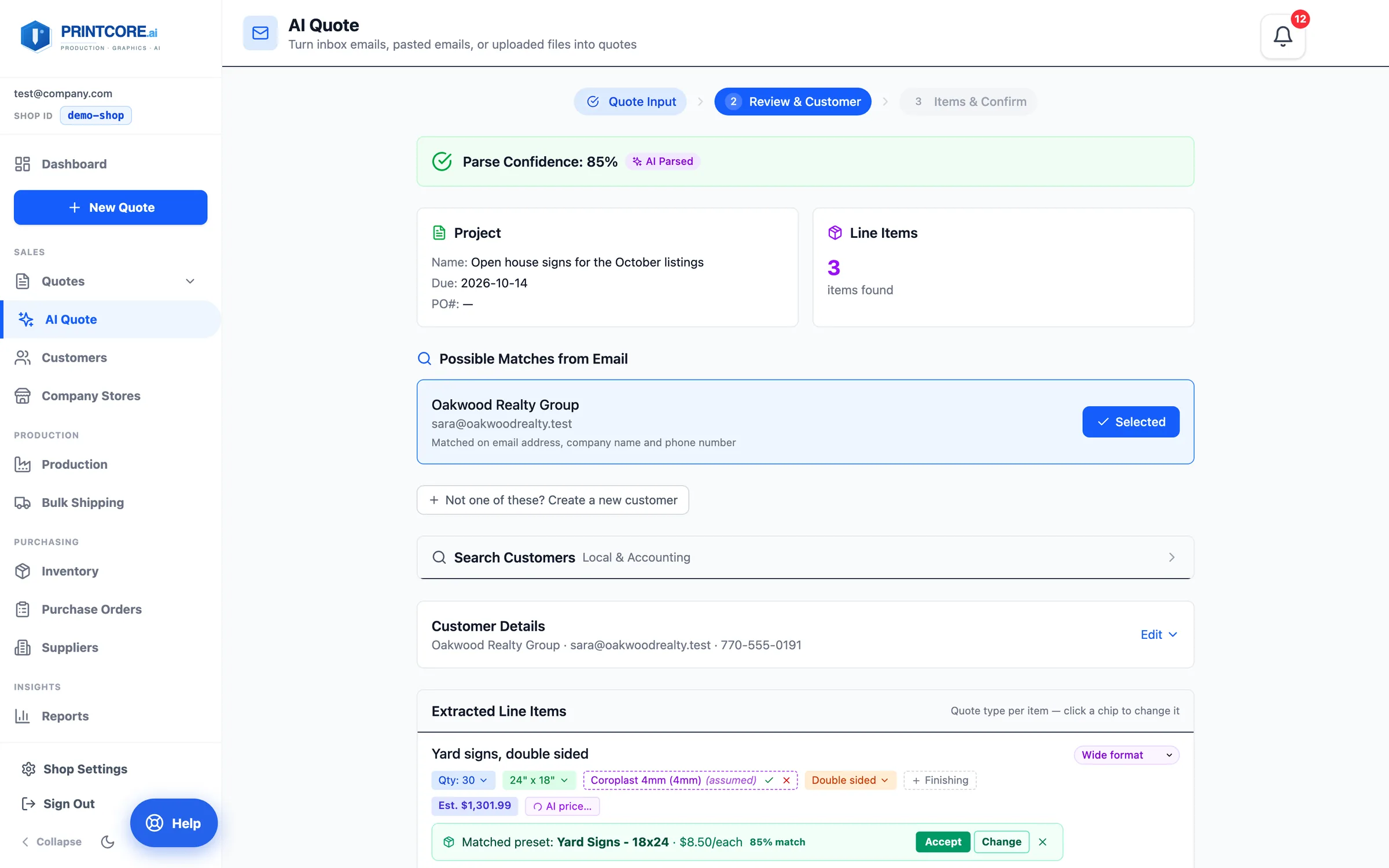
AI Quote suggests presets too
When a parsed line looks like one of your products, AI Quote shows a preset chip with a match score — Accept, Change, or dismiss. Accepted lines price from the preset and never warn about a missing material or size.
app.printcore.ai/quotes/ai
What to do
Accept the chip, or use Price from a preset… to open the picker when no match was found.
Why it matters
"Fifty 18×24 yard signs with stakes" becomes your catalog item at your catalog price, automatically.
Step 6 of 7Product Presets
Vendor-supplied products
A preset can be marked as bought from a vendor, with a supplier, a per-unit vendor cost, and a lead time. Quoting one prices it from vendor cost × your outsource markup, flags the line outsourced, and files the vendor detail for a purchase order.
app.printcore.ai/settings/pricing/products
What to do
On a product, tick Bought from a vendor, pick the supplier, and enter the cost and lead time.
Why it matters
Promotional products, engraved plaques, printed apparel — anything you resell — quote and reorder without retyping the vendor's price.
Catalog built 🏷️
Next: outsourced work — vendor costs, markups, and purchase orders, without the vendor ever appearing on the customer's quote.